## 1.
**[Preview and Design](#preview)**
## 2.
[**How to create**](#creation)
## 3.
[**How to translate**](/site-configuration/edit-translations "Edit translations")
---
## Preview
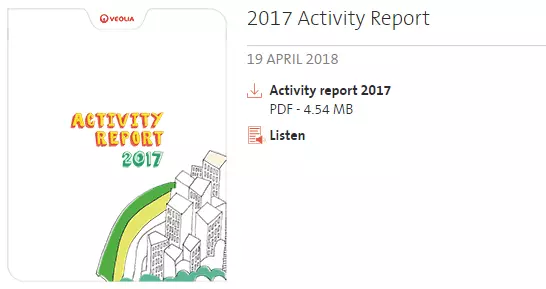
Publication media example
## Information architecture
Publication media is used for **[Publication listing](/templates/listing-pages/publications-listing-page "Publications listing page")**
## Design
One or several documents can be attached for pulbication media.
Publication media can be embed to a **Text paragraph** with no alignment and width options.
---
## How to create it
1. Go to **Content,** then click on **Media** tab
2. Click on add **Media** button
3. In the list of available media click on **Publication**
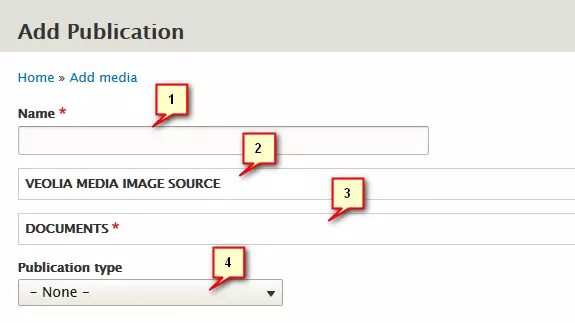
4. On create **Publication** form add **Name** and attach **Document**
5. Click on save button
More details about fields are described below on this page.
| Field | Description |
|---|---|
| 1 - Name | Publication title. |
| 2 - Veolia media image source | Image file. Allowed types: png gif jpg jpeg. |
| 3 - Documents | A file for document media. Will be opened on click. Several documents can be selected |
| 4 - Publication type | List of publication type. Can be managed via **taxonomy**. Also used as a filter in front-office. |
**Warning**
Publication media **doesn't allow translations** directly
(using translate tab in the publication won't work)
If you're managing a **multi-lingual site**,
then you have to **create** a publication for **each language**