## 1.
**[Preview and Design](#preview)**
## 2.
[**How to create**](#creation)
## 3.
[**How to translate**](/site-configuration/edit-translations "Edit translations")
---
## Preview
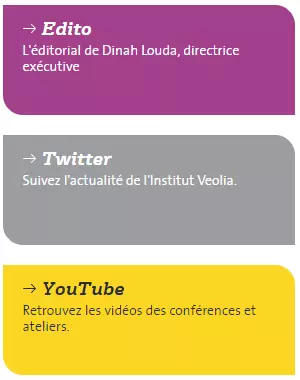
Link cards media examples
## Information architecture
Link Card media can be added to the **[Home Page](/homepage "Homepage")**
Click on link or description points to an internal or external page
## Design
Link Card media can use any of the Veolia colors
Description text can be set for the media
---
## How to create it
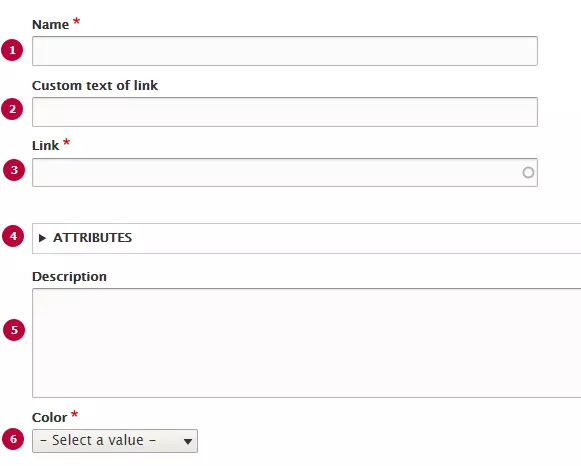
| Field | Description |
|---|---|
| 1 - Name | Used only in the backoffice |
| 2 - Custom text of link | Link title text, has h3 headers. If no value is set, link address will be shown as title. |
| 3 - Link | Internal or external link URL |
| 4 - Attributes | Link can be set to opens with a new tab. Link opens in the same tab by default |
| 5 - Description | Description text will be displayed under the link if it's set. Optional field |
| 6 - Color | Chose a background color for Link card media |
## How to add media to the Homepage
Ask the Admin team and provide the name for the Link Card and place within the page to place it. Action will be managed in site structure