## 1.
**[Preview and Design](#preview)**
## 2.
[**How to create**](#creation)
## 3.
[**How to translate**](/site-configuration/edit-translations "Edit translations")
---
## Preview
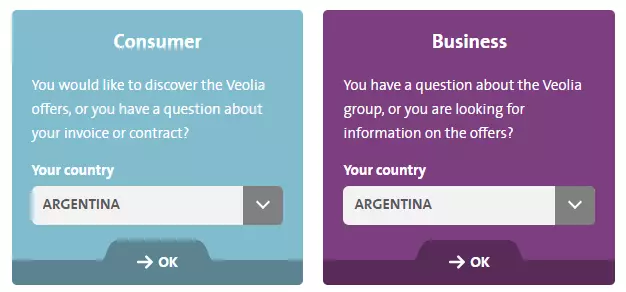
Multi Choices Links media examples with one select field
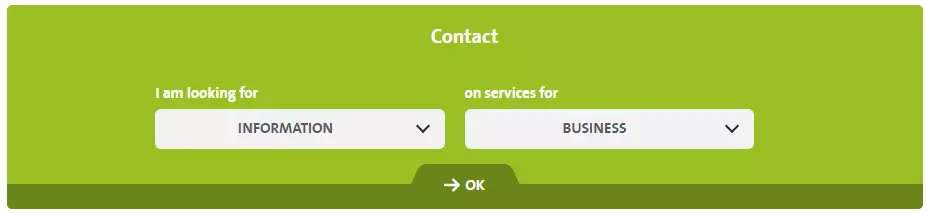
Multi Choices Links media example with two select field
## Information architecture
On submit redirect user to the URL defined by the field Combined values, using the selected options in the drop down field(s).
Media can be created with one or two select fields.
Internal or external links can be set.
This media don't need alignment options when embedding in WYSIWYG.
## Design
In case, if two select fields are set, URLs should be defined for each combination.
Pre-fill combined values button will update 'Combined values' data.
Values in the second Drop Down depends on selected value in first. It's possible to hide some options in the second Drop down for some values in the first
---
## How to create it
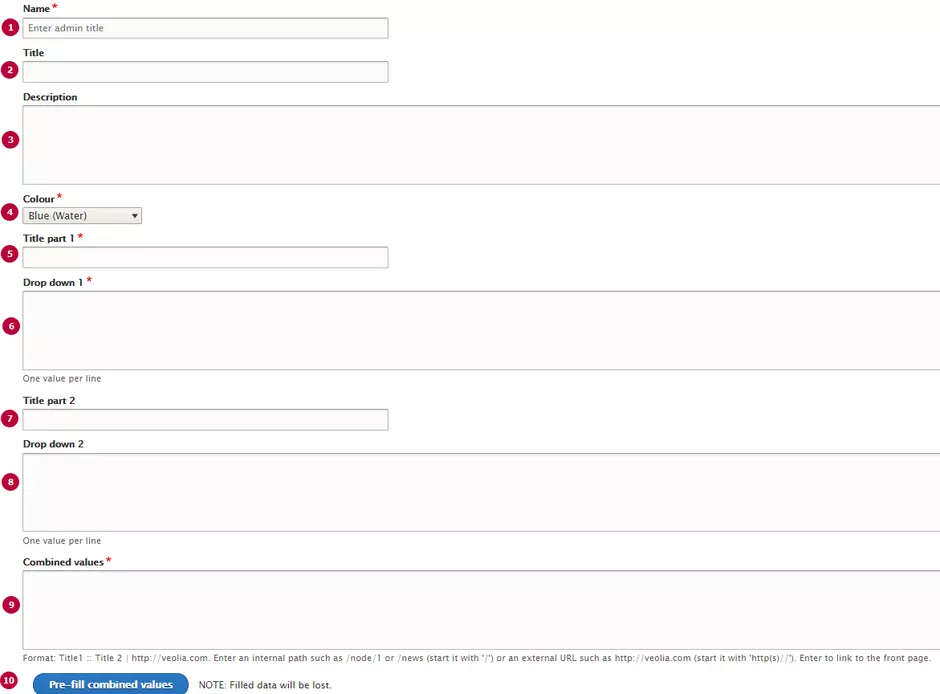
| Field | Description |
|---|---|
| 1 - Name | Used only in the backoffice |
| 2 - Title | Displays as title text with center alignment. Displays with h3 header |
| 3 - Description | Text displaying under the title. Text is aligned by the left side |
| 4 - Colour | Background colour of the media. Uses the Veolia colors Default color is Blue (Water) #00AEC7 |
| 5 - Title part 1 | Title of the first Drop down field. Text displays above the drop down |
| 6 - Drow down 1 | List of options for Drop down 1. Each option should starts from the new line Default option is the first item of the field |
| 7 - Title part 2 | Title of the second Drop down field. Text displays above the drop down |
| 8 - Drow down 2 | List of options for Drop down 2. Leave field empty to create a media with only one Drop down field |
| 9 - Combined values | List of configuration with Drop down's values and URLs. Each value should starts from the new line **Format:** information :: Businesses \| http://www.veolia.co.uk |
| 10 - Pre-fill combined values | Adds full list of combination to the field 'Combined values' in appropriate format. |
##