**This procedure guides you to configure your site's navigation through the navigation menu settings.**
### Main navigation
[click here](#Main_navigation)
### Secondary navigation
[click here](#secondary_navigation)
### Header settings
[click here](#Header_settings)
### The footer menu
[click here](#Footer_menu)
## Access the main navigation menu
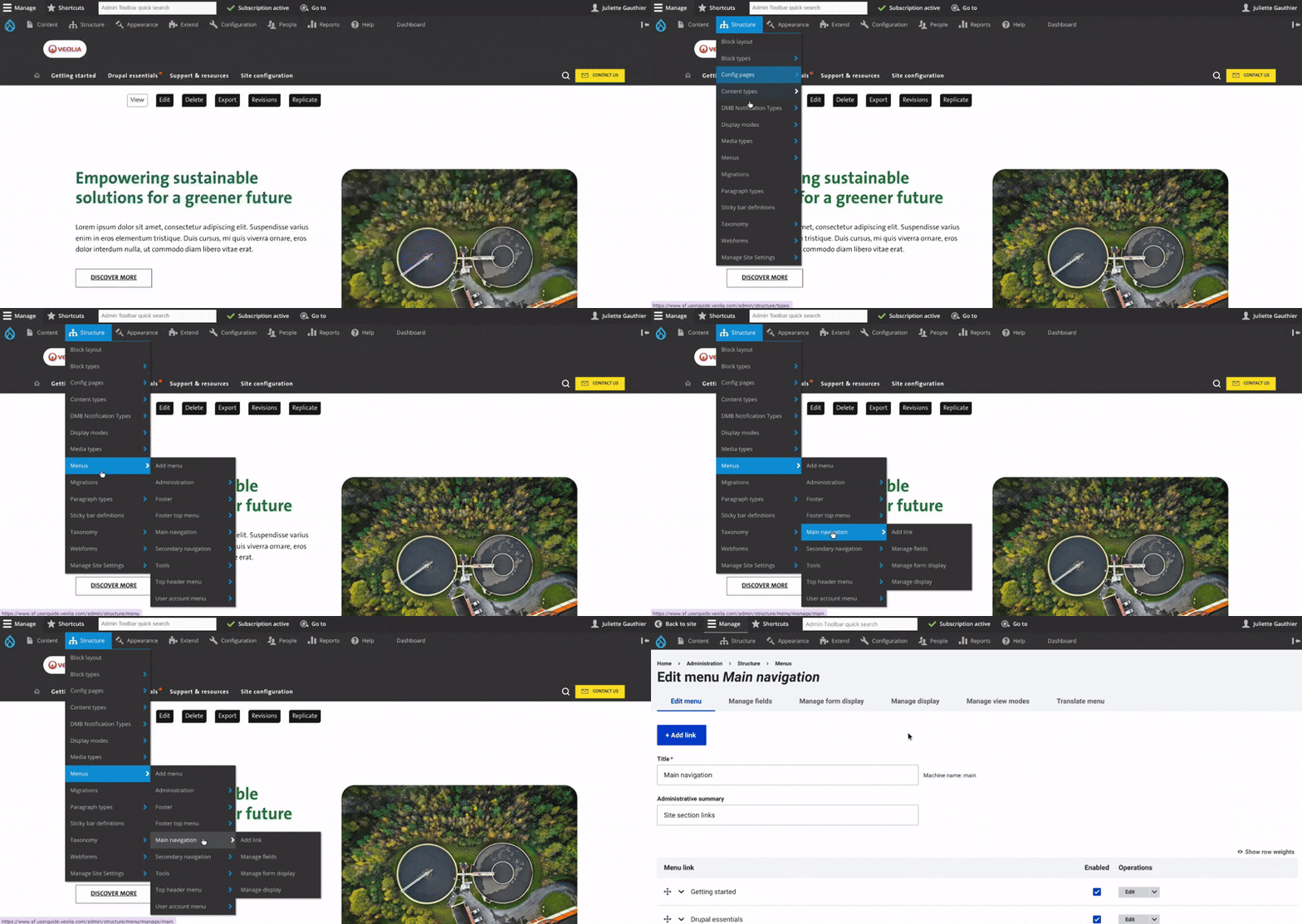
To access, first click on **Structure** in the main menu.
Then, go to the **Menus** section.
From there, click on **Main navigation**.
## Navigation structure
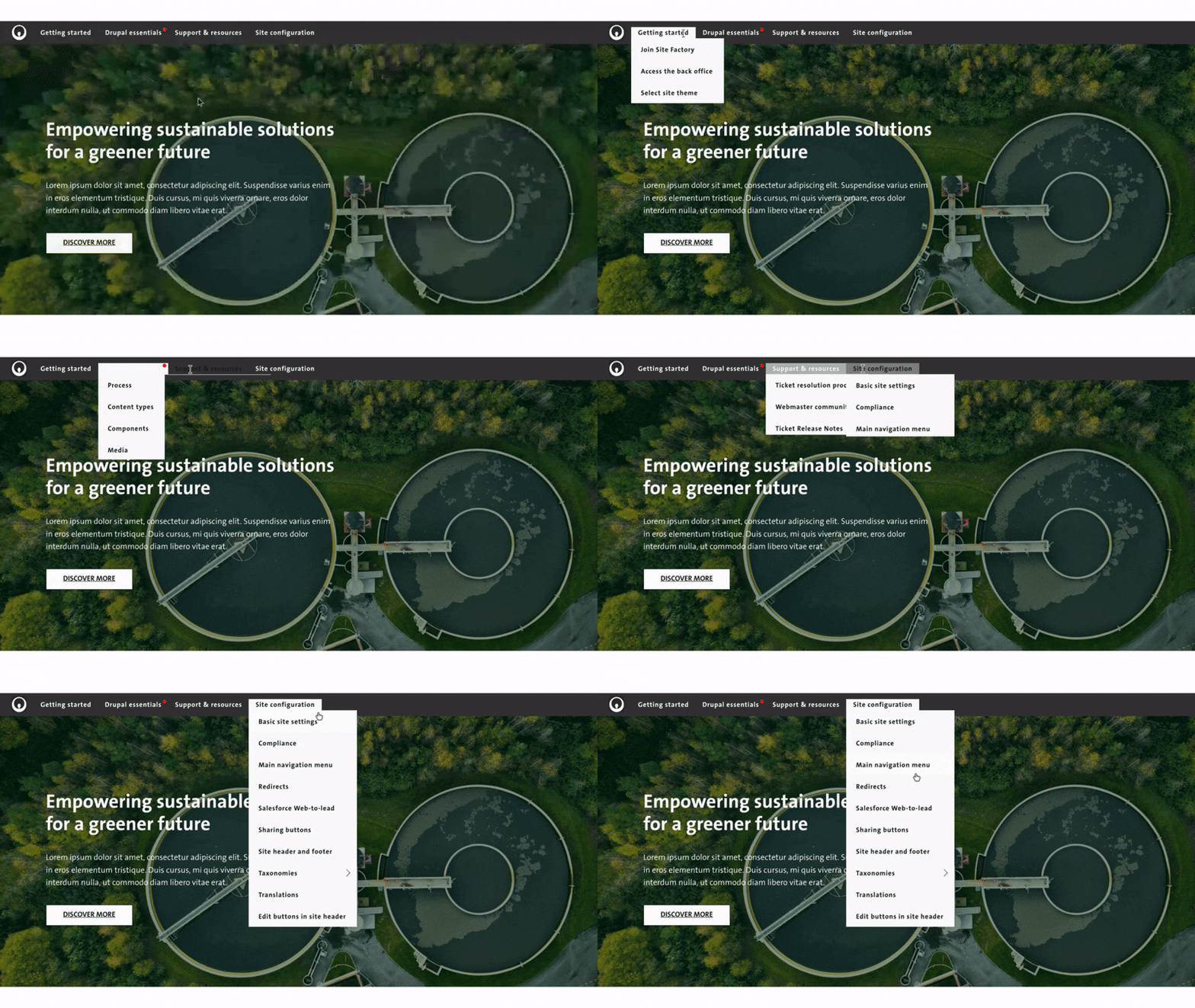
The **first-level navigation** is always visible at the top of the site.
When you hover over a first-level menu item, a dropdown menu displays the **second-level navigation**, allowing access to more specific sections.
**Recommendation**: For your websites, do not exceed **two levels of navigation** to ensure a more intuitive user experience, and improved SEO performance.
## Navigation first level set up
\_\_\_\_\_\_\_\_\_\_\_\_\_\_\_\_\_\_\_\_\_\_\_\_\_\_\_\_\_\_\_\_\_\_\_\_\_\_\_\_\_\_\_\_\_\_\_\_\_\_\_\_

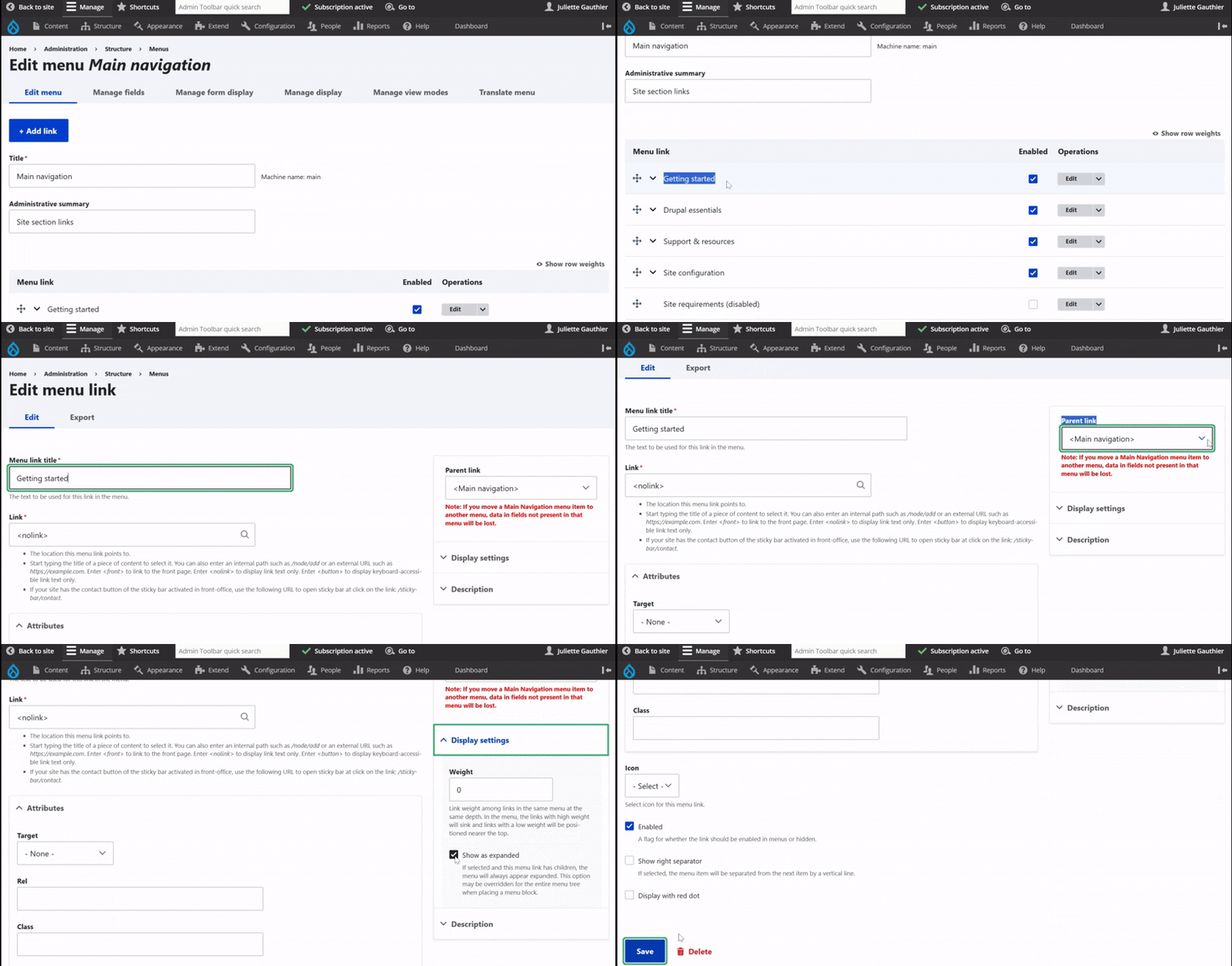
In the **Menu link**, you can see all the **main navigation** items.
To add a **main navigation** item, click the blue **Add link** button at the top.
On the edit page, enter the **menu title** and the **link** to the page. **Recommendation**: Use a <nolink> (as shown in the example GIF).
For the first level navigation, make sure to check the "**Show as expanded**" box.
Below, check **"Enable for all pages"**. You can also choose to enable **"Show right separator"** — a thin line that separates items — and **"Red dot"** to highlight and draw attention to specific content.
On the right, set the **Parent link** to "Main navigation", then click **Save**.
## Navigation second level set up
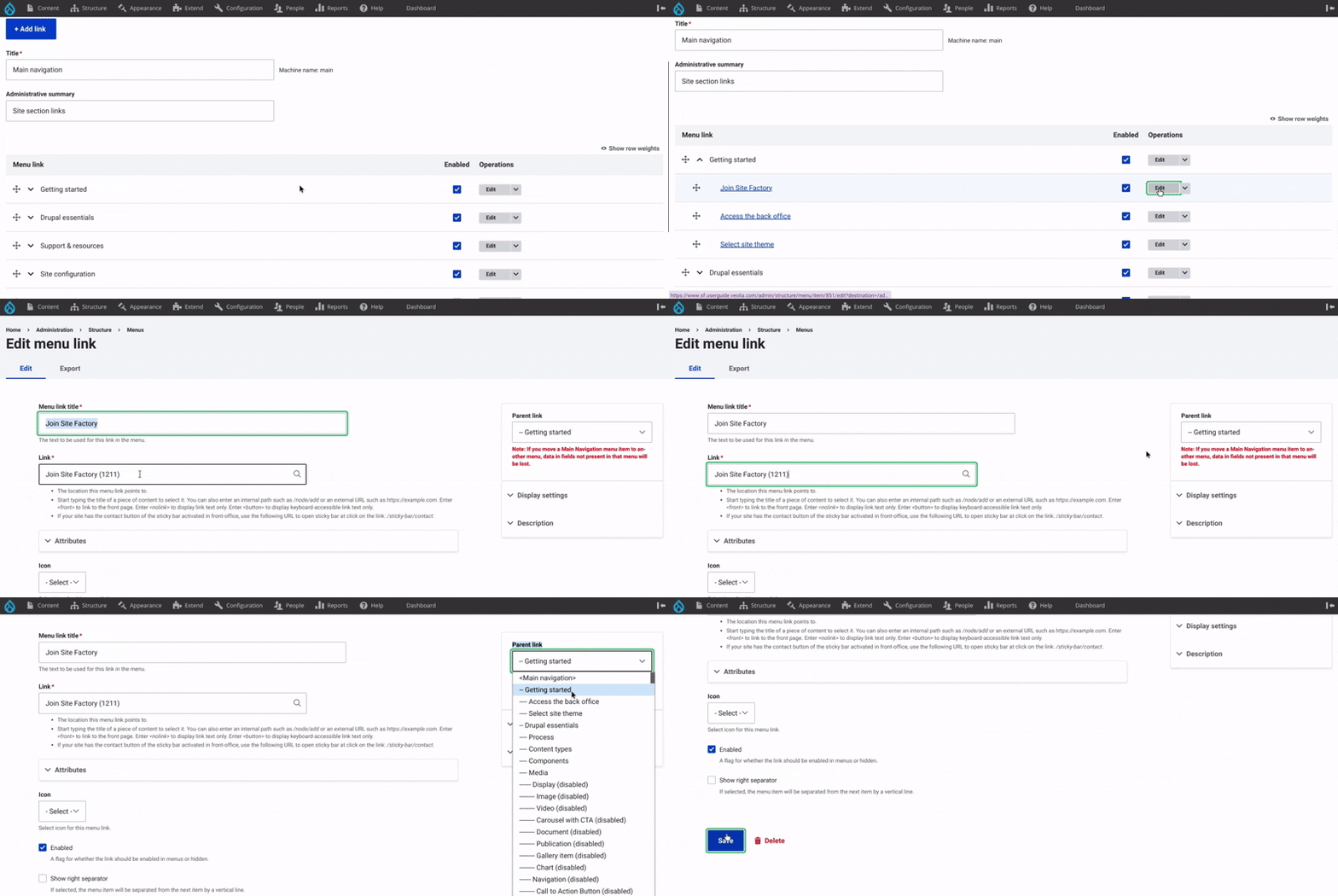
The **second-level navigation** is located under the **main navigation** in the **Menu link**. To edit or add a sub-item, click on **Edit** to the right.
On the edit page, enter the title of the menu item and paste the **node** (URL path) of the page it should link to.
Then, on the right side, choose the **Parent link**. It is very important to set the parent link to the correct **level 1 menu item** from the **Main navigation**.
Once everything is set, click **Save**. Your second-level item will now appear under the selected main menu item.
## Setting up main navigation | second method
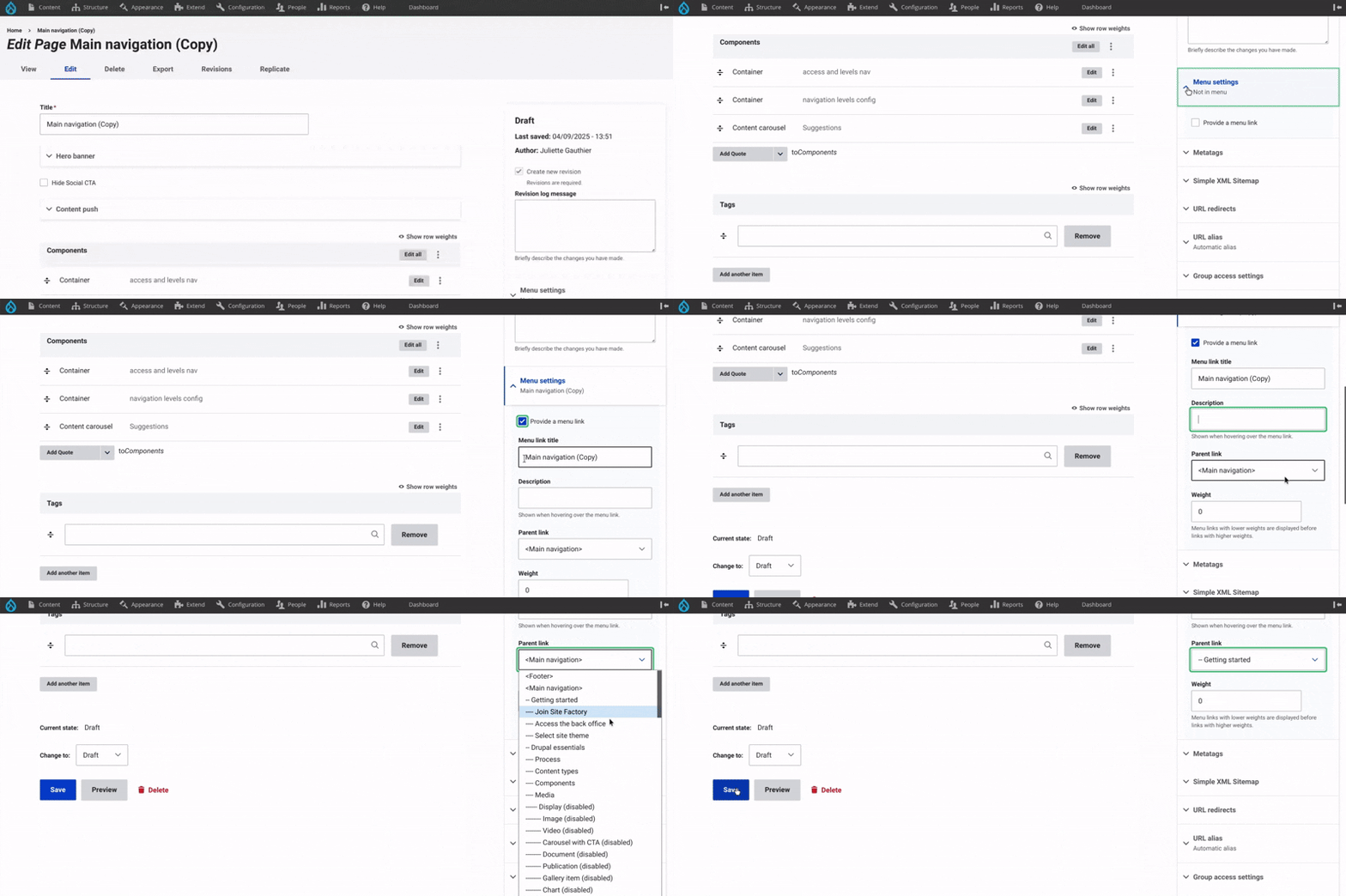
There is a second method for adding a page to the navigation.
In the right-hand menu, open the **Menu settings** dropdown, check **"Provide a menu link"**, then enter the menu title and description.
Before publishing the page, make sure to specify the **Parent link**, which corresponds to the Level 1 navigation item. It's essential to correctly position your page within the site's menu structure.

## Navigation order settings
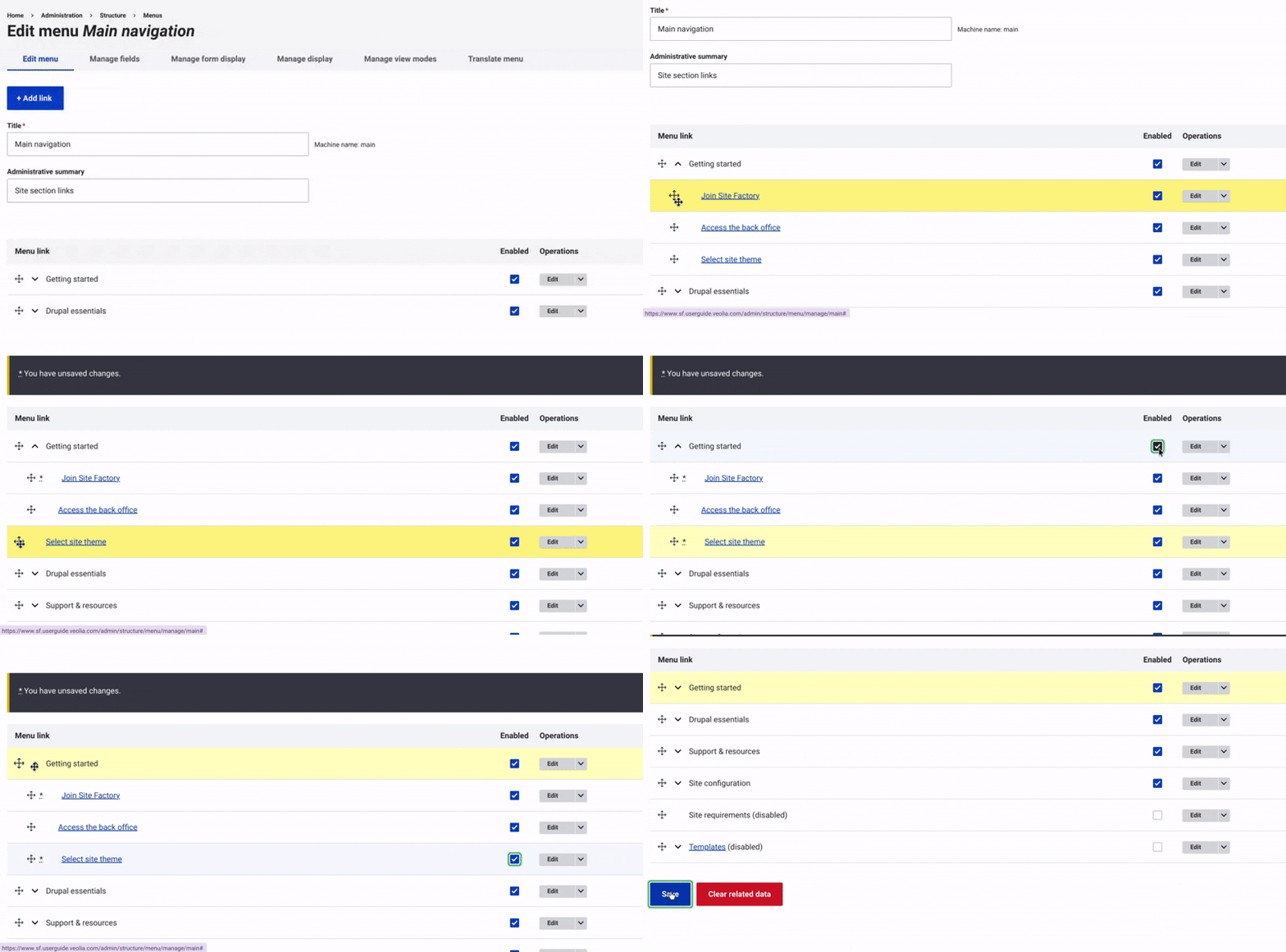
You can easily reorder your menu items. Simply **drag the arrow icon.**
**Drag and drop** the item to switch between level 1 and level 2. Move it slightly right to nest it under a parent.
Moreover, before publishing, you can choose whether to display or hide the menu item and its page. To do this, simply **check or uncheck the "Enabled" box**.
## Translation of main navigation menu
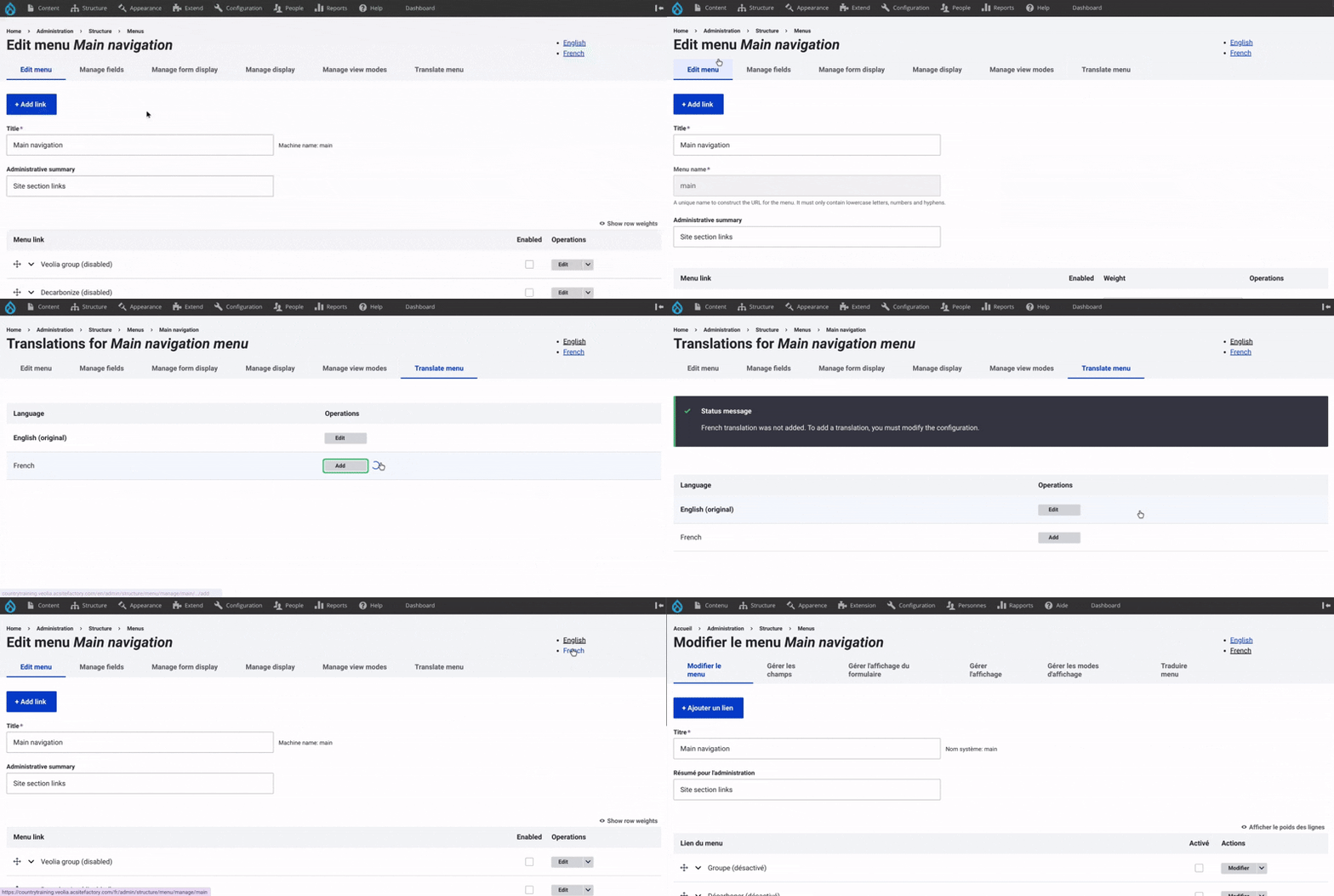
To translate the main navigation menu, you must first create the **complete menu structure** in the original language. This includes all **level 1 items** and their associated **level 2 items**.
**Once the full menu is set up**, you will be able to **translate** **into another language** from the menu interface.
[⬆](#scrolltotop)
---
## Access the secondary navigation menu
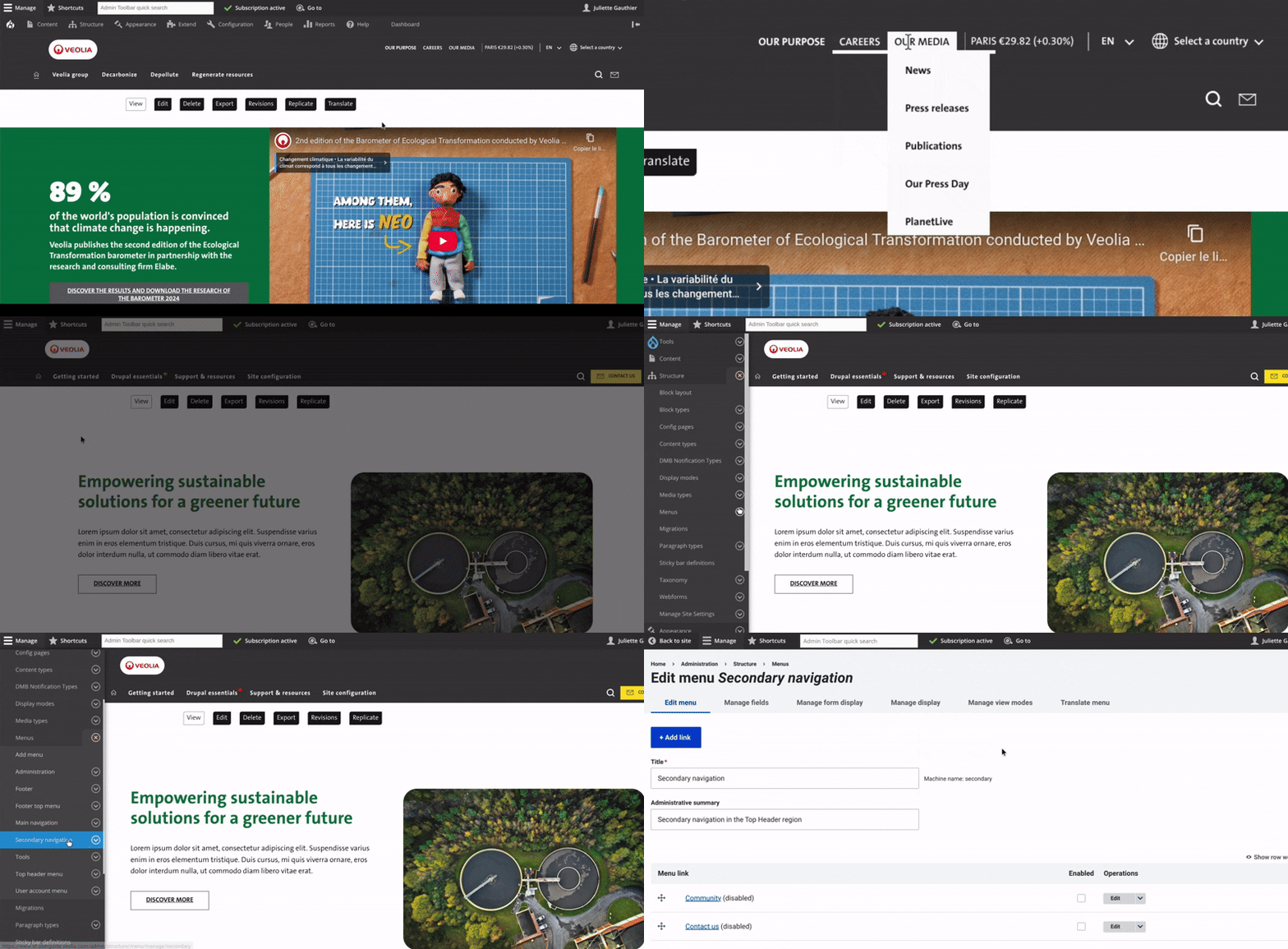
To access, first click on **Structure** in the main menu.
Then, go to the **Menus** section.
From there, click on **Secondary navigation**.
⚠️ If you need a change on the map or the content of the Region switcher, please send the request to the Site Factory contact person. This kind of change requires Admin permissions.
## Secondary navigation set up
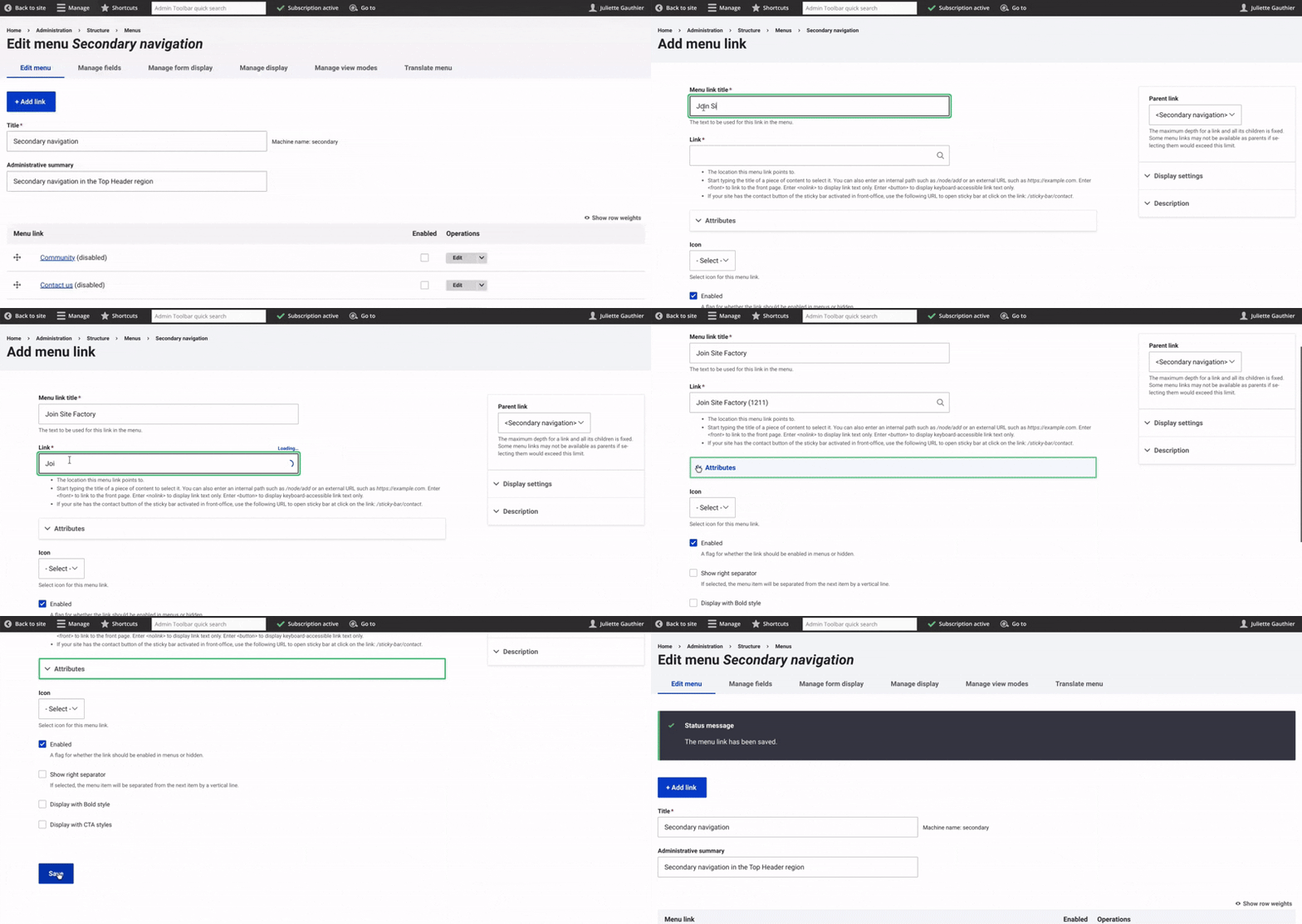
To edit or add an item, click the blue **Add link** button at the top.
On the edit page, enter the **title** of the menu item and paste the **node (URL path)** of the page it should link to.
Then, on the right side, choose the Parent link. It is very important to set the parent link to **Secondary navigation** item.
Once everything is set, click **Save**.
You must first create the **complete secondary navigation menu** in the original language; once this is done, translation will be available through the **Translate menu**. Plus, the **region switcher** will be automatically installed.
[⬆](#scrolltotop)
---
## Access the header settings
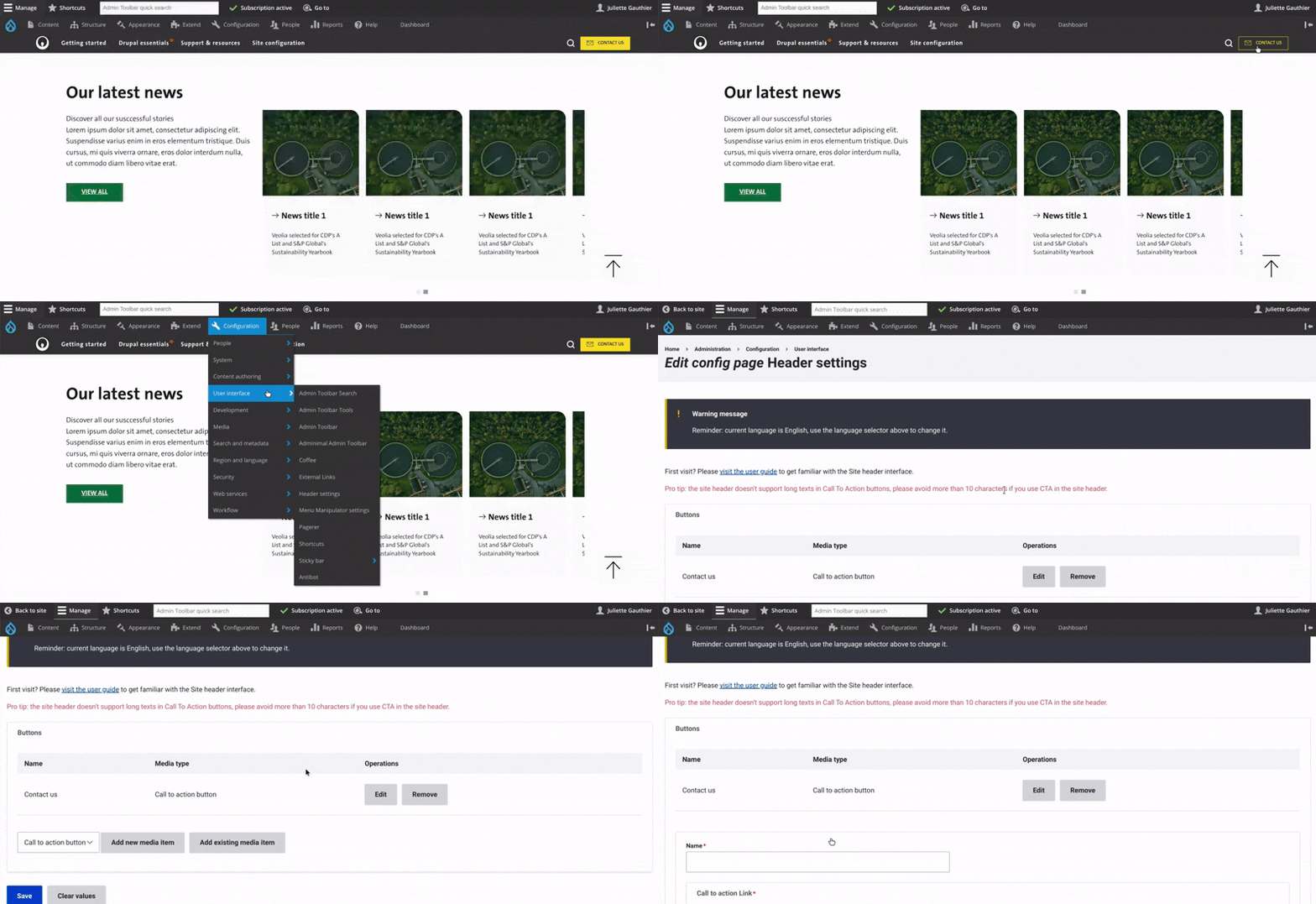
To access the Basic Site Settings, first click on **Configuration** in the main menu. Then, go to the **User interface** section. From there, click on **Header Settings**.
You’ve now arrived on the **Header Settings** configuration page. The warning message at the top reminds you which **language** the current settings apply to. To change the language, follow the recommended steps for creating a **CTA in the correct language**.
To create a **new CTA**, simply click **"Add new media item"** and proceed with the setup. ⚠️ If you need This item please send the request to the Site Factory contact person. This kind of change requires Admin permissions.
## Create a new media item (CTA)
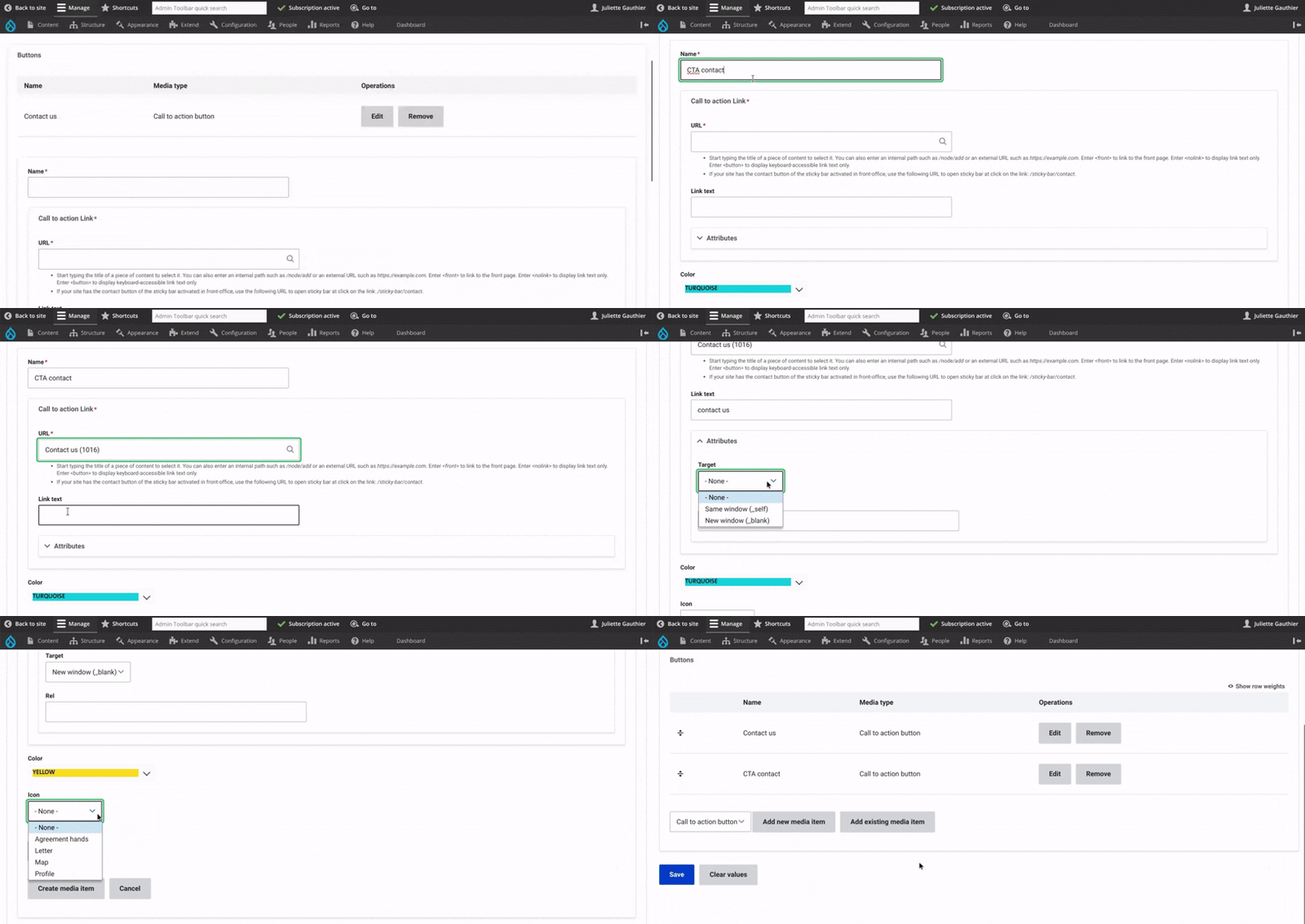
When creating a new CTA, the form appears just below.
Start by entering the **name**. In the **URL** field, add the link to the page you want users to be redirected to. Then, fill in the **link text**, which will be displayed on the CTA button.
In the **Attributes** field, choose whether the link should open in the **same window** or in a **new window** after clicking.
Next, select the **button color** and the **icon**. In most cases, the CTA is used to let users contact us, so the **"letter" icon** is commonly chosen.
Finally, click **Save** to confirm.
## Visual and configuration header settings
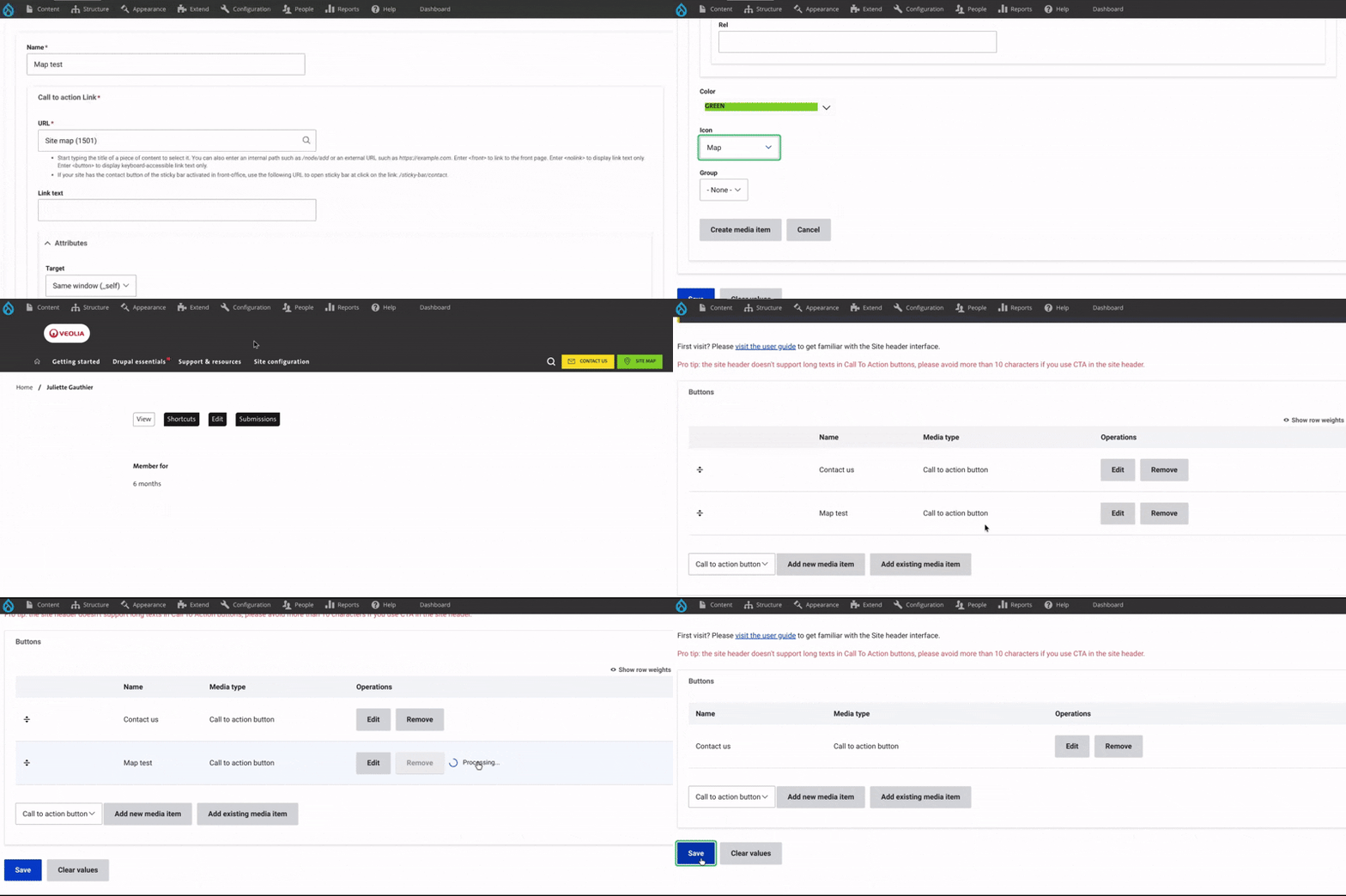
To manage the CTA order in the header, you can **reorder items** by dragging the **arrow icon** next to each one.
To **edit** or **remove** a CTA, click on **Edit** or **Remove** at the end of the row, on the right.
If you choose to remove it, make sure to **confirm the deletion** by answering the confirmation question that appears just below.
Finally, click **Save**.
[⬆](#scrolltotop)

## Footer and top footer menu
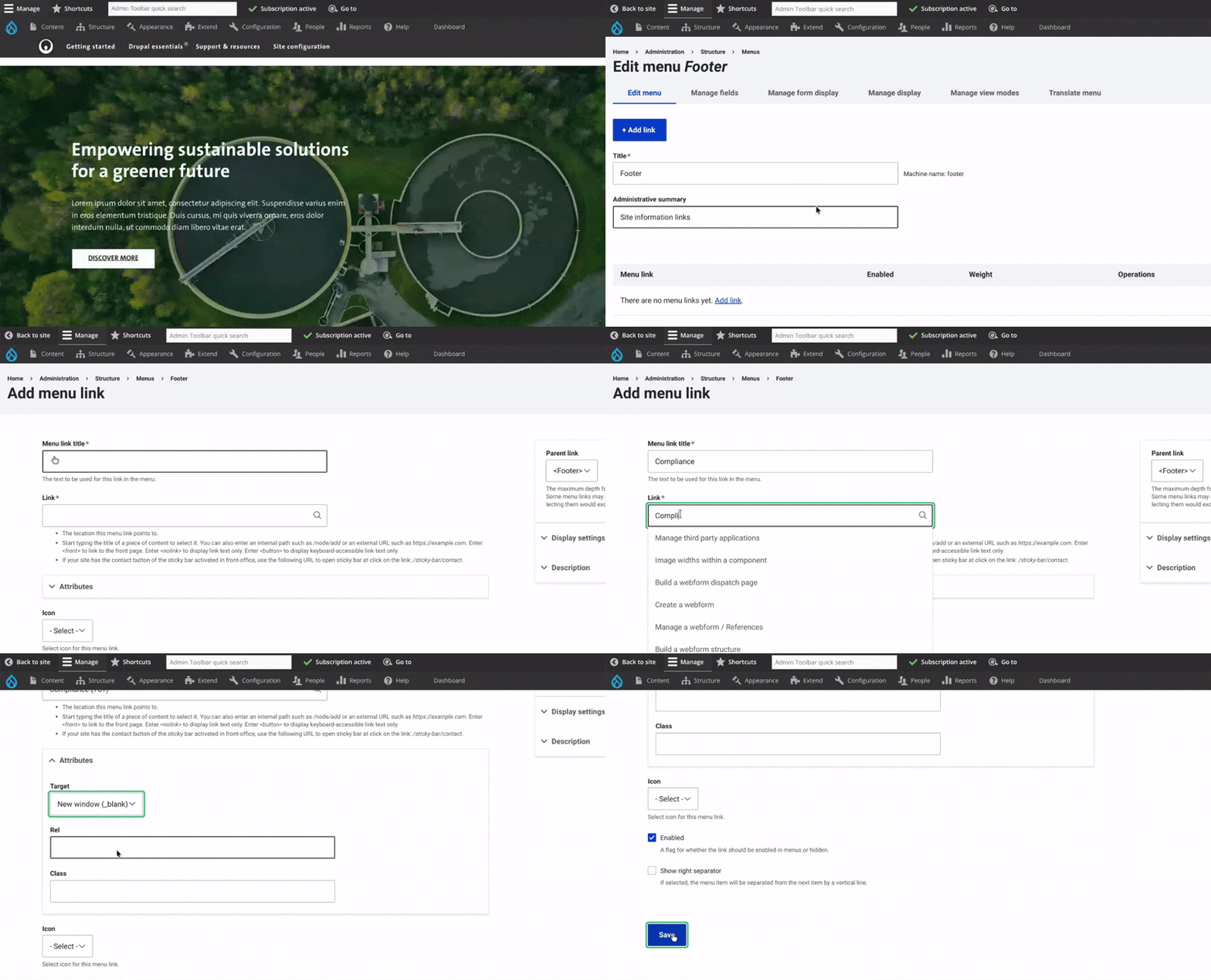
To access, first click on **Structure** in the main menu, go to the **Menus** section and click on **Footer or top footer**.
This menu works like the Main navigation, with a first and second level configured the same way.
On the edit page, enter the **menu title** and paste the **URL path** of the page.
Check the **Enable** box and, if needed, the **Show right separator**.
In the right-hand menu, be sure to define the correct **Parent link**, matching the desired footer level.
Finally, click **Save** to apply the changes.
## Footer and top footer menu | preview
## Footer and top footer | visual
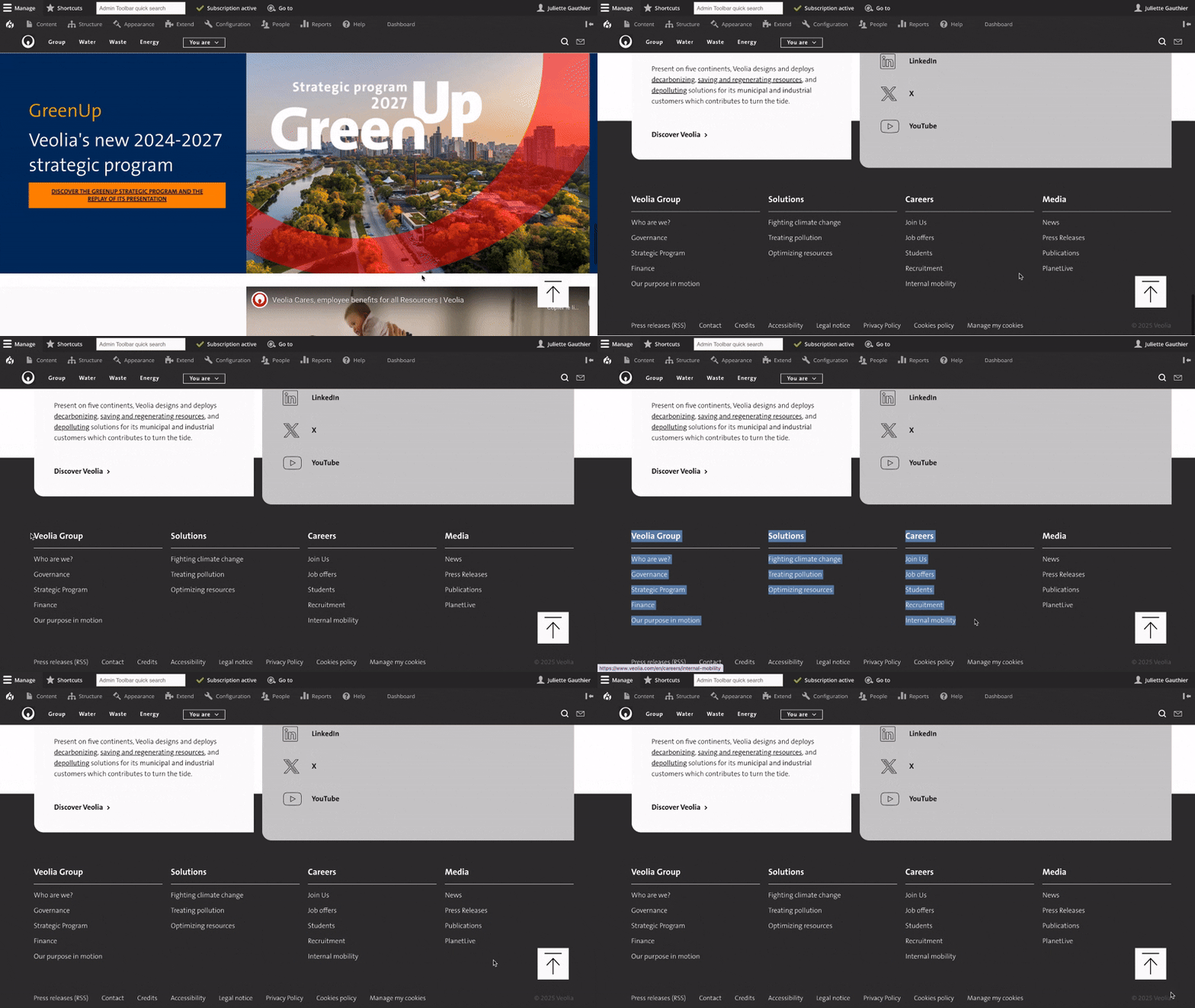
The **footer** and **top footer** menu are located at the bottom of the page.
The **top footer** menu includes all the **pages from the main navigation** — both first and second levels — acting as a **summary** of the entire site.
In the **footer** menu, you’ll also find important pages like **compliance, legal, and privacy information**.
[⬆](#scrolltotop)

## Explore more configuration options
[  ](/site-configuration/basic-site-settings)[Basic settings ](/site-configuration/basic-site-settings)
### [Basic settings ](/site-configuration/basic-site-settings)
[  ](/site-configuration/redirections)[Redirections](/site-configuration/redirections)
### [Redirections](/site-configuration/redirections)
[  ](/site-configuration/sticky-bar)[Sticky bar ](/site-configuration/sticky-bar)
### [Sticky bar ](/site-configuration/sticky-bar)
Compliance
### Compliance
[  ](/site-configuration/taxonomy)[Taxonomy](/site-configuration/taxonomy)
### [Taxonomy](/site-configuration/taxonomy)
Previous Next