**This procedure guides you to build your webforms easily and efficiently, helping you create clear, user-friendly forms designed to generate leads and capture valuable contact information.**
### Access webforms
[click here](<#ACCESS WEBFORMS>)
### Webform structure
[click here](#structure)
### Webform elements
[click here](#elements)
### Webform conditions
[click here](#config)
### View and test menus
[click here](#menus)
### General settings
[click here](#gensett)
### Config' settings
[click here](#configsett)
### Handlers settings
[click here](#handlers)
## Access the webforms configuration menu
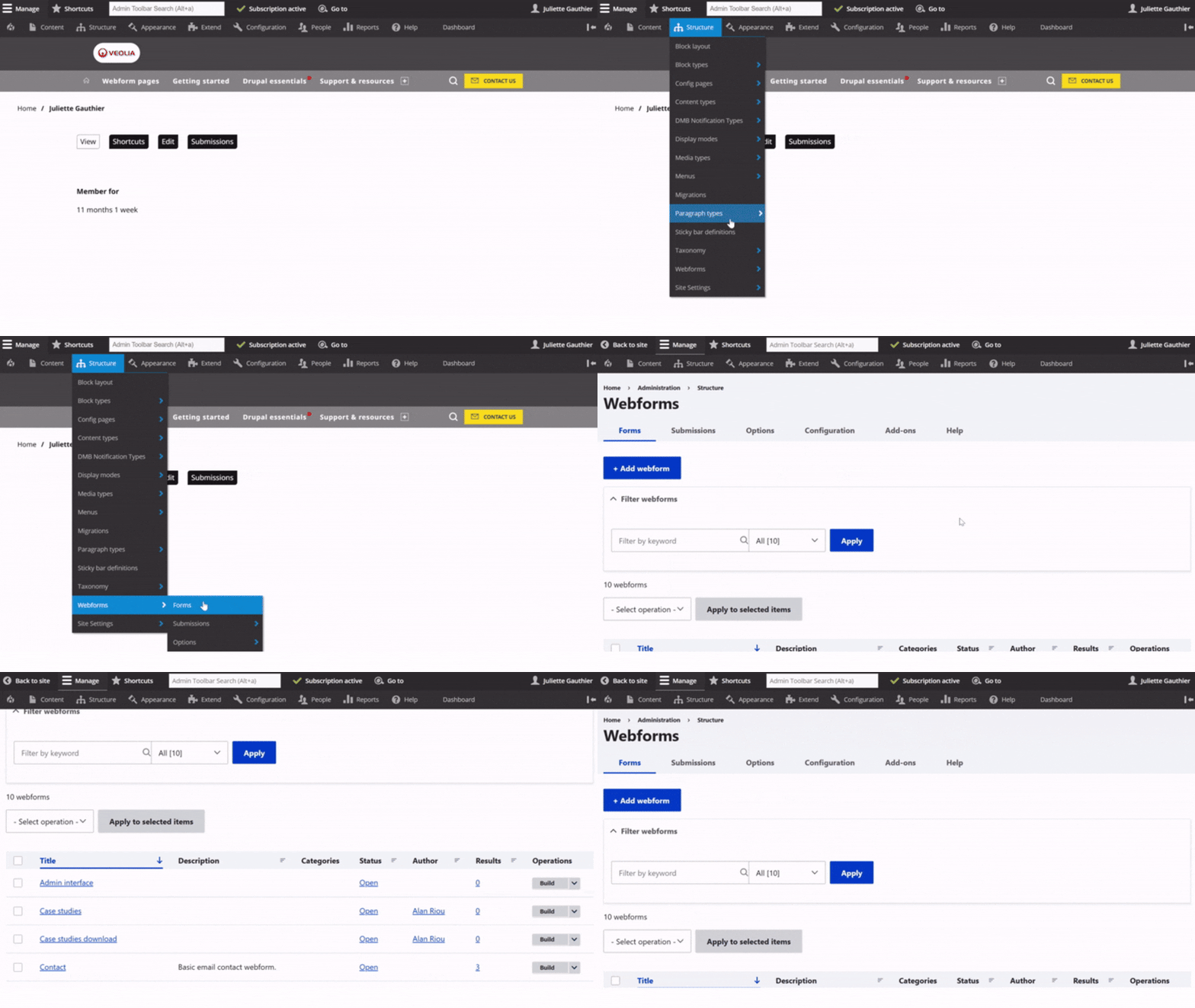
To access, first click on **Structure** in the main menu.
Then, go to the **Webforms** section.
From there, you access page with all webforms already available on the site.
## Add a webform
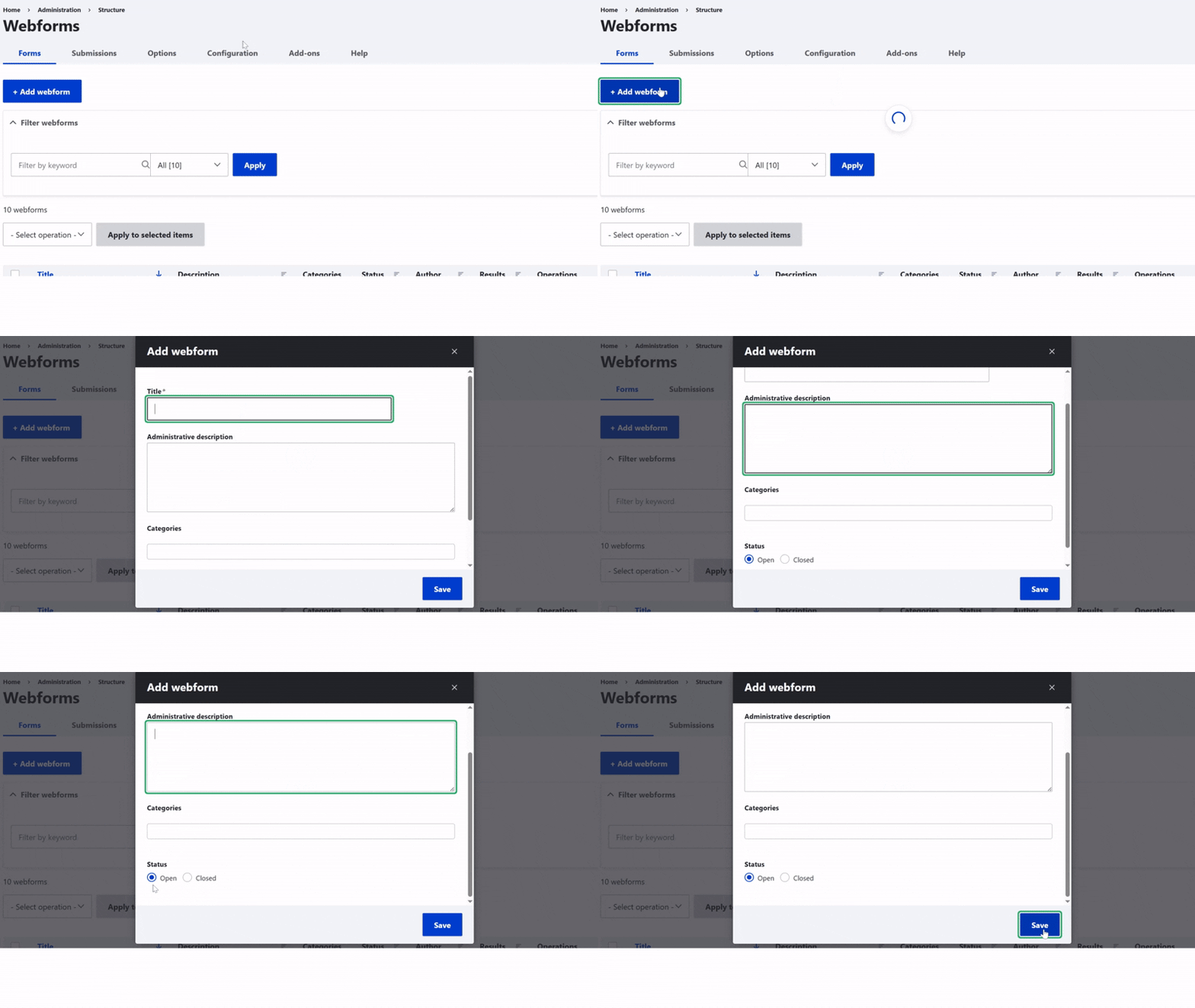
First, click on the **Add Webform** button.
Then, enter the **Name** to name your form used internally in the back office.
Next, add a short **Description** to clarify the form’s purpose.
Finally, set the **Status** to activate the form or keep it for later use.
[⬆](#SCROLLTOTHETOP)
## Build the webform structure
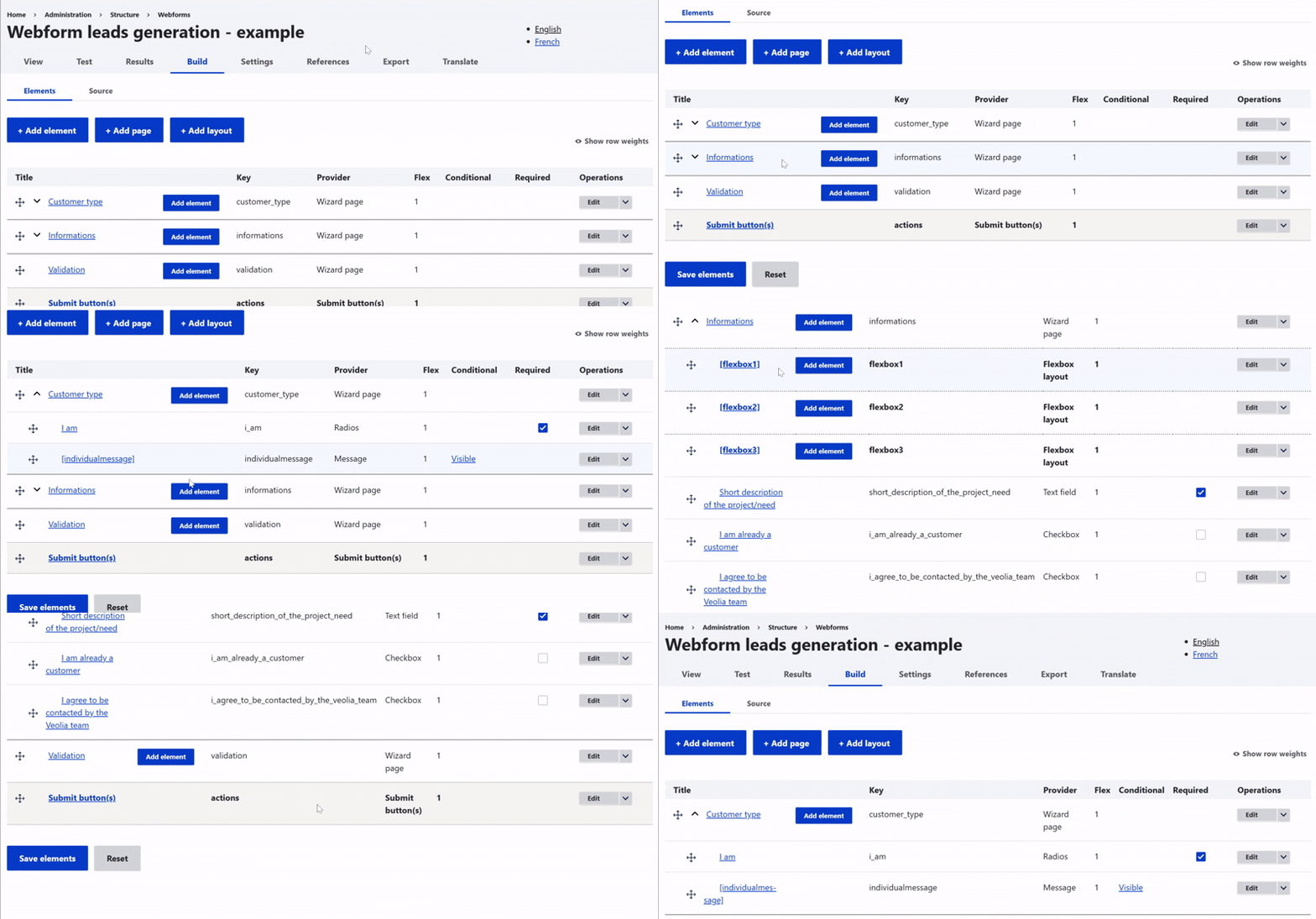
Building a **structure** allows you to **organize the webform** and makes it easier to manage in the back office.
You can use **pages** to turn it into **steps**. **Sections** help you group related information by theme.
You can also just **add one element after another** to build your form step by step.
**Hint**: Drag and drop is available when in Build page, making you able to change position for each field (even changing a field from one section to another)
## Add elements to webform structure
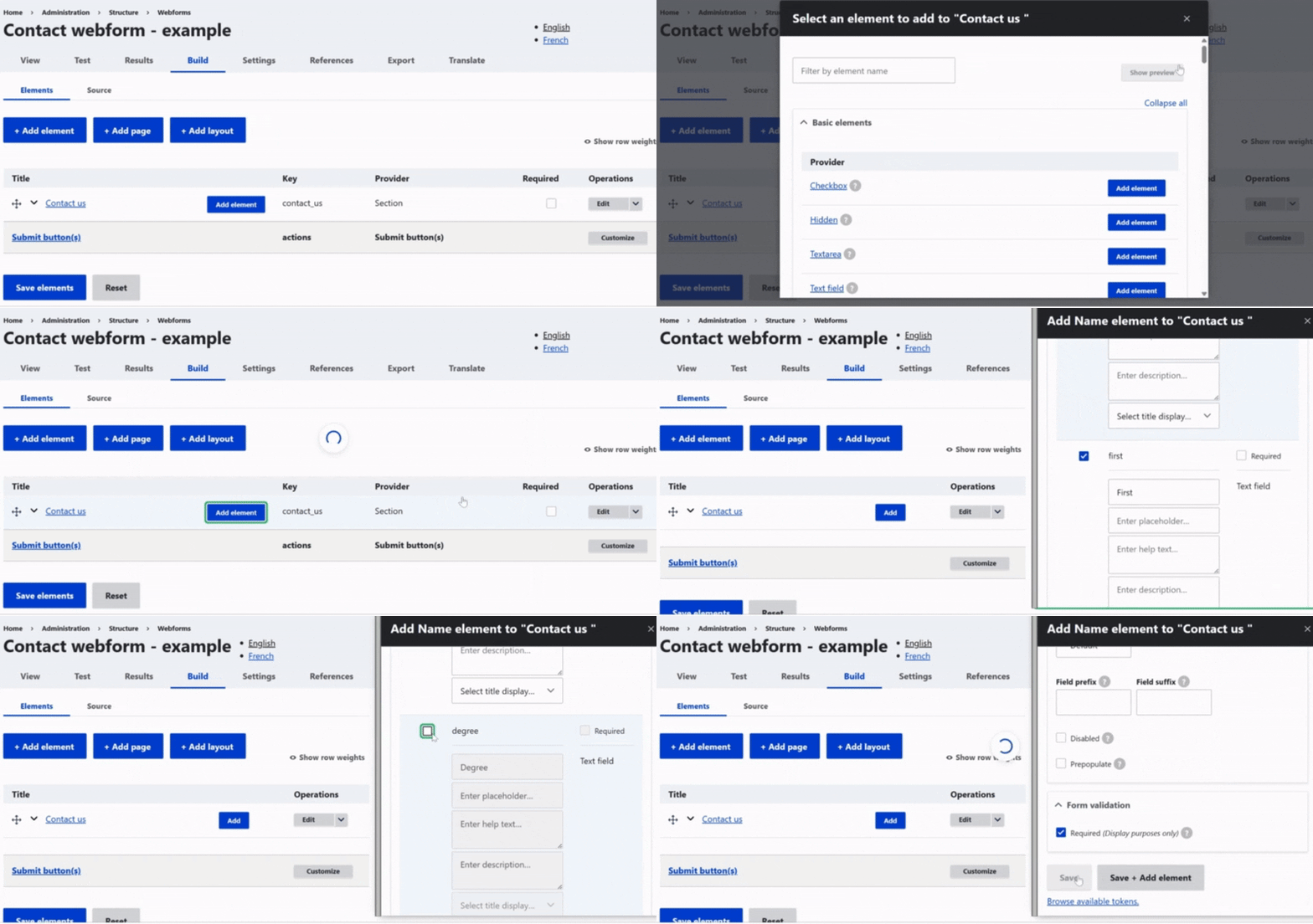
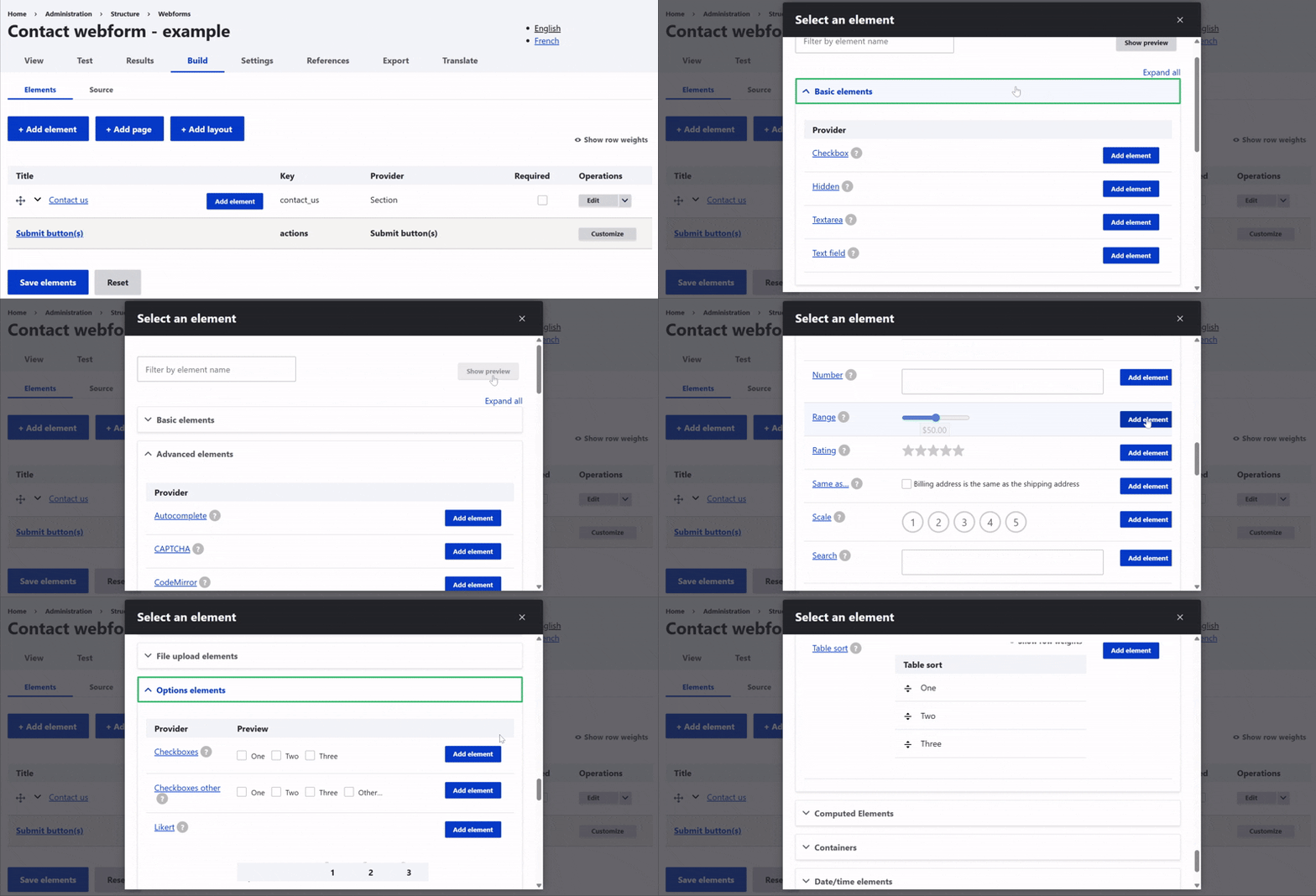
Once the structure is in place, the next step is to **add elements** to your webform.
**Add elements** and you can view the **list of items** and **preview their layout** in the front office using the **'Show Preview'** button.
Then, within each section, give them a **name**, **customize** them if needed, and don’t forget to **save**.
### Element settings zone
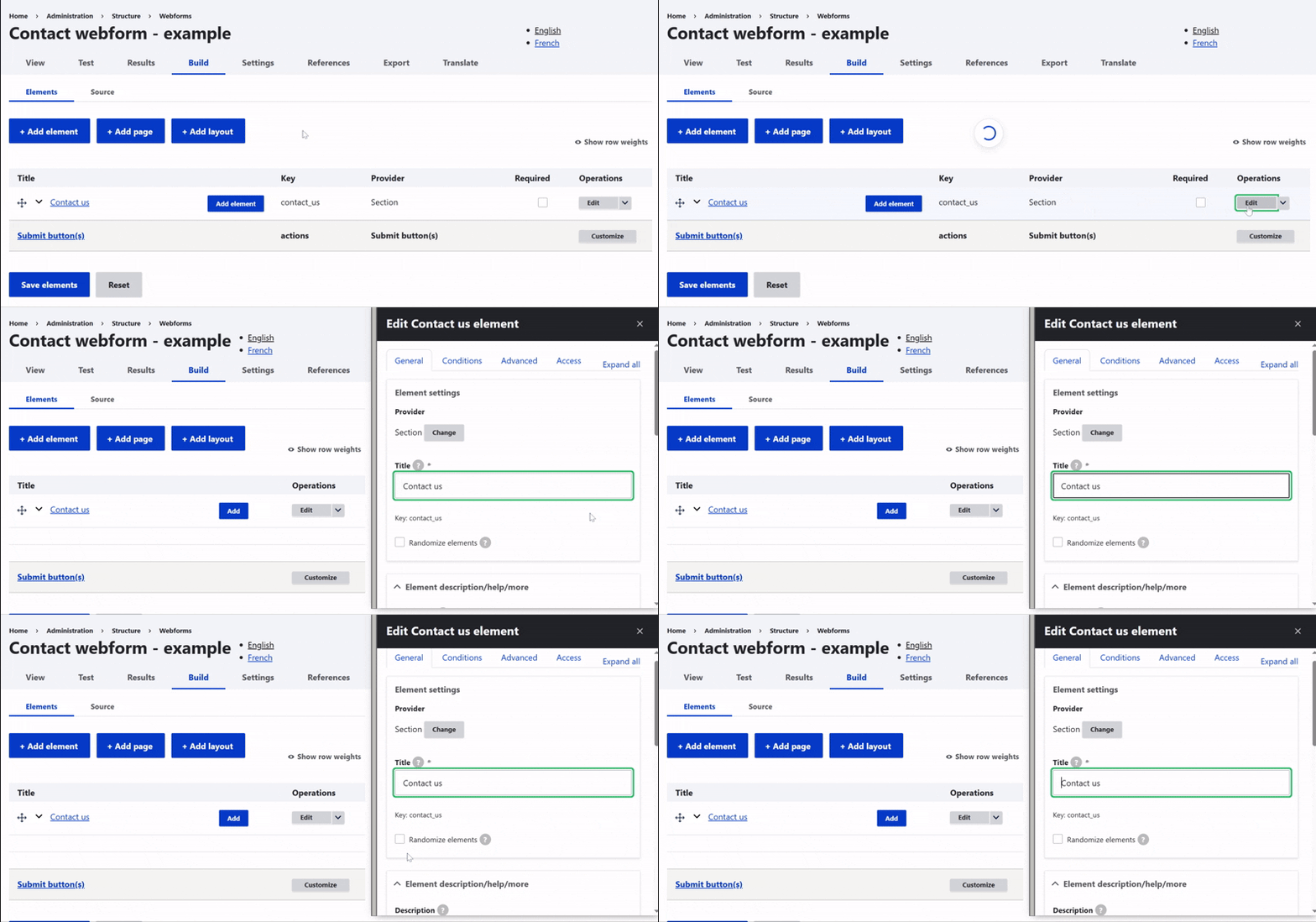
To edit an element, just click on it. The **editing panel** will open automatically.
First, you can change **the name** that appears in the form.
It's also possible to enable multiple values, if the user needs to add more than one answer.
### Element description / Help / More zone
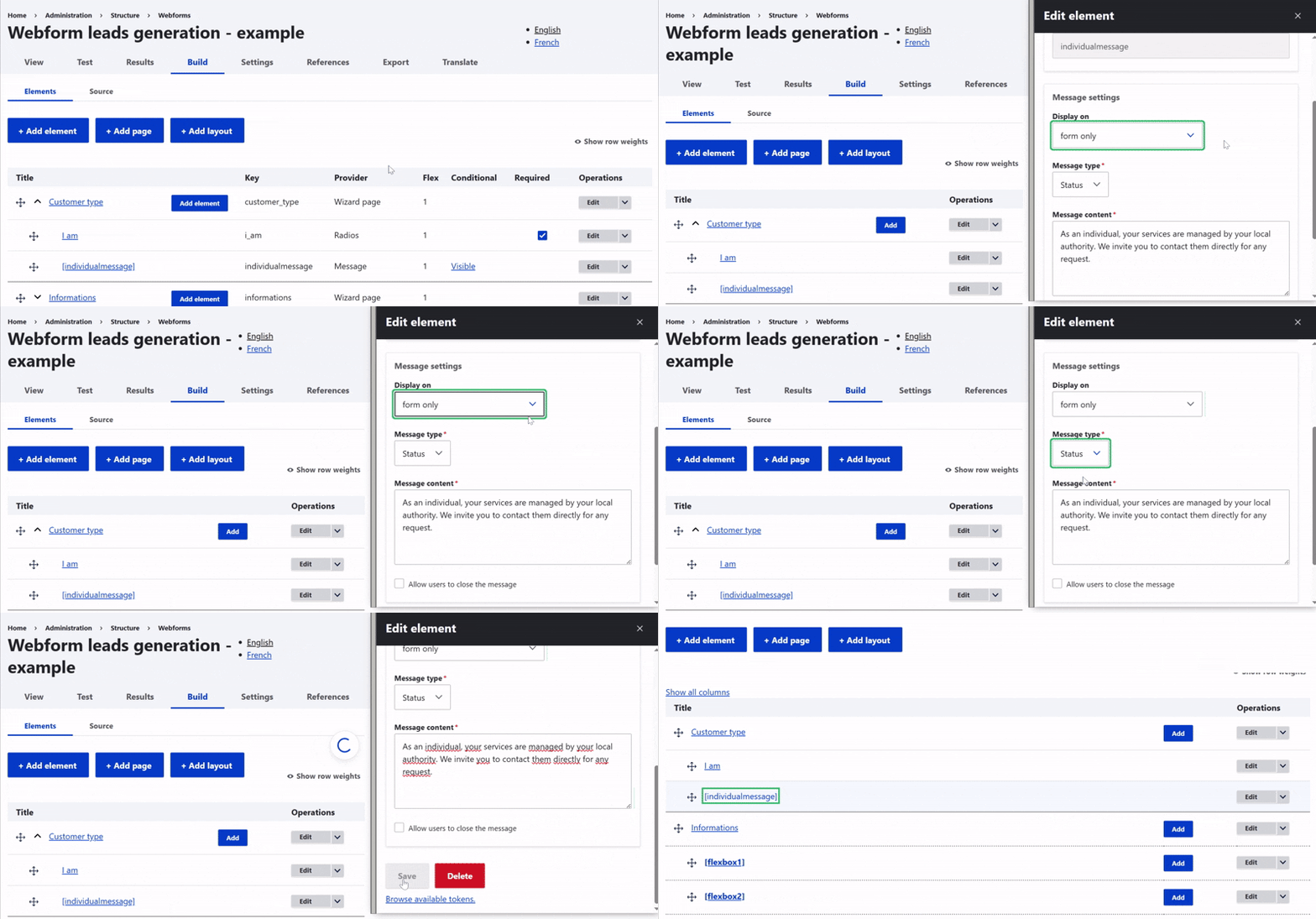
Then, you can **add a description**, **extra information**, or even **a link** if needed.
You can also include a **help message** to guide the user on how to fill out the field.
The **'\*' character** can appear next to the field, showing a **tooltip** when hovered over, if necessary.
### Form display zone
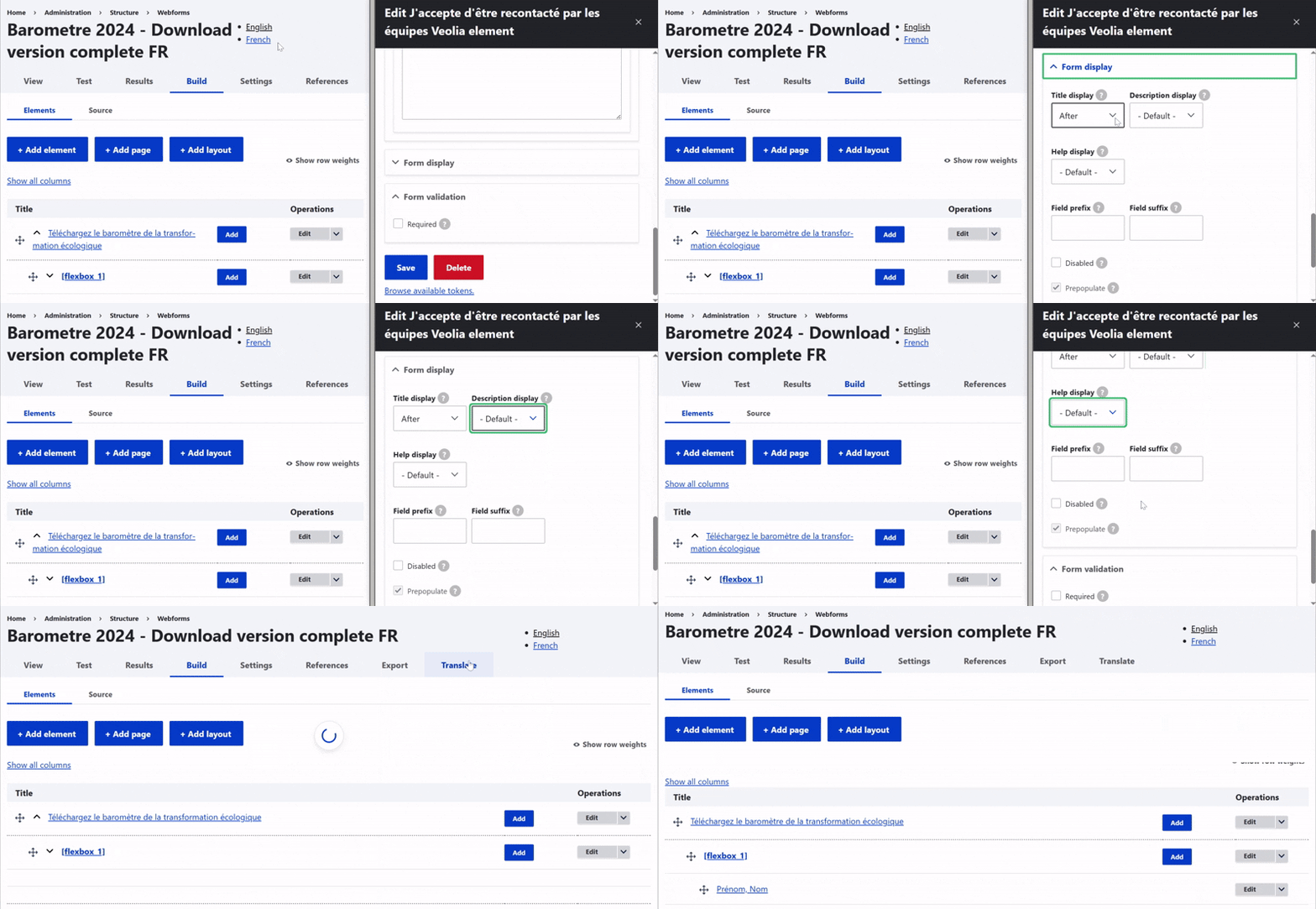
In the display section, you decide **how the field appears** in the form.
For example, the title can be shown before, after, inline, or hidden. **The description works the same way**.
You can also **add default text** inside the field, called a placeholder. There’s also an option to enable autofill from the browser.
### Form validation zone
Finally, you can set **validation rules**.
A field can be marked as **required**, which is **the most commonly used** option and is recommended.
When a user submits the form without filling out this field, a custom error message can be displayed.

## All elements
[⬆](#SCROLLTOTHETOP)
##
## Configure webform fields
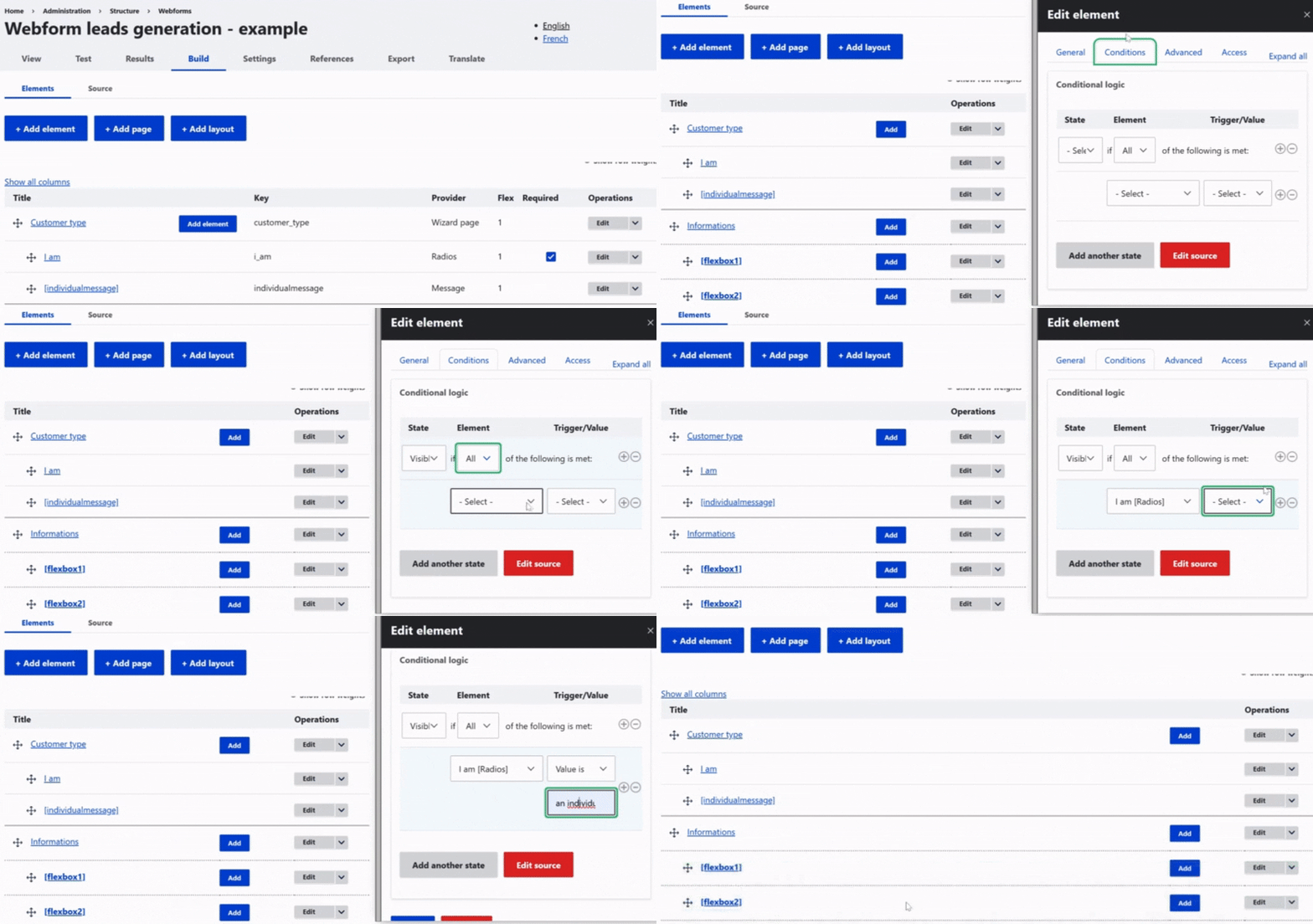
After setting the general options, the **Edit panel** lets you create **behaviors, manage settings, and control access.**
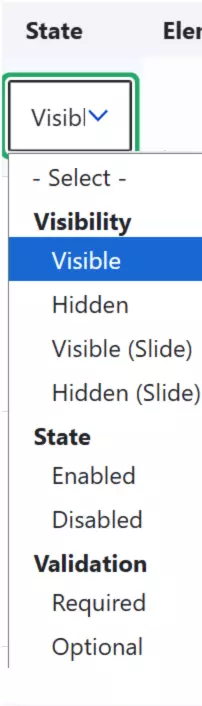
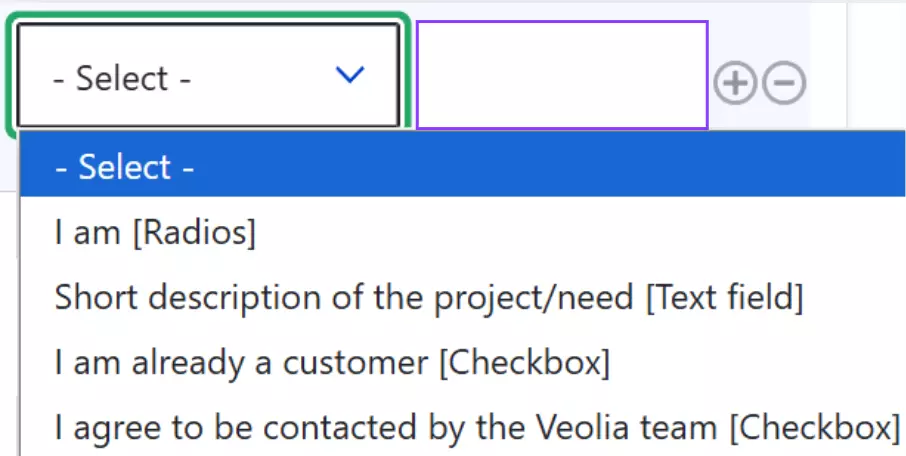
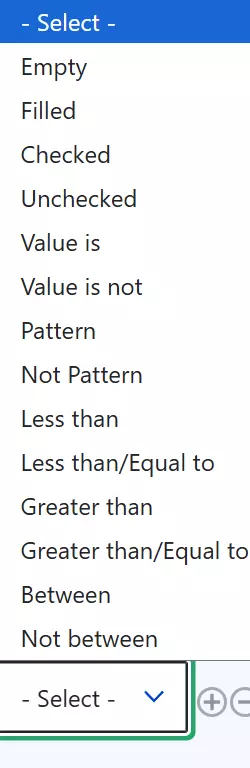
To configure a **behavior**, first choose **the state** of the field, like visible or hidden.
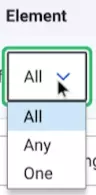
Then, define **the condition that triggers this state**.
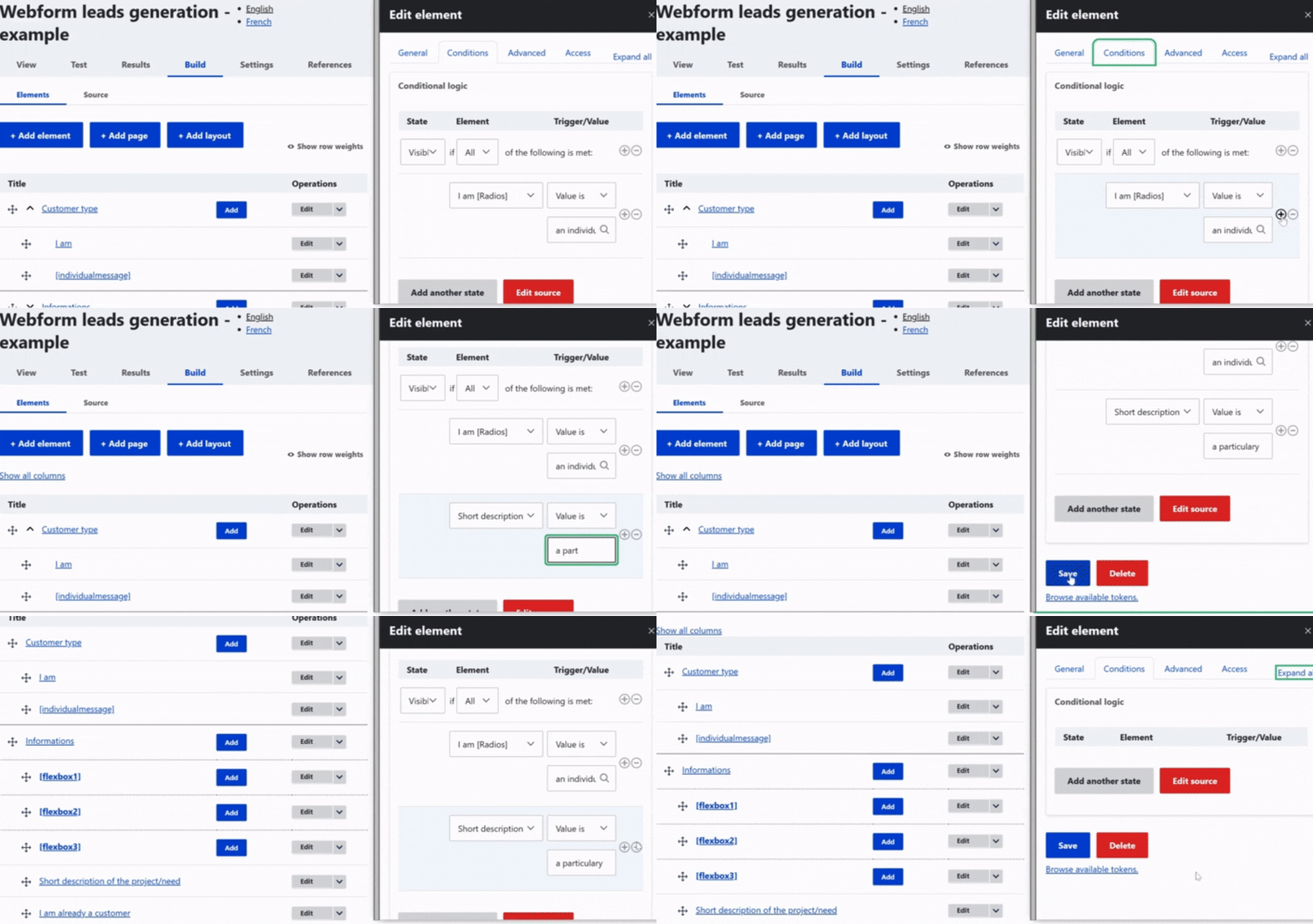
You can **add or remove** a condition using the **'*****+'*** **or '*****x'*** buttons.
If needed, you can also **add another behavior** for the same field. **When you delete a behavior, all its conditions will be removed as well.**
These features are considered advanced, so use them carefully.
### States
### Condition restricting
### Field on which condition is applied
### Condition describing
[⬆](#SCROLLTOTHETOP)
## View & test menus
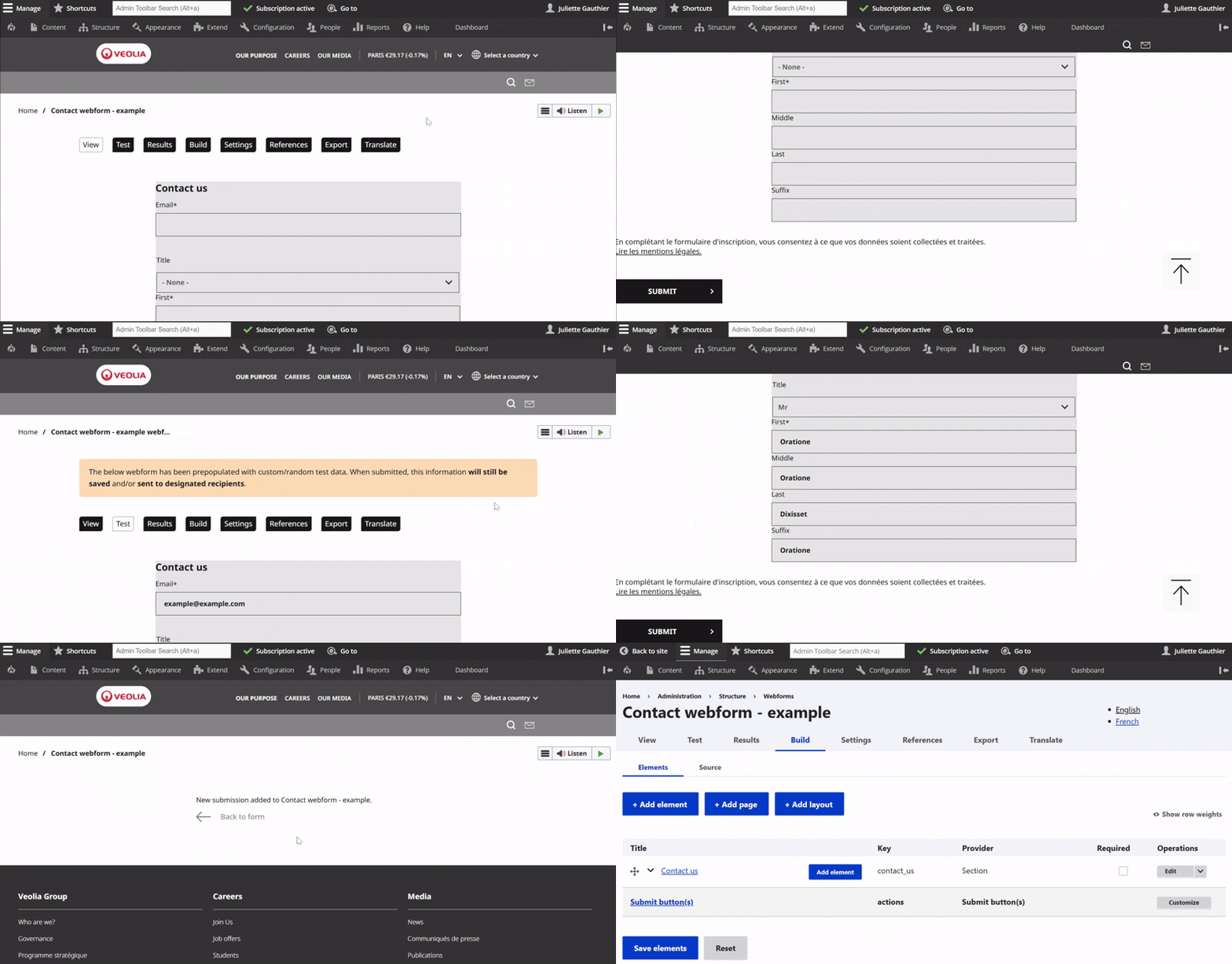
Once your webform is created in Drupal, you can use the **View** tab to preview the full form and see how it will appear to users.
The **Test** tab allows you to try out the form, helping you identify any issues and make adjustments before publishing.
Finally, the **Build** tab takes you back to the form configuration page, where you can add, edit, or remove elements of the webform.
[⬆](#SCROLLTOTHETOP)
##
## General settings
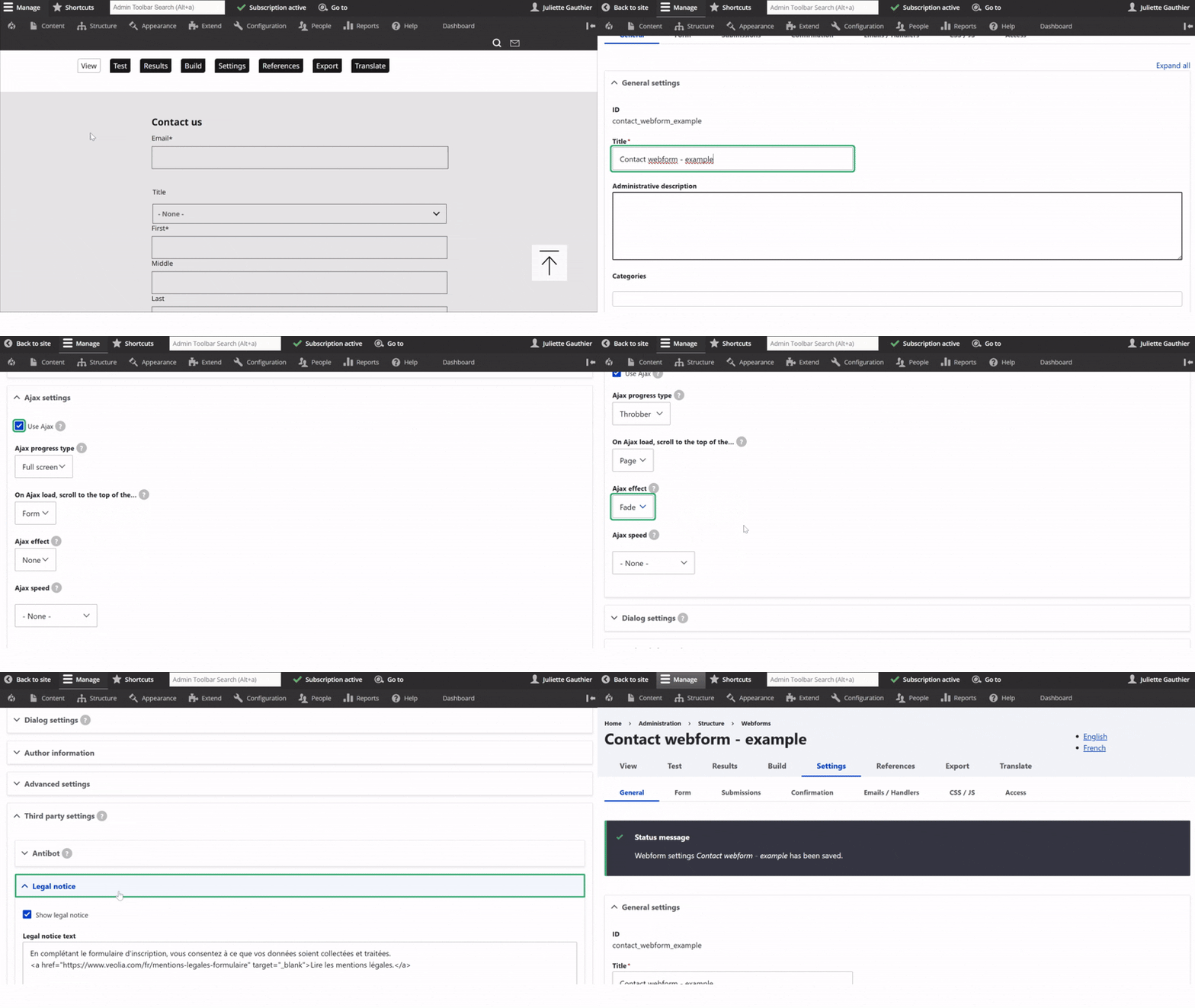
The **General settings** tab lets you set a **name** (back office only).
Enable **Use Ajax** if your Webform has multiple pages to keep users on the current section instead of restarting the form.
You can edit the **GDPR legal notice** shown on the front end and automatically added when creating a Webform so you can **translate and customize it**. If you're not using the default legal notice, **remember to update** the text and link accordingly.
Finally, click **Save** to apply your changes.
## Confirmation settings
The **Confirmation** tab defines what happens after the form is submitted. Here are the available types:
**Page**
The page reloads and a thank you message is displayed.
**Inline**
The form is hidden and a thank you message appears in its place on the same page.
**Message**
The page reloads and the confirmation message is shown at the top, with a green background.
**Modal**
A pop-in (modal) appears with the confirmation message, without leaving the page.
**URL**
Redirects the user to a specified internal or external URL after submission.
**URL with message**
Redirects to a specific **internal** URL and displays the confirmation message on that page.
Note: The message won’t appear if the URL is external.
**None**
The page reloads without showing any confirmation message.
⚠️ This option is **not recommended**, as it gives no feedback to the user.
## Emails/Handlers settings
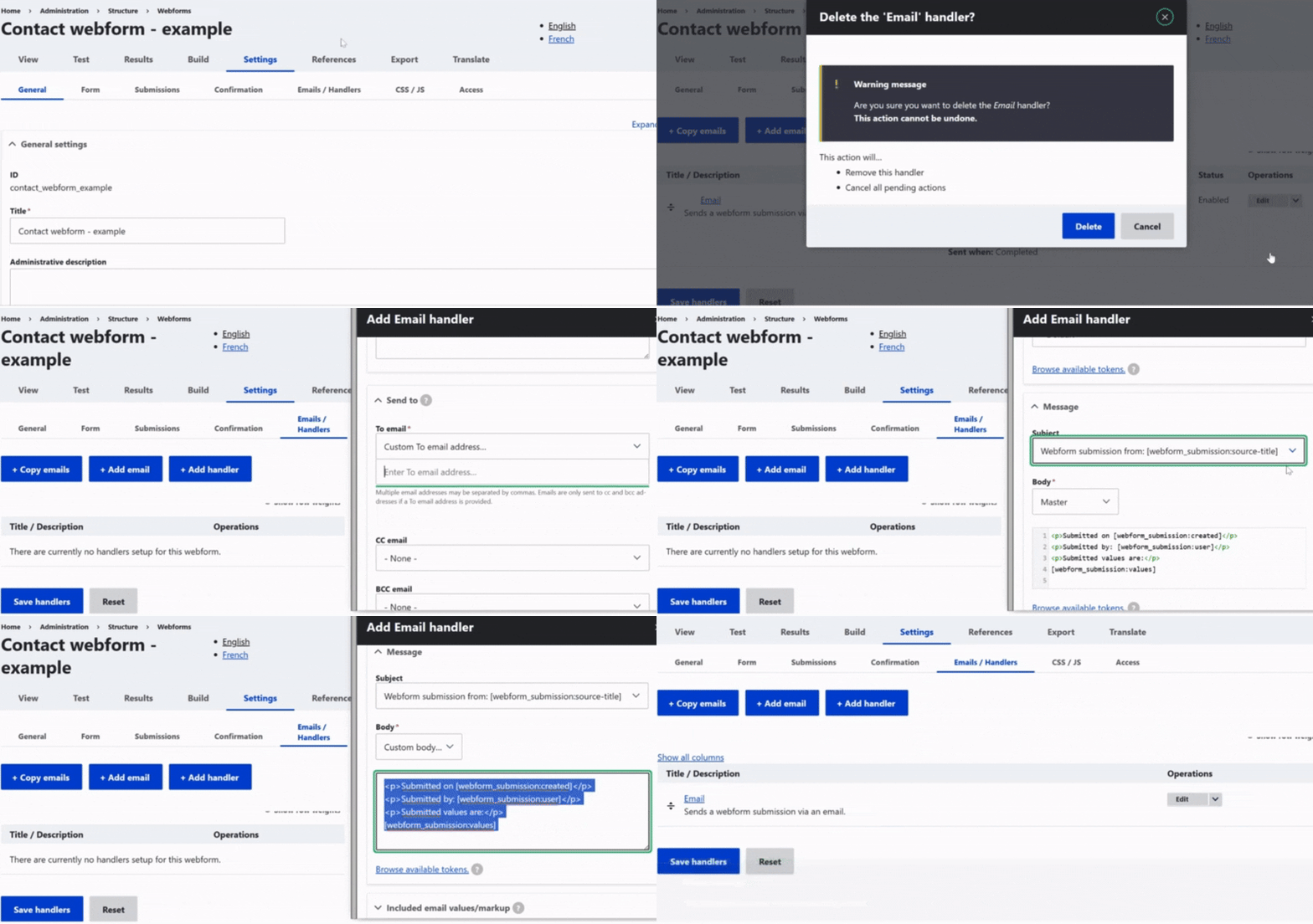
The **Email / Handlers** tab is essential for ensuring submitted data is processed correctly and reaches the right people.
To avoid delays, **always make sure at least one recipient email is configured**, so requests can be treated as soon as possible.
To add a recipient, click **Add email**, enter a title, then in the **Send to** section, choose **Custom** and add the recipient’s email. You can customize the email content in the **Message** section.
[⬆](#SCROLLTOTHETOP)
## Translate the webform
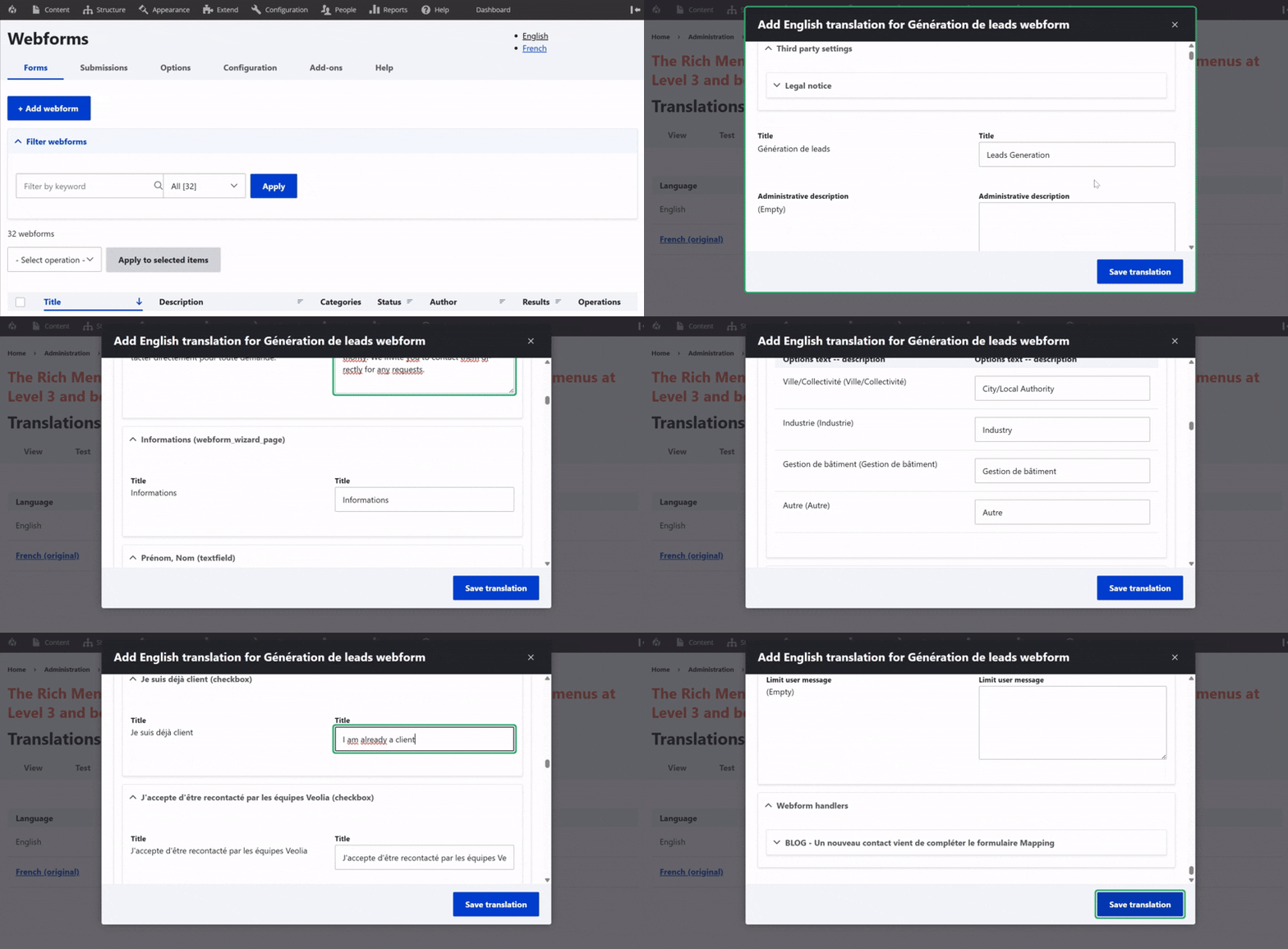
To translate, click on **Translate** on the right-hand side of the webform line, just below the **Build** option in the action menu.
Then, click **Add** next to the desired language.
The edit page allows you to translate **the title** (only in the back office) as well as **all text elements** visible on the front end.
**Hint:** Please **translate only the words** and do not change any characters or structure to ensure the form works correctly. If any **special rules, conditions, or handlers** are in place, guidance will be provided to help you translate or adapt the associated texts accurately.
[⬆](#SCROLLTOTHETOP)