

The procedure will show you how to personalize your page with an immersive background that follows you as you scroll down the page.
Customize your page background
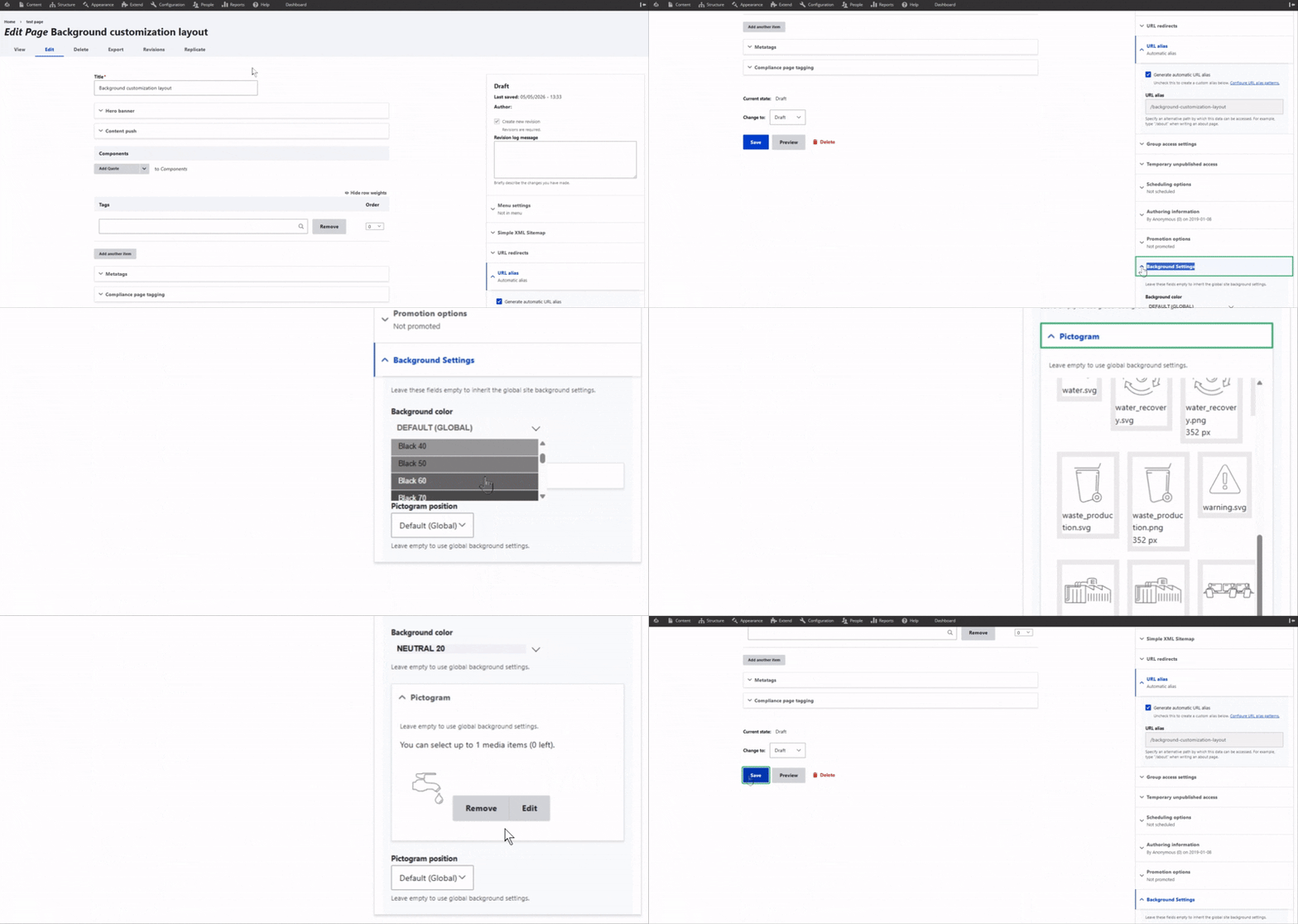
First, open the page editor and give your page a title.
On the right-hand side, open the Background Settings panel.
Choose a background color that fits your page. If you’d like, add a pictogram and select where it should appear on the screen (top or bottom, left or right).
Save your page to apply the changes.
Add a codant as a background
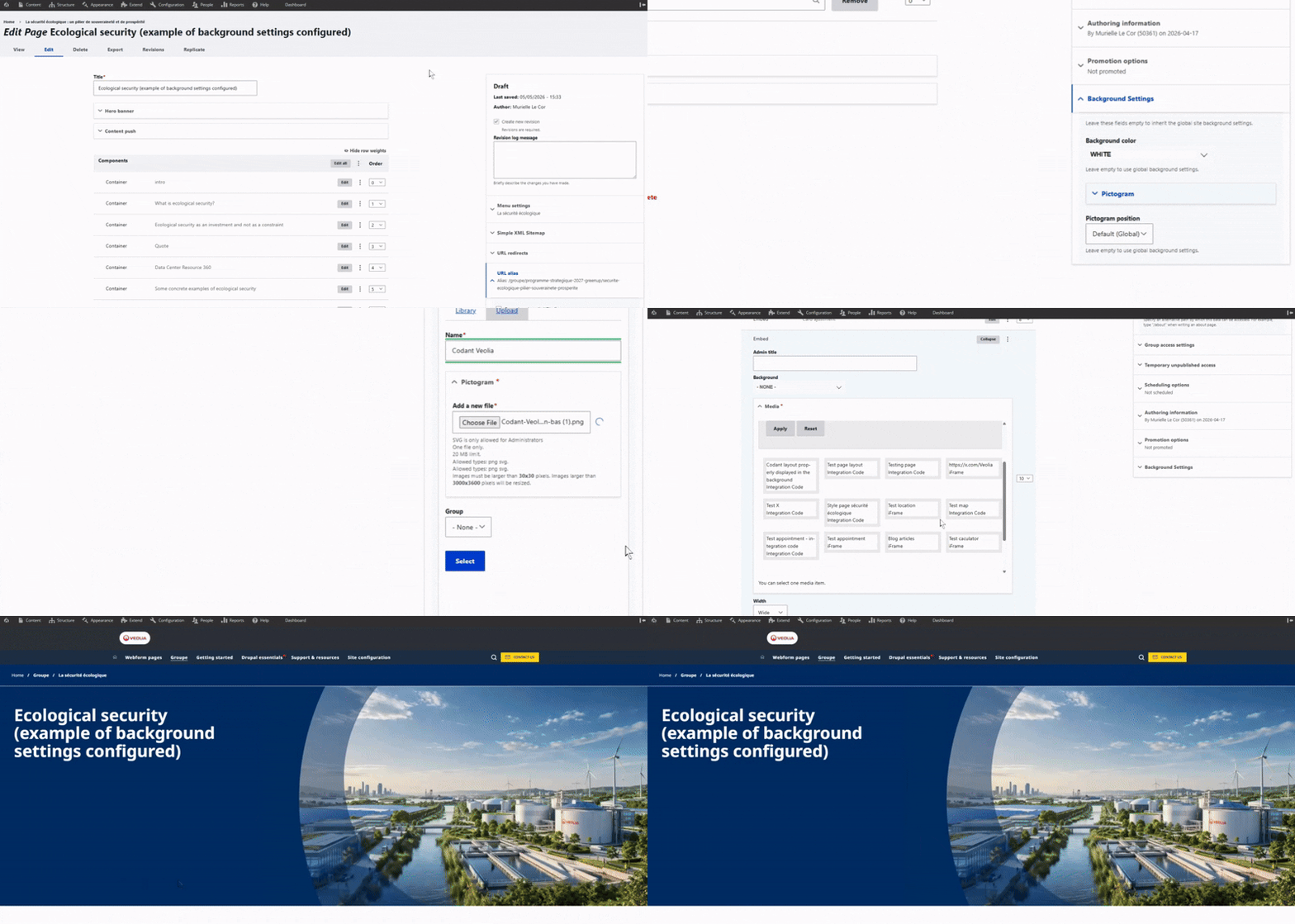
First, upload your codant as a PNG image with the following dimensions:
W: 2876 px / H: 1223 px.
You can then select this image in the Background Settings, as a pictogram.
To ensure the codant is correctly positioned on the page, you’ll need to add a specific embed code at the very end of your page (after all components).
This code has been designed to properly display and align the codant in the background.
This action is restricted to administrators only. If you’d like to use this design, please contact your site admin.
