Access the basic site settings
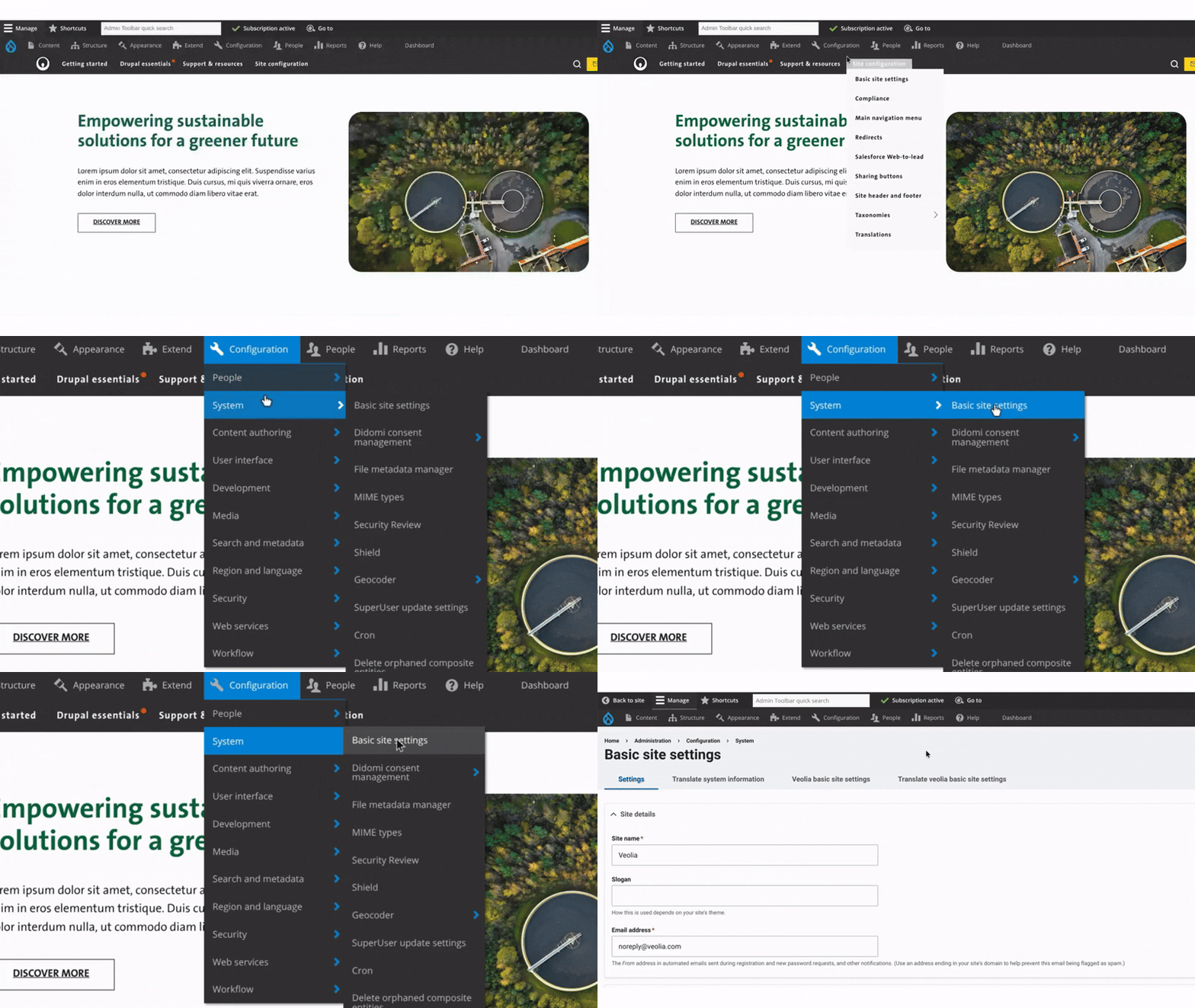
To access the Basic Site Settings, first click on Configuration in the main menu.
Then, go to the System section.
From there, click on Basic Site Settings.
Configure basic site settings
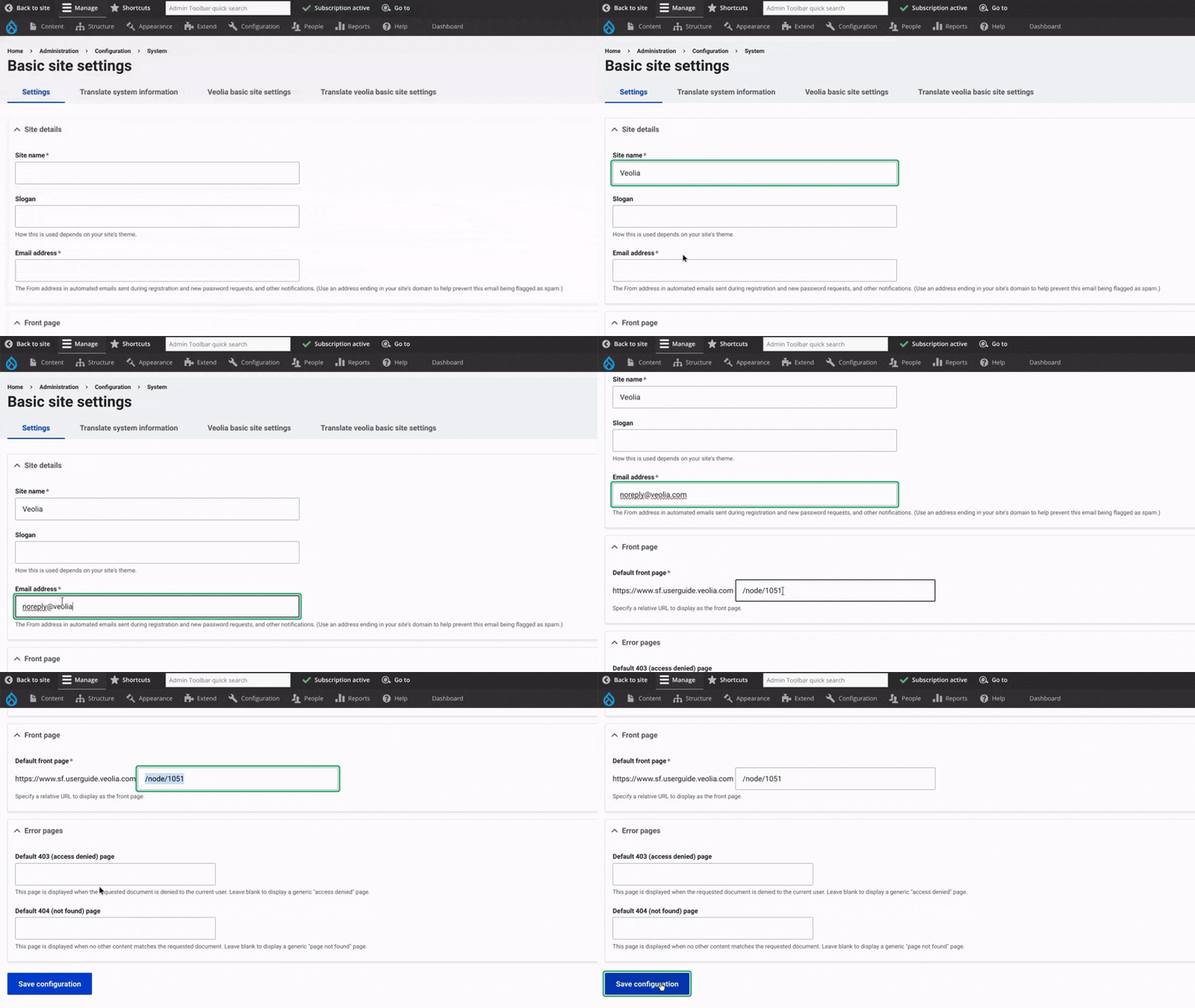
First, enter the site name. This is the title that appears on your website and in the browser tab.
Next, provide the site email address, which should be the main contact email used for outgoing messages. Choose a valid and monitored email that represents your organization or department (e.g., [email protected]).
Then, select the Front page, which is the homepage of your site — the first page users see. Enter the node ID of the page you want to use. If you update the homepage later, you’ll also update the node here.
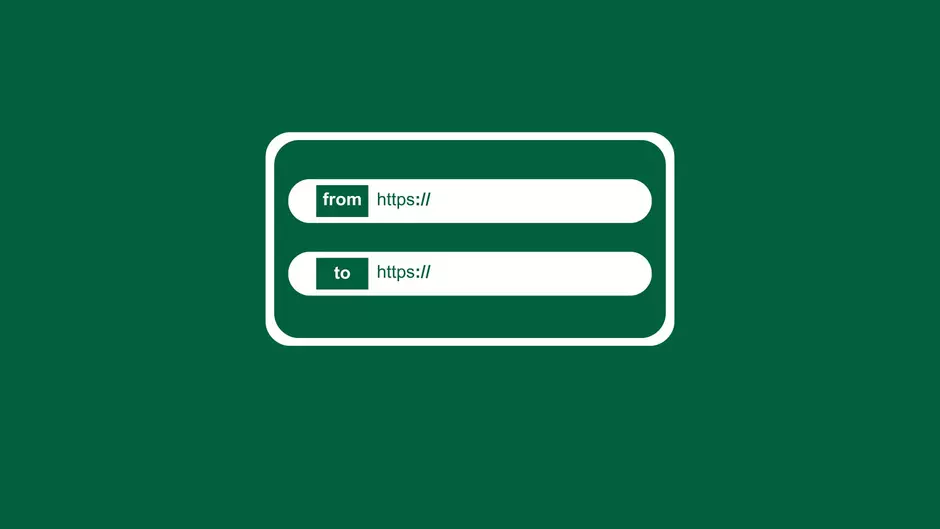
After that, configure the Error pages for 403 (Access Denied) and 404 (Page Not Found). Enter the node ID or URL for the page users will be redirected to in these cases. Here’s a examples you can use to create your 403 and 404 error pages.
Translations for System information
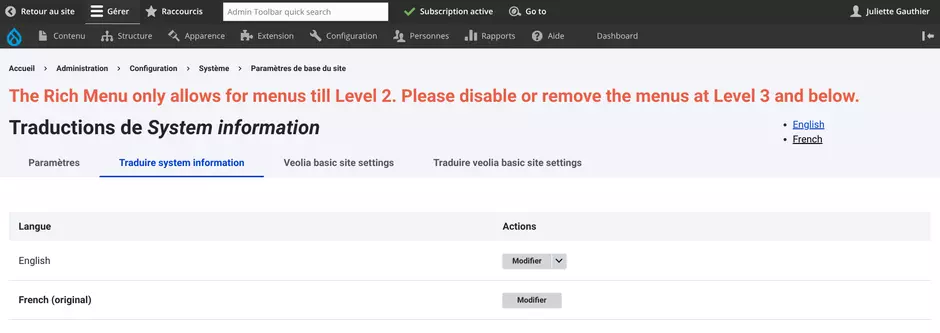
Once the page settings are configured, you can translate the page into multiple languages.
It’s important to proceed with translation for SEO performance, as search engines favor content in different languages, helping to improve visibility.

Veolia basic site setting (hyphen)
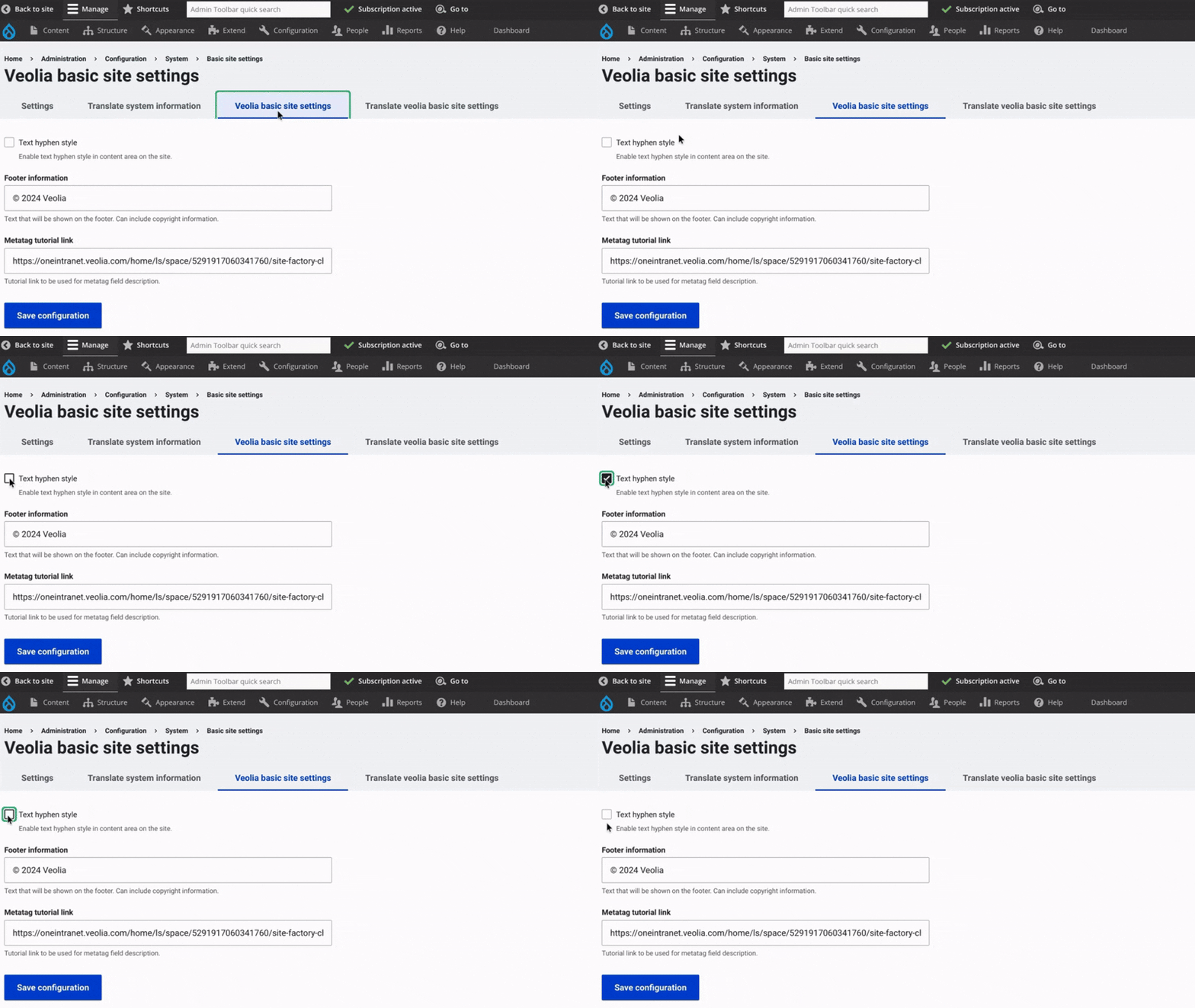
Check or uncheck the Text hyphen style option.
This controls whether a hyphen appears when a word breaks at the end of a line and doesn’t fit entirely. If enabled, the hyphen will be added to the broken word.
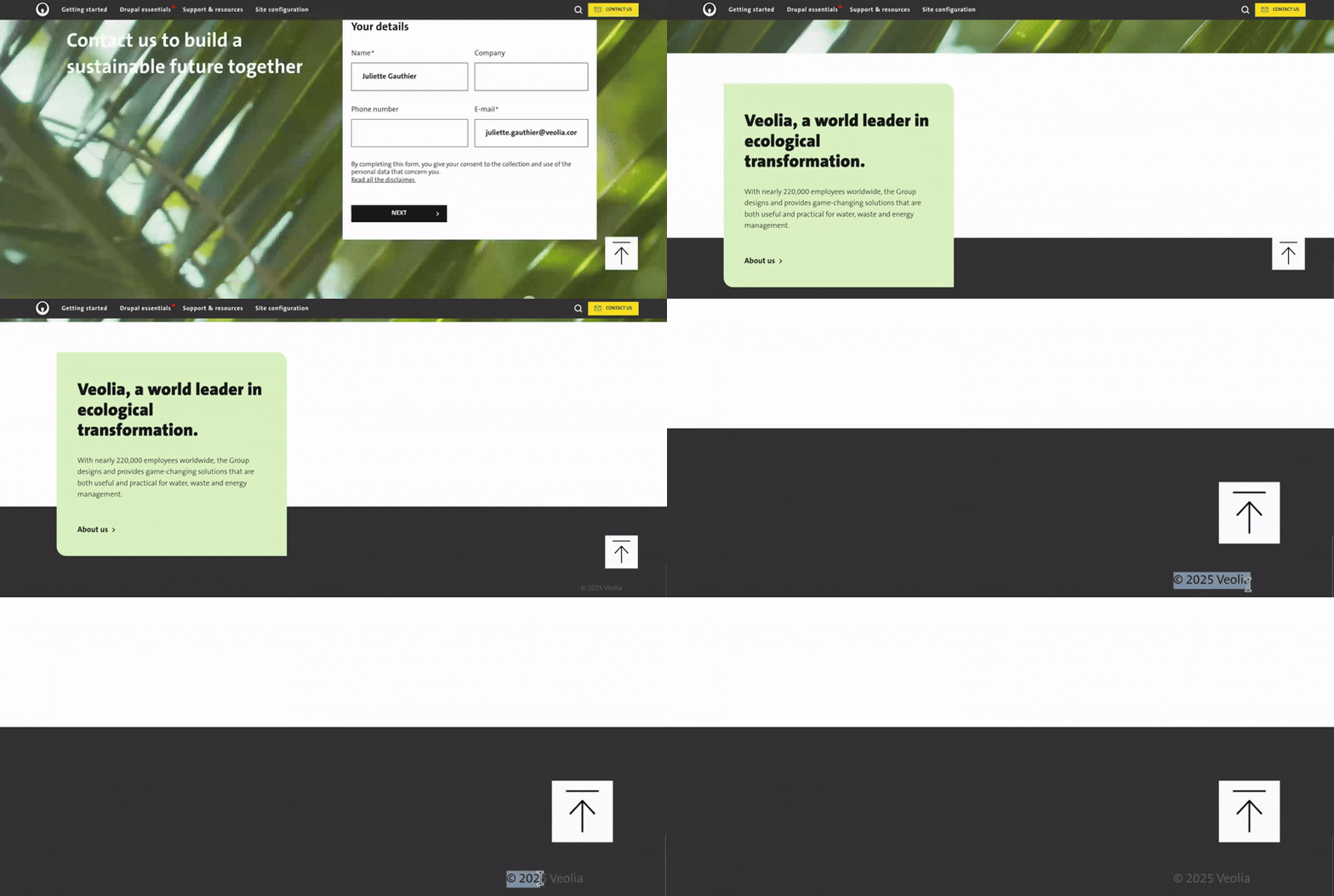
In the footer information, the "@ year" represents the last update of the site. It will be displayed at the bottom right of the page in the footer.
Explore more configuration options