Our commitment to accessibility
As part of our commitment to inclusion and digital accessibility, we want to ensure that all users can access our online content and services without barriers. In accordance with European regulations, we are also required to clearly state the accessibility status of our website.
This page outlines our approach to accessibility, current initiatives, and how you can help us improve. Whether you're a person with disabilities, an elderly user, or anyone seeking accessible digital content, we aim to provide a seamless and inclusive experience for all. Even as we continue to enhance our accessibility features, we believe in being transparent about our ongoing efforts and welcome your feedback to help us improve.
Recommended process for creating your accessibility page
Collaborating with your web team and accessibility experts is essential for ensuring that your accessibility page is accurate and effective. Working together helps create a more inclusive digital experience for all users.
Please find below the recommended process for implementation:
- Download and review the appropriate template (English or French version).
- Review the provided video tutorial and written guide for step-by-step instructions.
- Customize the content to match your website's context and verify accuracy with your team.
- Publish the accessibility page and implement it in your website's footer menu.

English accessibility page template
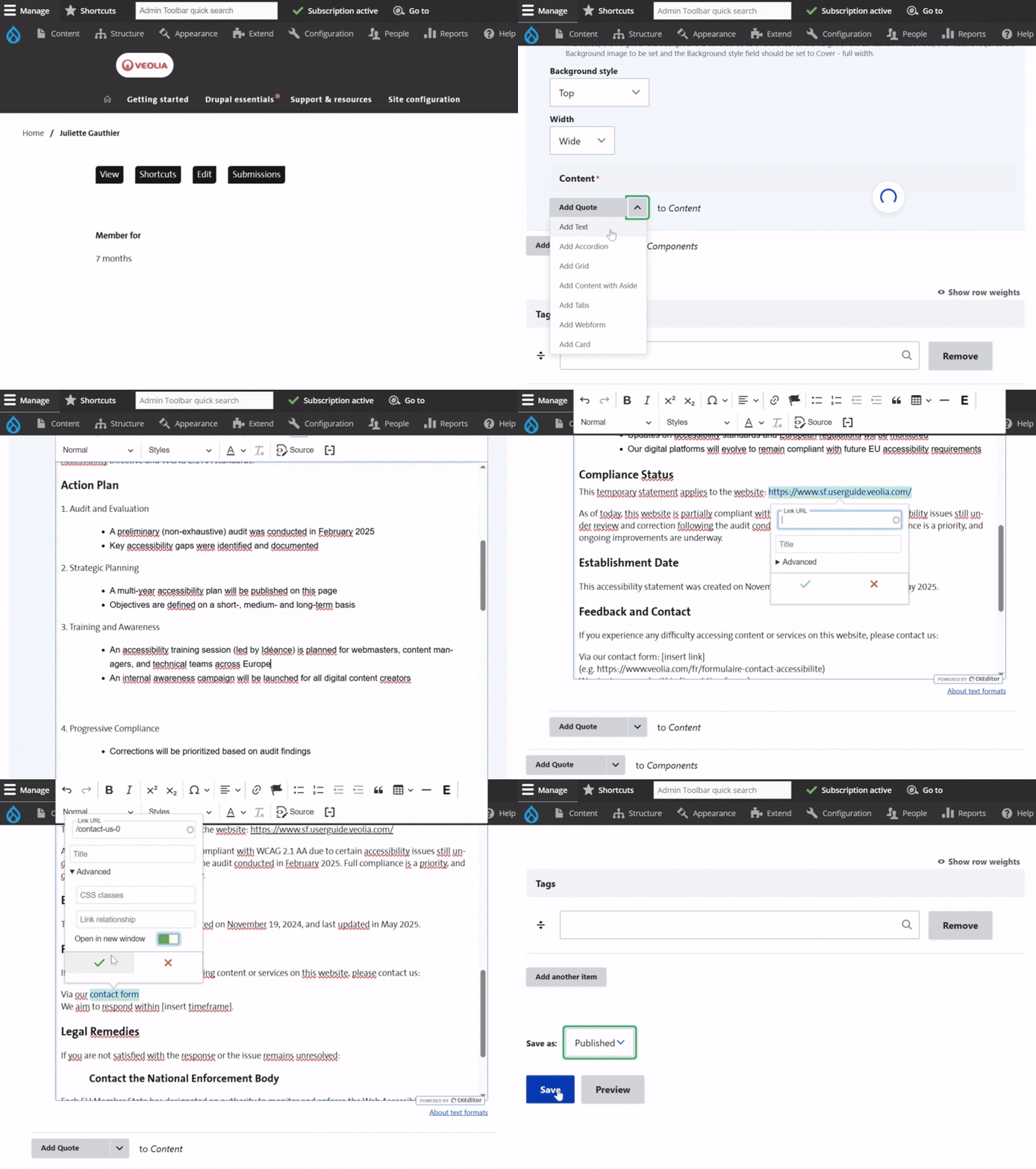
Go to Content, then Add content, and select Page.
Enter a title and complete the hero banner with your introductory sentence.
Create a container and choose the Text component. Paste the template inside the text field. Remove the style by clicking the Tx icon. Adjust the text spacing, replace the highlighted yellow info with your site name, contact form, and reply time. Make sure the URLs in the text are properly linked and clickable.
Finally, publish the page.
Modèle de page d'accessibilité en français
Aller dans Contenu, cliquer sur Ajouter un contenu, puis sélectionner Page.
Saisir un titre, puis compléter la bannière principale avec une phrase d’introduction.
Créer un conteneur, puis ajouter un composant Texte. Coller le modèle dans le champ de texte et supprimer le style en cliquant sur l’icône Tx. Ajuster l’espacement du texte si nécessaire. Remplacer les informations surlignées en jaune par le nom du site, le lien vers le formulaire de contact et le délai de réponse.
Vérifier que les liens sont correctement renseignés et bien cliquables.
Publier la page.
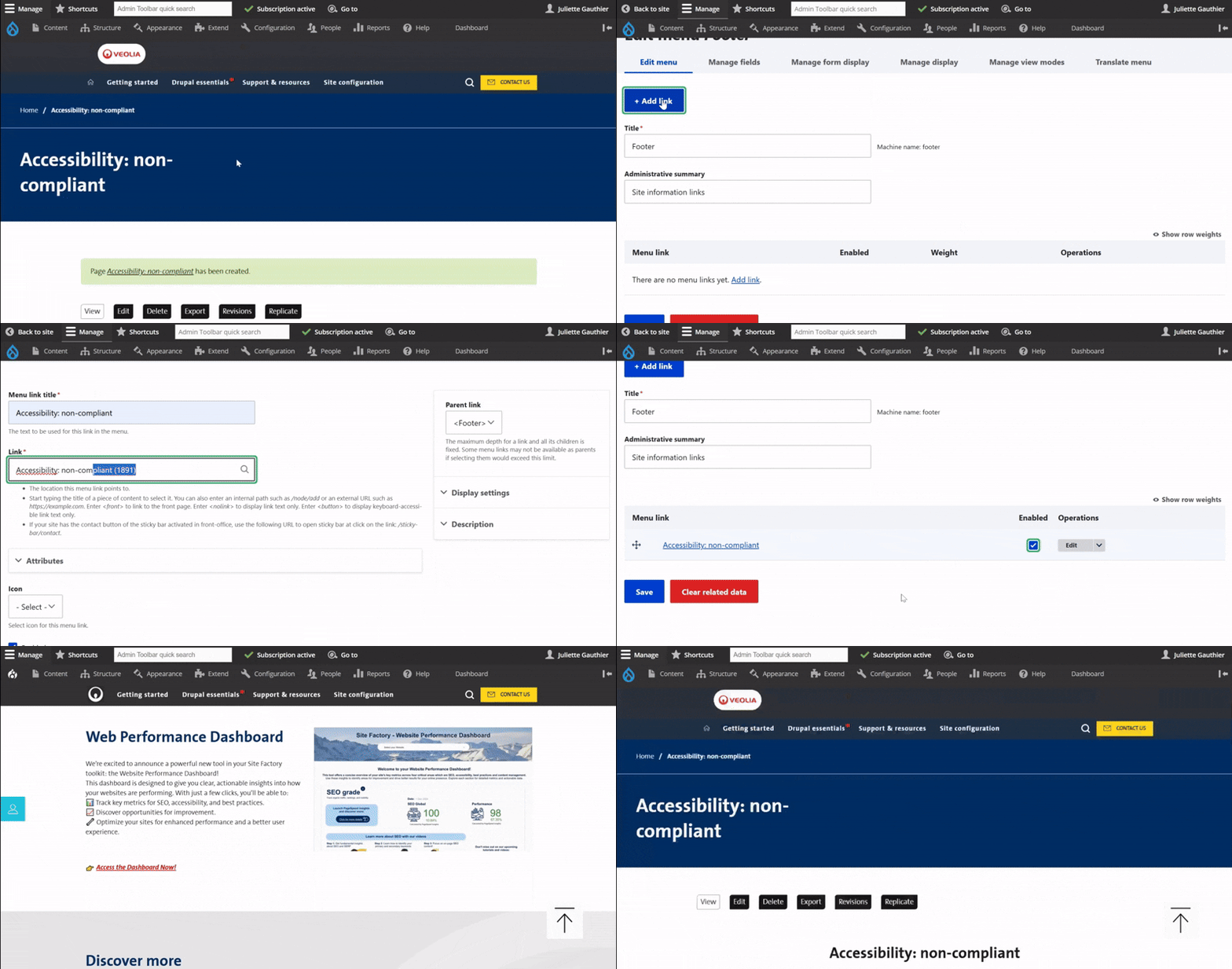
First, go to Structure, then Menu, and Footer.
Click on Add link.
Enter the menu title and paste the link using the correct node to redirect to your page. Click Save.
Make sure to check the "Enabled" box so the menu appears in the footer. Click Save again to confirm.
Finally, scroll down to the bottom of your landing page to check that the menu link is now visible in the footer.