

This procedure will guide you through the steps to create a custom pop-in that enhances user interaction and grabs attention.
How to add a pop in on a page
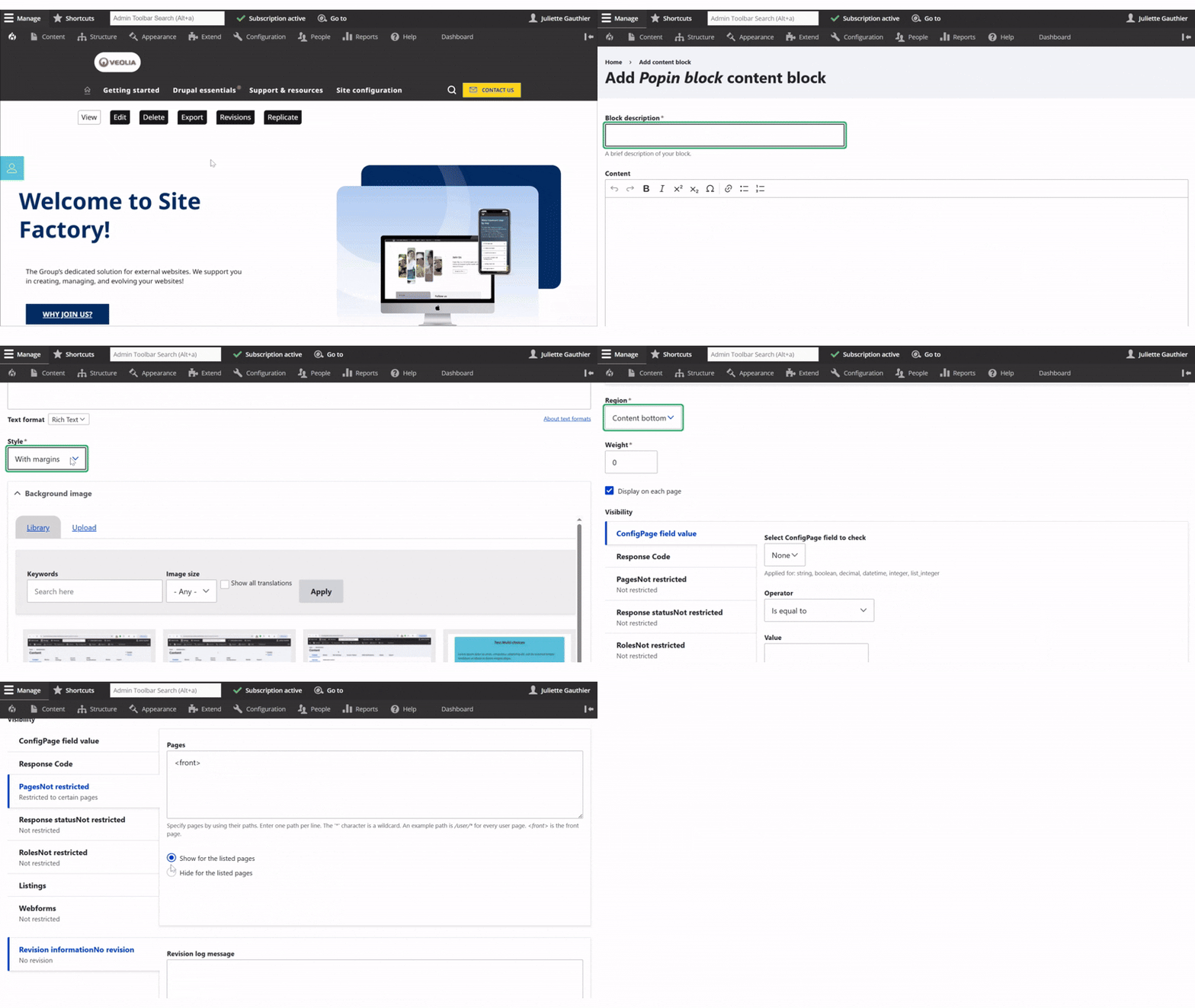
Once logged into the back office, go to Content in the main menu, then open the Bloks tab. Click Add content block and select Popin bloks.
Name your popin in the Block description field. Choose the Rich Text format before adding content to access all text options (colors, fonts, media).
Select a display style (with or without margins), and add a background image if needed. Then choose the popin’s region: footer, content bottom, or content.
At the bottom, enter the target URLs and choose whether to include or exclude those pages.
Click Save to publish your popin block.
Previews and examples of popins
Here are visual examples of pop-ins you can draw inspiration from and implement on your website to capture visitors’ attention and boost engagement.
Pop-ins can be an effective way to promote an event and increase sign-ups. They can also be used to share your contact information or collect valuable data through forms. In addition, they help animate your website and improve its overall visual appeal.