This procedure guides you through importing content from one website to another. You can also import content in its original language and translate it after it has been successfully imported into the new website.
Step 1 | Export a content
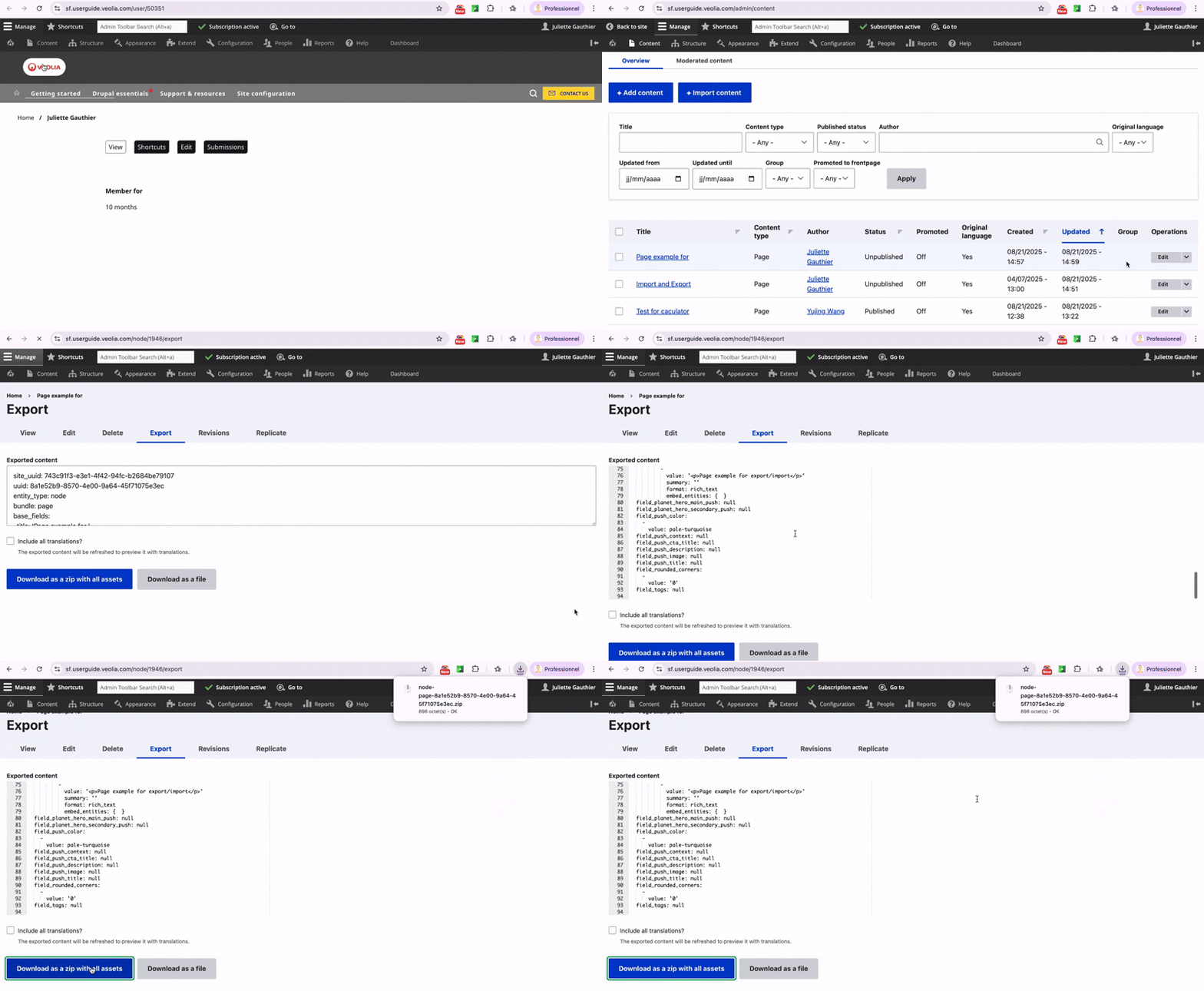
First, click on the Content menu and go to the content listing page.
For the content you want to export, click the Edit button dropdown and select Export.
Click Download as a zip with all assets.
⚠️ DO NOT check the Include all translations box.
Finally, the zip file will be downloaded.
Step 2 | Import to another website
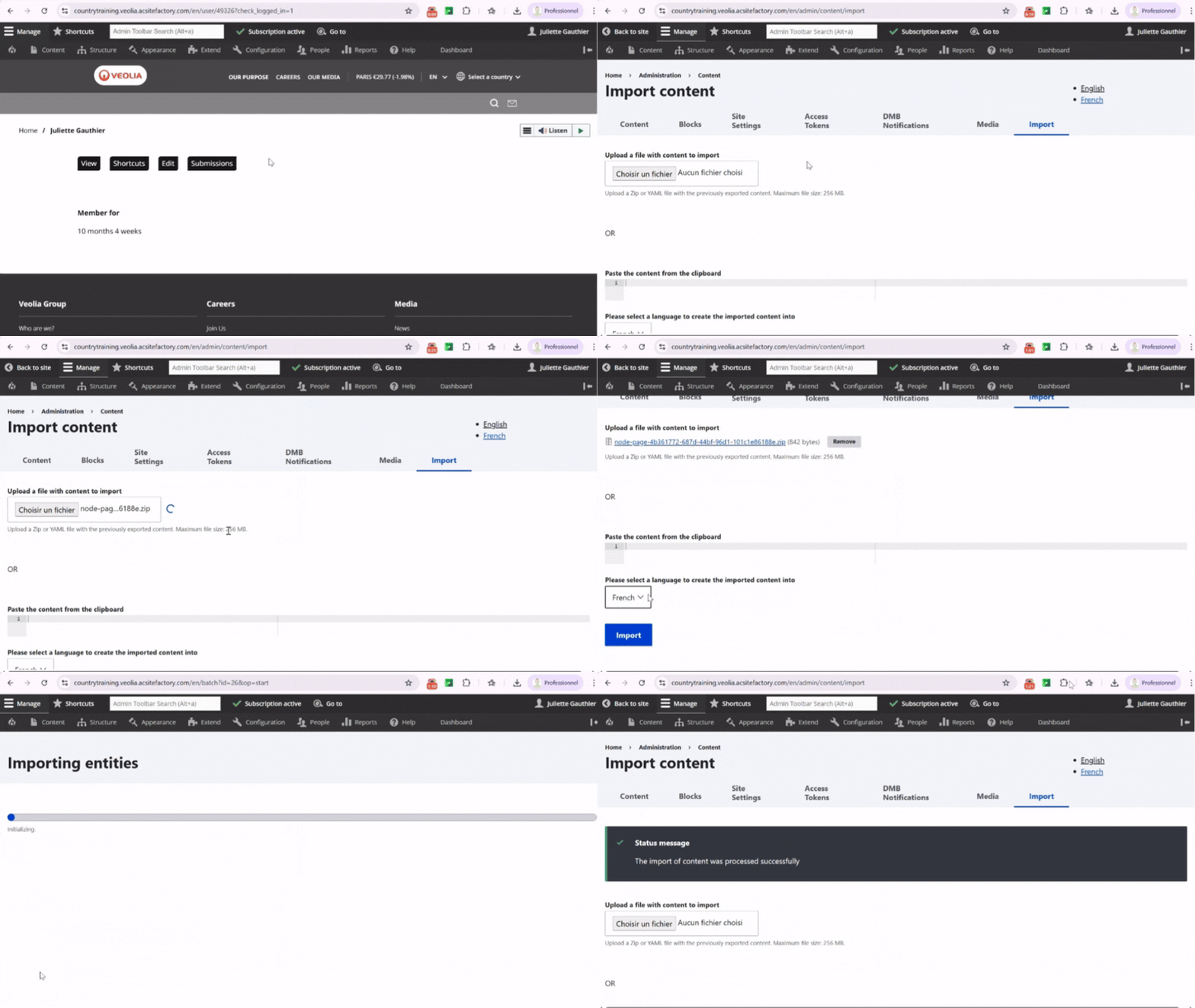
Log in to the site where you want to import the content.
Go to the content listing page and click on the Import tab.
Make sure a language dropdown appears above the Import button. This dropdown shows the original language of the content to be imported.
Select the desired language, import the content, and verify the import was successful.

Step 3 | Translate the imported content
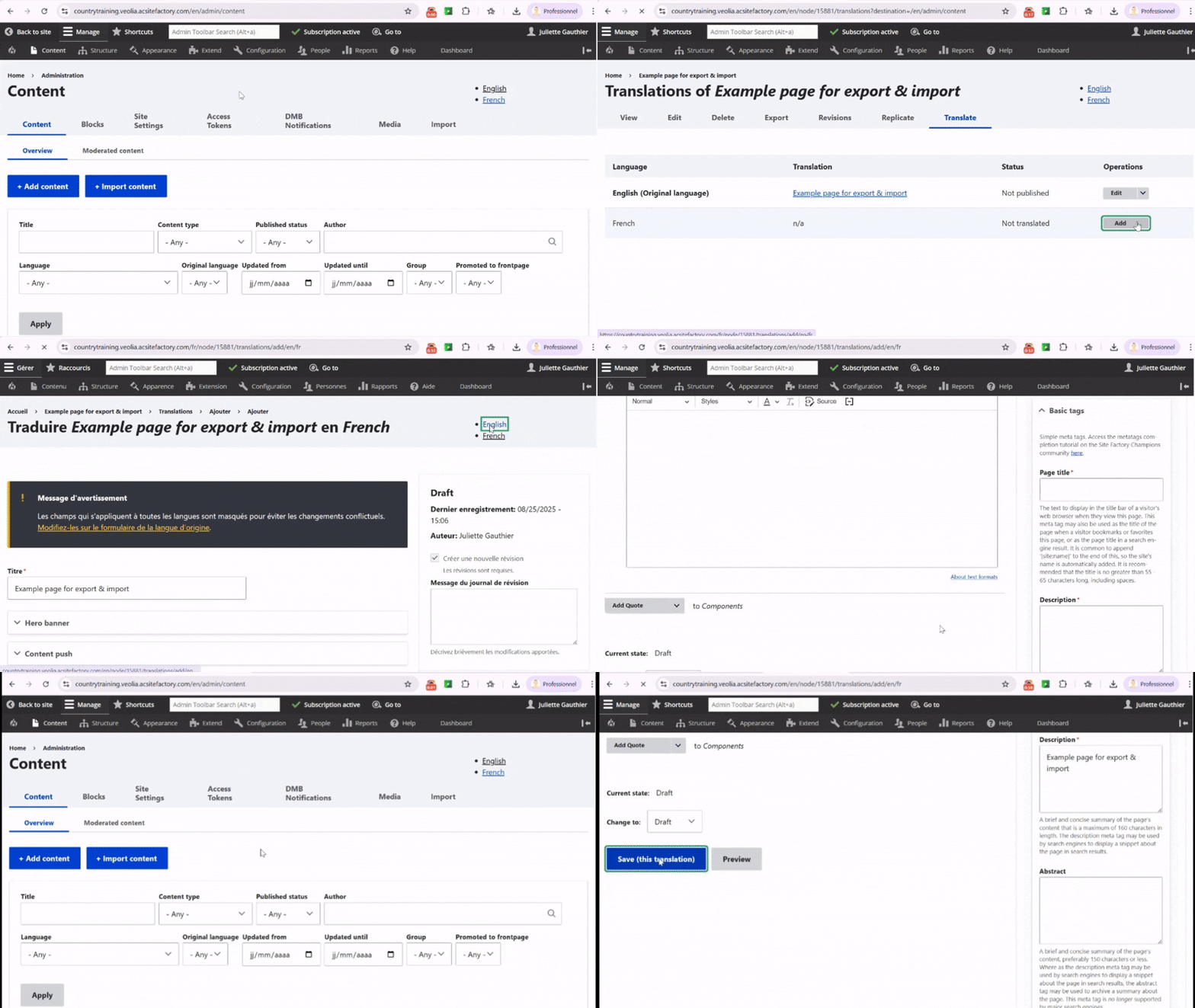
Once you are on the website or the content has been imported, go to the Content tab.
Under the Edit button of the content item, click on Translate.
Click on Add next to the language you want to translate the content into.
In the page editing view, configure the metatags by entering a translated title and description.
Click on Save to save the translated version of the page.
Explore more configuration options