This procedure allows you to create a specific list by adding dedicated categories
It involves three steps:
Step 1: create taxonomies
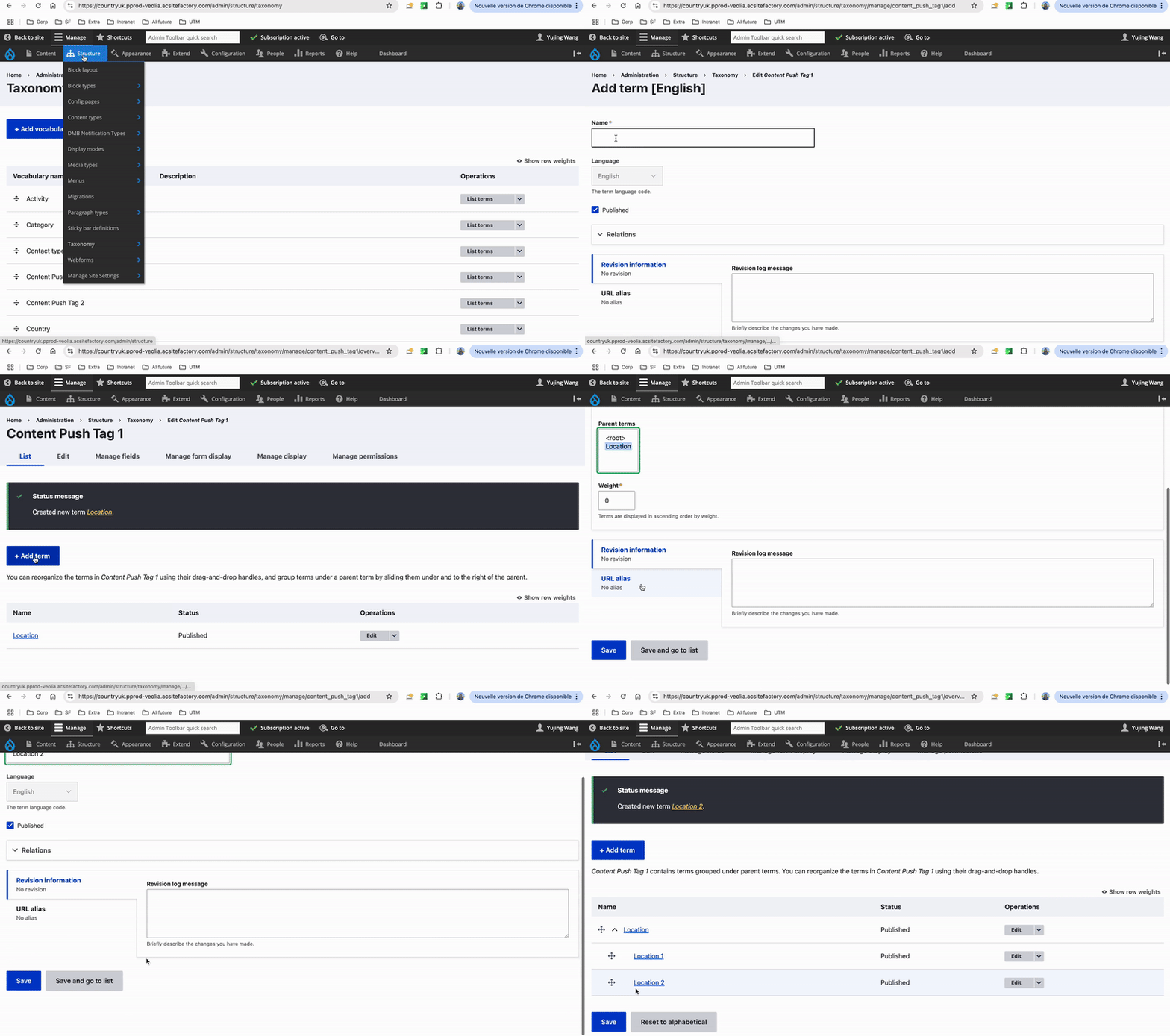
Navigate to Structure → Taxonomy
Verify there are 2 taxonomies available - Content Push Tag 1 and Content Push Tag 2
Click on Content Push Tag 1 → List terms
Click on Add term button.
Type the input in Name field. Expand Relations section and select parent as root (this will create taxonomy term for level 1)
Now create another term → Type the input in Name field → Expand Relations section → select the parent as first created term (this will create taxonomy term for level 2)
As explained in the steps above, create some other taxonomy terms upto level 2.
Repeat the same process to create taxonomies for Content Push Tag 2
Step 2: Create/Update Content Push with tags
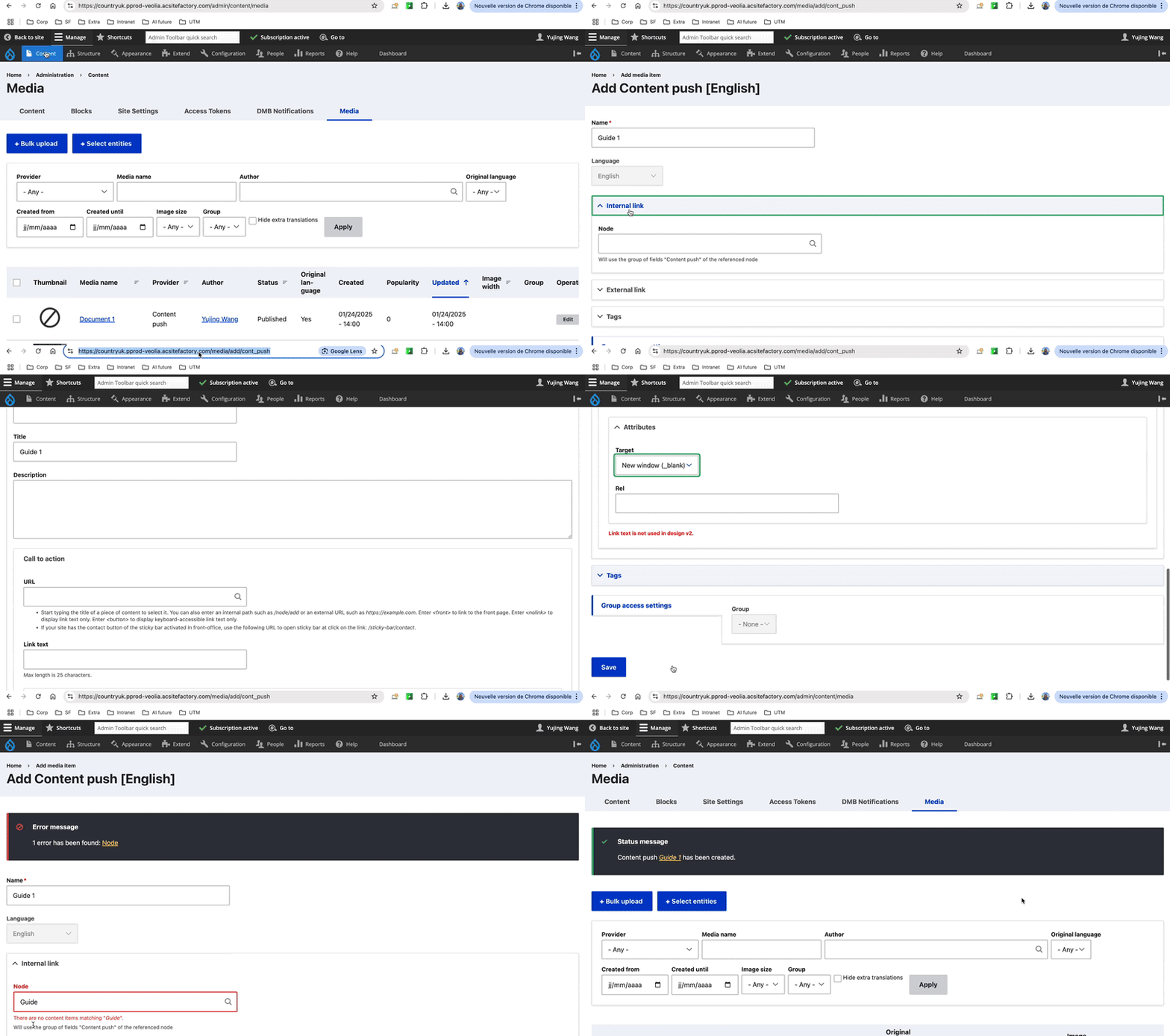
Navigate to Content → Media
Either create new content push type of media or edit any existing content push available.
Edit/create the content push and verify a new section “Tags” is available now
Select some checkboxes from tag 1 and 2 for filtering the content in the listing. Whatever tag options get selected here in this content push, the content push will appear on those particular filters in listing.
Save the media.
Update/create some more content pushes in the same way.
Step 3: Create a list with tagged content
Add content of type Page
Add Listing component to it.
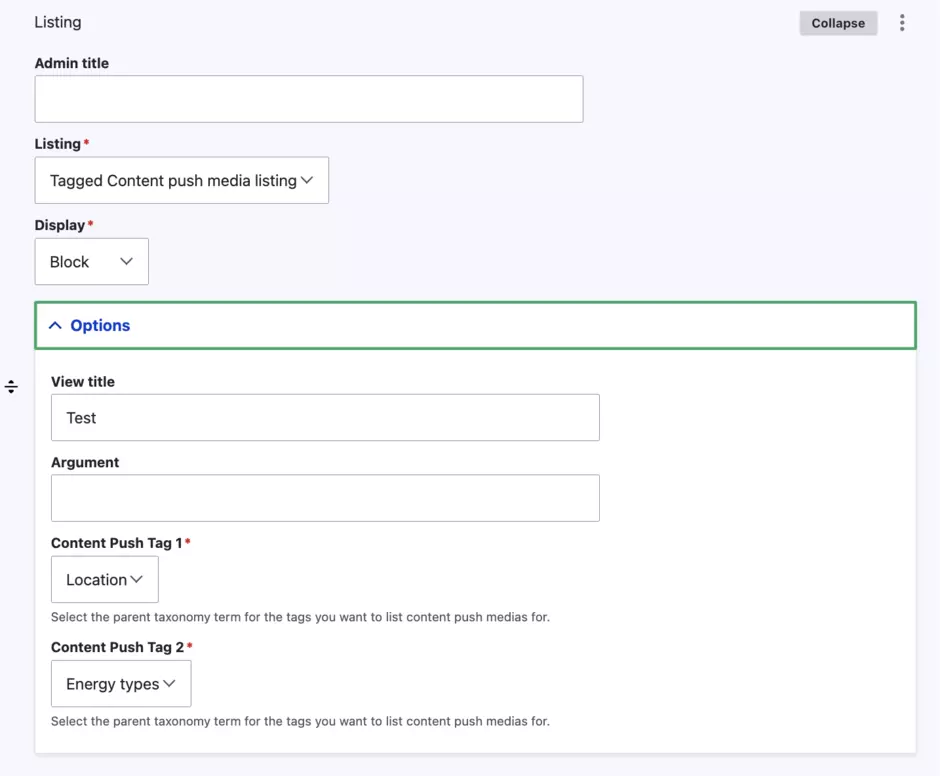
Select “Tagged content push media listing” from the Listing dropdown.
Select Display as “Block”
Expand the Options sections
Select appropriate parent term from “Content Push Tag 1” and “Content Push Tag 2” dropdowns. Note that only one parent each can be selected for filtering.
Save and publish the page