

When using a Container with a background image, a scrollbar may appear inside the banner if the content exceeds the height of the image.
This behavior occurs when the option “Use image height for container” is enabled, as the container keeps a fixed height based on the visual.
To ensure a clean and consistent display, it’s important to balance the amount of content with the available space.

Step 1 | Add a Container with background image
First, open the page editor and give your page a title.
Click on Add Container and configure the following settings:
- Add a title
- Upload a background image
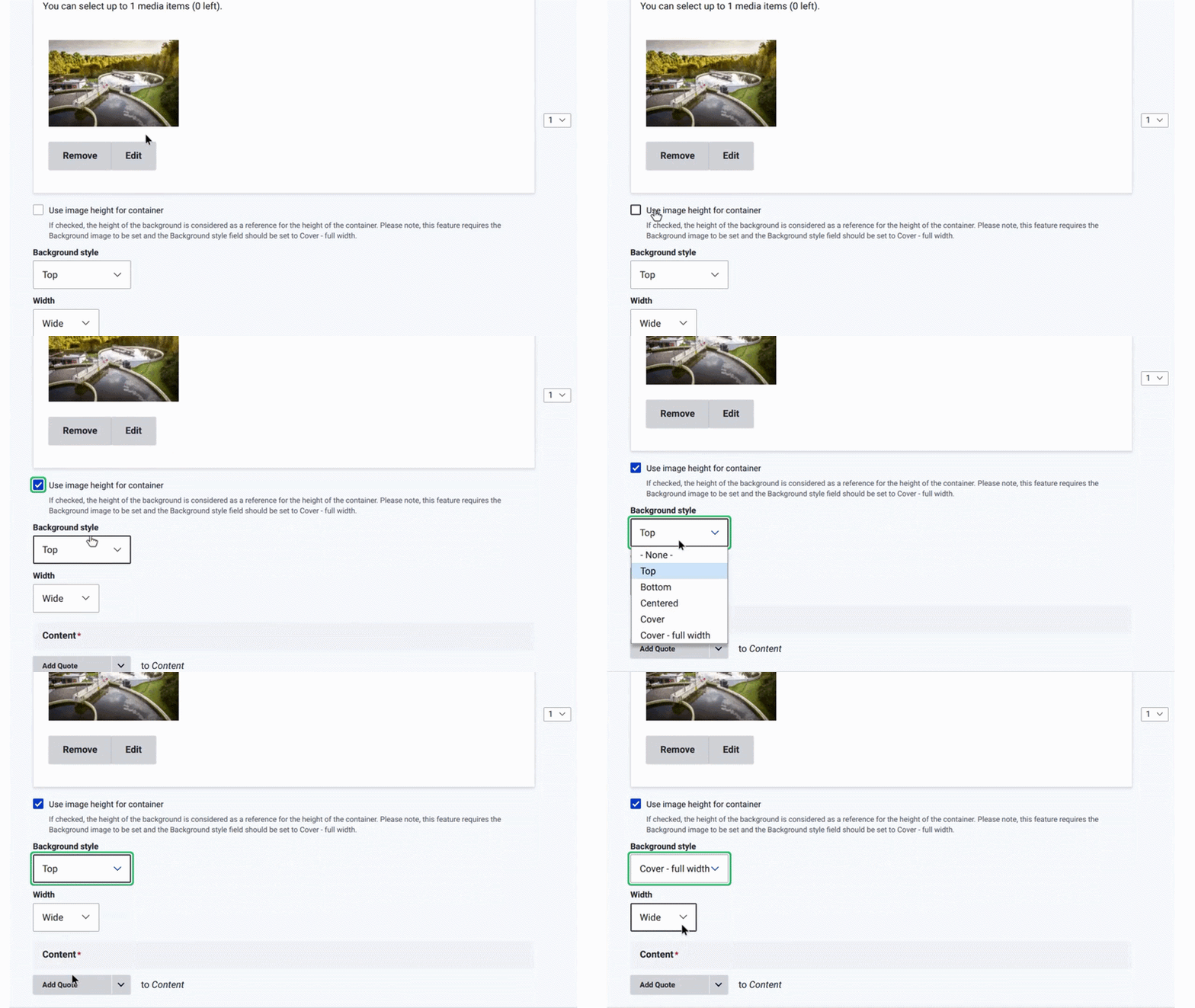
- Enable “Use image height for container”
- Select Background style: Cover – Full width
- Choose Width: Wide
This setup creates a banner with a fixed height based on the image.
Step 2 | Add content inside the banner
Inside the container, you can add different content types such as:
- Text blocks
- CTAs
- “Content with Aside” components
For example, you may:
- Add a title (H2)
- Insert text content
- Embed a CTA
- Use a 50/50 layout for structured content
⚠️ Important behavior
If the total content becomes higher than the image height, the container will display a scrollbar inside the banner.
This is expected behavior based on the container configuration.
✅ Best practices
To ensure optimal rendering:
- Keep banner content concise and focused
- Avoid stacking too many components inside the banner
- Ensure the image height matches the content volume
- Be careful with 50/50 layouts, which reduce available space
- Always preview the page before publishing