

Configure the site header

1 - Change the site logo and site name
Site logo
As an Administrator user, go to Appearance > Settings, then add a PNG file of the new logo with field Upload logo image.
Maximum dimensions 860x160px
If the uploaded image has larger dimensions, then Drupal reduces the image to fit.
Site name
Go to Configuration > System > Basic site settings, then edit field Site name. Default value is "Veolia"
Even if the site name is not displayed visually on the pages, it is :
- used as text alternative to the site logo image (for screen readers and is visible if logo image is broken),
- displayed in each page HTML title (can be seen in the browser tab)
- used by search engines when displaying the site pages on search results
2 - Edit site slogan
Go to Configuration > System > Basic site settings, then edit field Slogan.
3 - Translate the search button
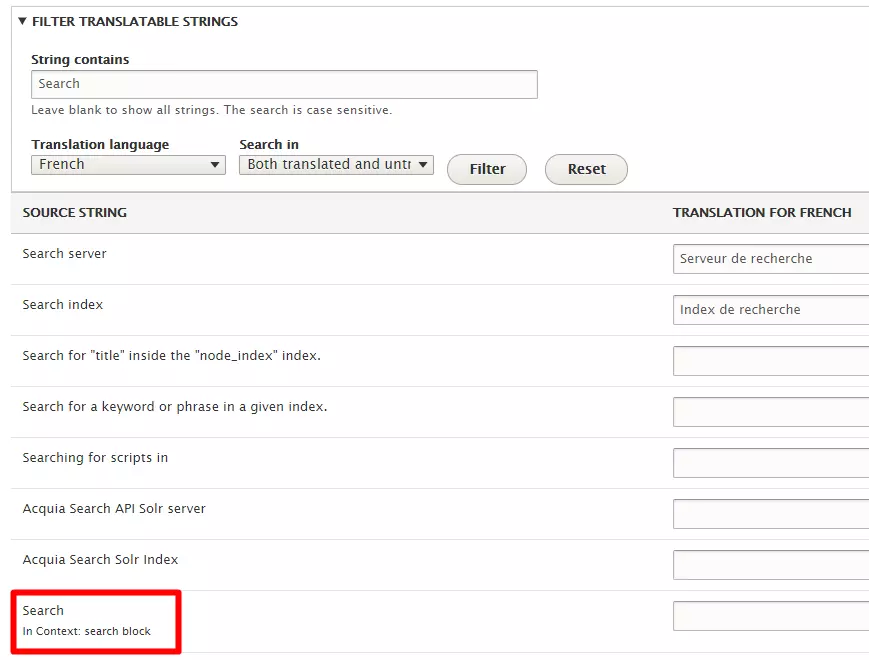
Go to the translation interface: Configuration > Regional and language > User interface translation. Search for the term you need to translate, ex. "Search" and click Filter. Then add the translation and click Save translations.
4 - Edit the Region switcher button
Access menu Configuration > Regional and language > Region switcher > Configuration form , then fill out the field The title of Region switcher button.
If your site is using Header v2, you can optionally specify a different title for the Region switcher button on the burger menu, via the field The title of Region switcher button on the mobile version.
If you need a change on the map or the content of the Region switcher, please send the request to the Site Factory contact person. This kind of change requires Admin permissions.
5 - Manage the top header menu
Go to Structure > Menus, then edit the Top header menu.
6 - Enable the language selector
The language selector is displayed as soon as there is content published on 2 languages on the site. Else, it is automatically hidden.
I case the language selector isn't shown after publishing the content
- Go to the Configuration > Regional and language > Languages > Detection and selection
- Mark the "URL" checkbox
- Save settings
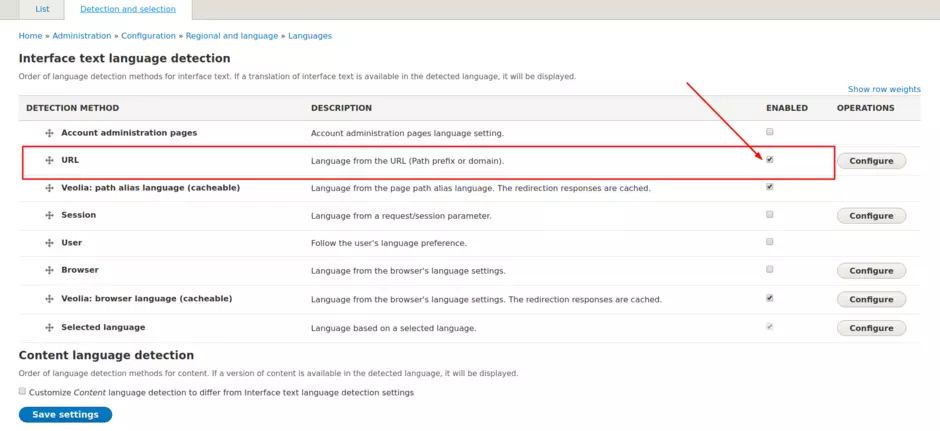
In case you want to hide languages on the region switcher, click on Configure on the right of the line URL of the list. The configuration page of URL detection method proposes one checkbox per language to hide.
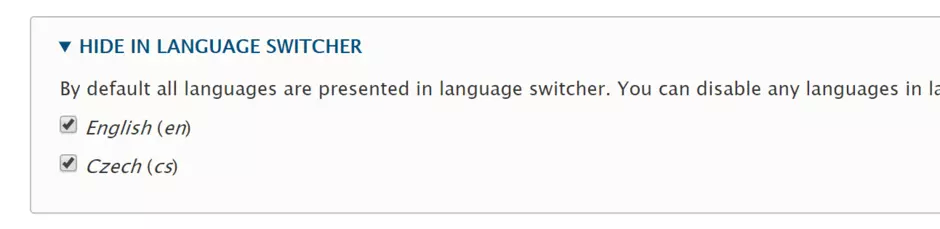
Below, fields allows you to also customize the language label that are displayed on the Region switcher.
Configure the site footer

1 - Edit the footer menu
Go to Structure > Menus, then edit the Footer menu.
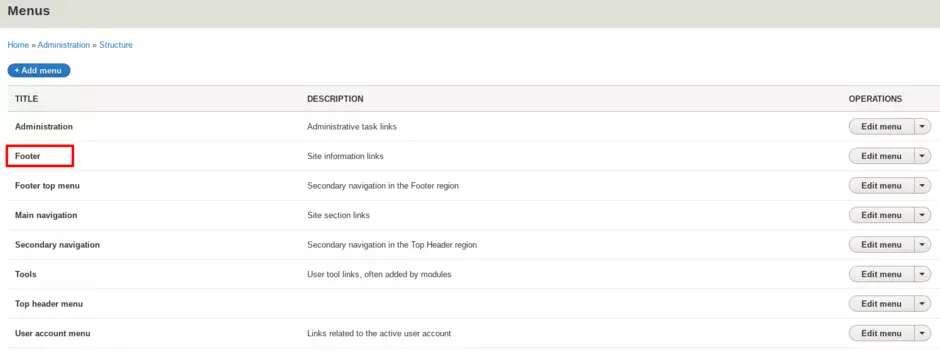
Please note Footer menu items are managed as Main navigation menu items
(Footer menu being second navigation feature)
2 - Edit the copyright mention
Go to Configuration > System > Basic site settings, then edit field Footer information.