

Preview
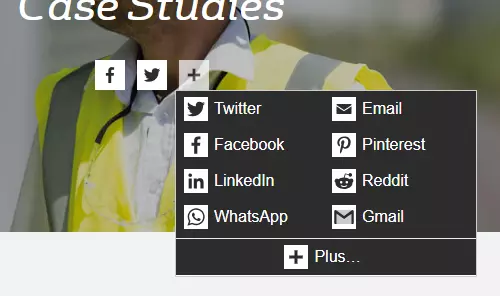
Every node page proposes by default sharing buttons that are visible by default and a list of social sites where the content can be shared.
How to configure the sharing buttons
As a Site Manager user
- Go to Configuration > Services web > AddToAny
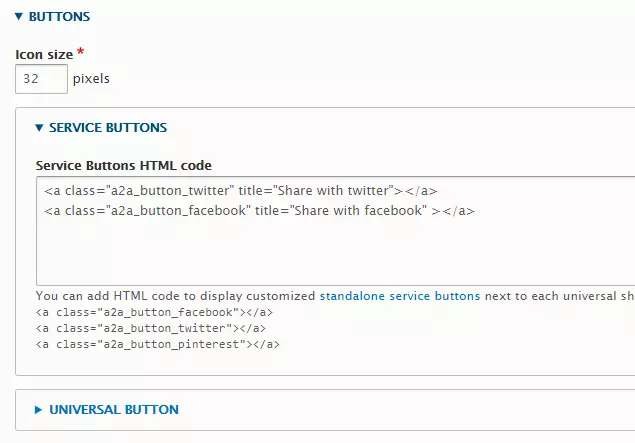
- Open group of fields Service buttons and edit the field Service Buttons HTML code.
2.1) HTML code in this field allows you to manage the order and the type of buttons displayed. The functionality uses a "service code" per button. For example, the Facebook button uses service code "facebook" and the relative HTML code is <a class="a2a_button_facebook" title="Share with facebook" ></a>. You can find the full list of service codes from the module on this page.
Also, a custom service code for Veolia sites in China is available for sharing to QQ: "qq".
2.2) In case you would like to hide sharing buttons on all pages, just empty the field. - Click Save configuration
Configure the Twitter account displayed on the tweet when a page is shared on Twitter
The tweet message after ckick on the Twitter share button mentions the site's Twitter account "via @xxx".
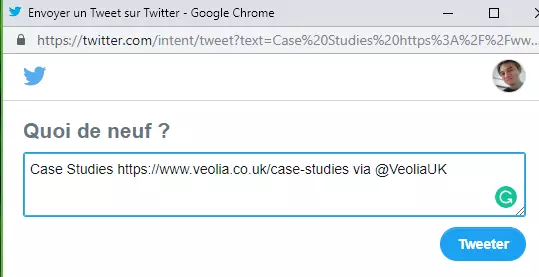
Site Manager user can confgure the site's Twitter account:
- Go to Configuration > Search and metadata > Metatag
- Click Edit on the Global group of fields
- Open group of fields Twitter cards, then add a Twitter username in field Site's Twitter account
- Click Save at the bottom of the page