Looking for interface (back office or front office texts, ...) customization?
WARNING:
Translations features below are only available for multi-lingual sites
Translating content
When editing a node, click the Translate tab. There you can create and manage translations of the node.
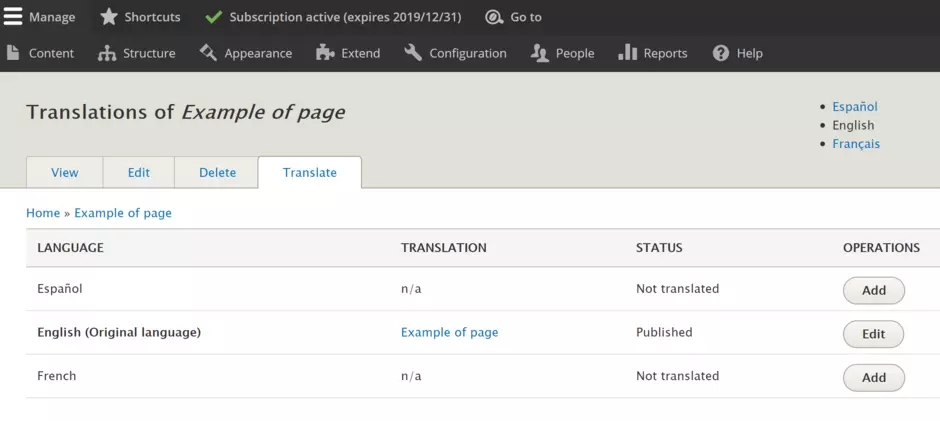
Note: some node fields are independant to translations, ex. content push background color, Hero banner image. Drupal hides such fields from the node edit page of translations, and mentions this in the following notification:

WARNING:
When translating content please do not forget to translate SEO tags if you have set some, as the system is copying source language by default
Translating medias
When editing a media, click the Translate tab. There you can create and manage translations of the media.
A page can have a media with a different language as the node, there is no restriction for it. In front-office, Drupal displays in priority the media in the same language as the page, and if the translation is not available, Drupal displays the source language of the media.
Please note that translation of media makes sense only when there is text involved (ex: Call To Action, Document), but it's not required for decorative images.
Translating webform fields
To translate fields of a webform, go to Structure > Webforms. On the line of the webform, open the button Build (small arrow on the right side of the button) and select option Translate.
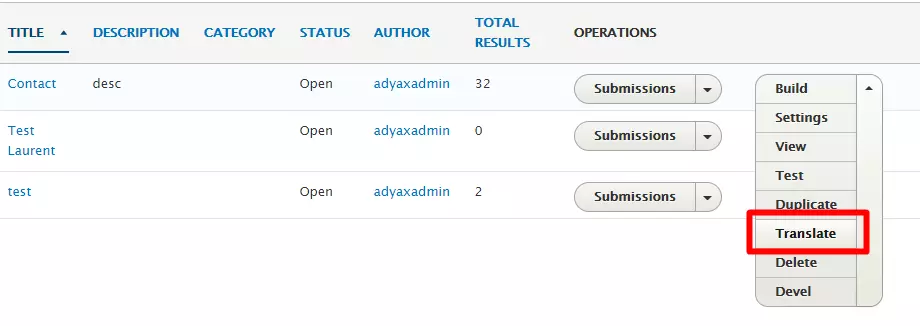
Then add a translation and translate the fields labels in field Elements (YAML) on the right column.
Translating taxonomies
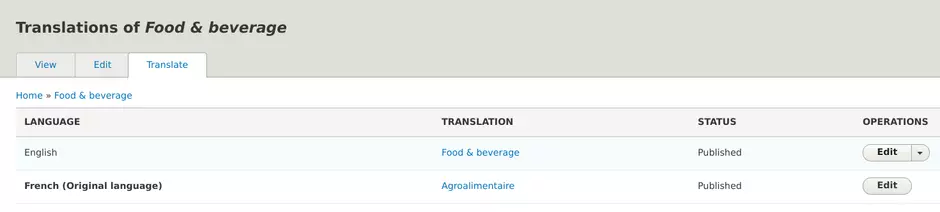
To translate taxonomies, go to Structure > Taxonomy. On the line of the taxonomy term, open the button Edit (small arrow on the right side of the button) and select option Translate.
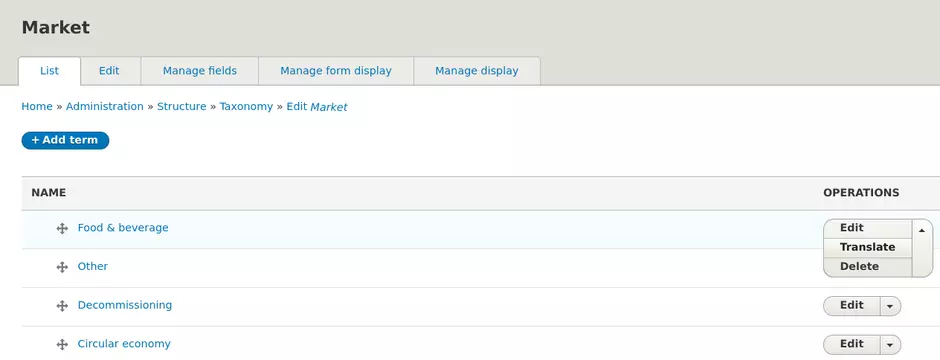
The screen appearing displays all translations possible for the chosen term.
Please note, the languages available are the ones set for the site in the config. You are not able to add a new language in this interface
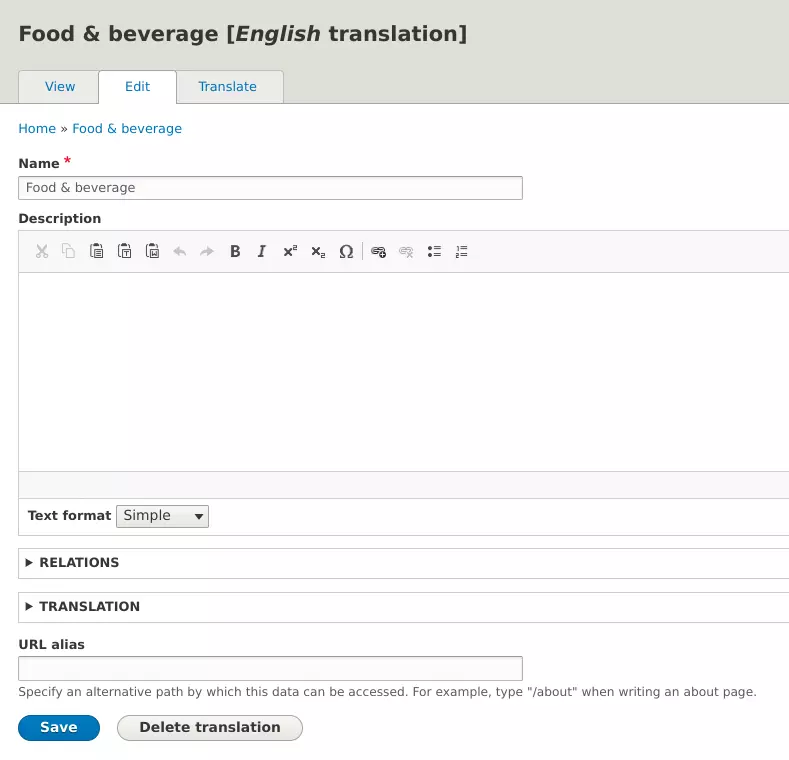
Chose the translation you want to add / edit and click on the Edit button.
The screen appearing brings ability to edit translation. Once it is done, don't forget to click on Save.
Please note that Description field is not used. You are free to use it for internal notes if needed.
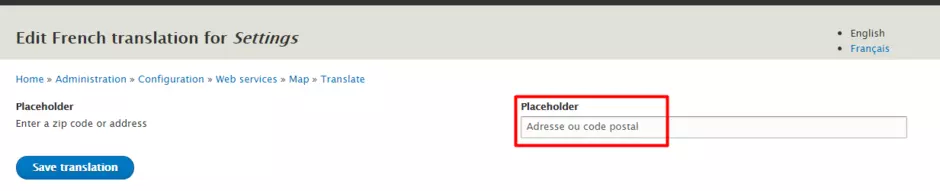
Translating placeholder field in Google Map settings
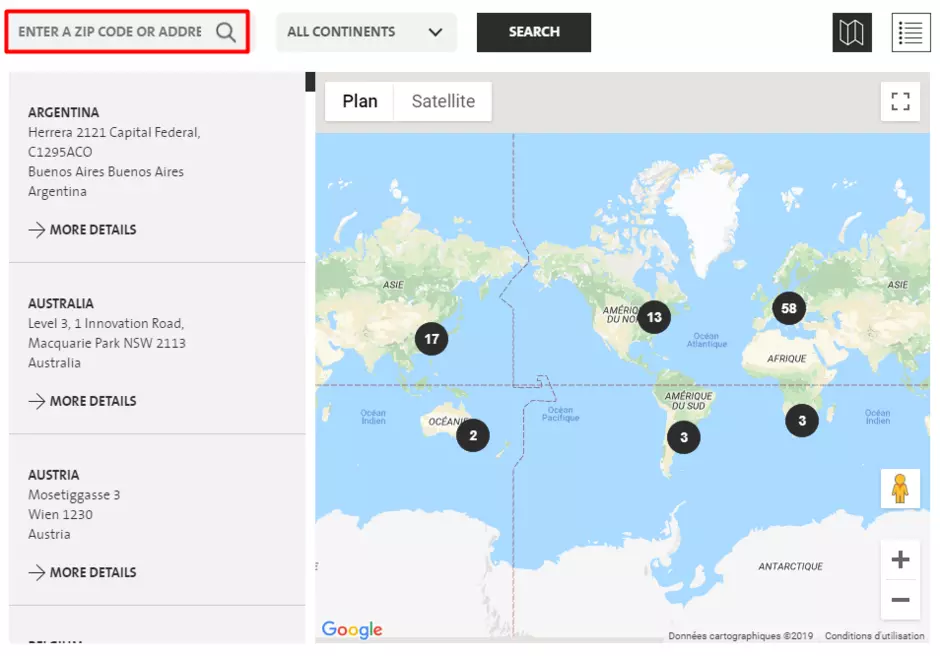
To translate placefolder field :
1. Go to Configuration – Web service – Maps – Google Map settings
2. Make sure that the text in the placefolder field corresponds to language
For example a text in field must be in English on the EN site version.
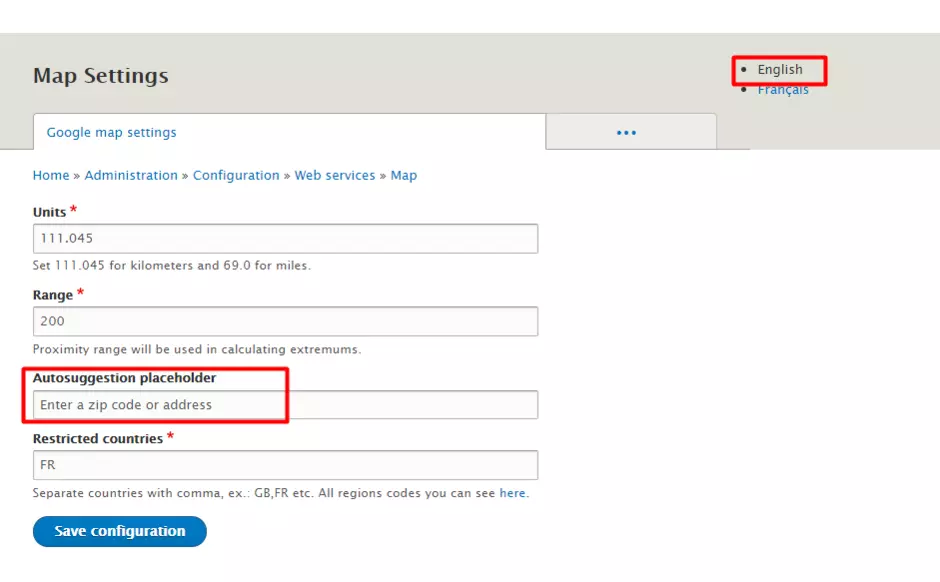
If it’s not the case, put the text in the correct language.
3. Click on Translating settings tab, chose the translation you want to add / edit and click on the Edit button.
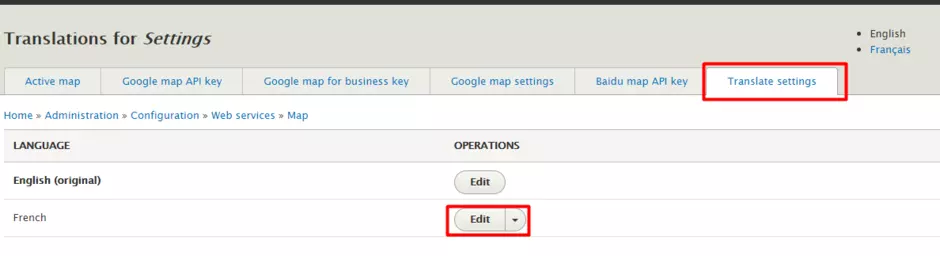
4. Then add a translation. Once it is done, don't forget to click on Save.