

Activate Google Tag Manager
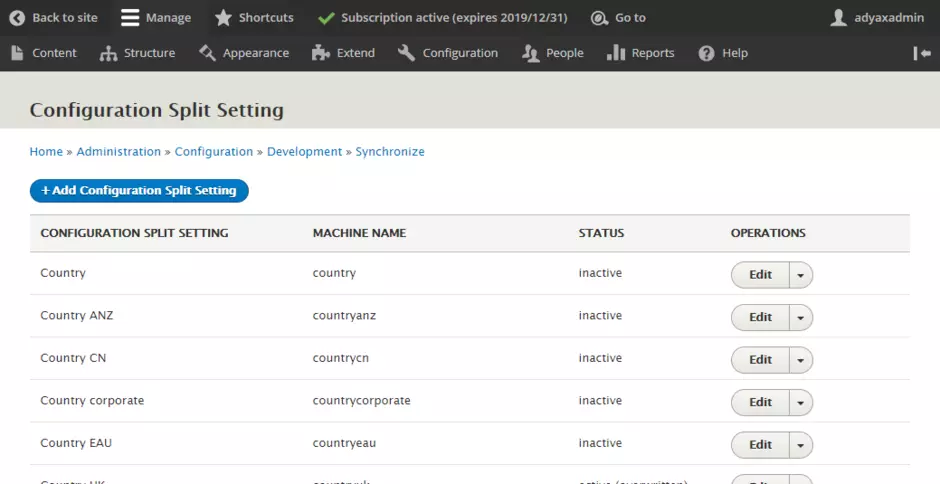
- As a Site Manager, go to Configuration > Developement > Configuration split settings. Choose the line Feature: Google Tag Manager and click Edit.
- Select the Active checkbox and click Save.
- Go to Configuration > Developement > Configuration synchronization and click Import all at the bottom of the page, this will enable all necessary modules.
- Go to Configuration > System > Google Tag Manager and add your Container ID (default ID is GTM-K7LCGZJ). Then click Save configuration.
Configure Google Maps settings
Note: the same Google Maps subscription is used for all Veolia sites, the following settings are available for customization per site.
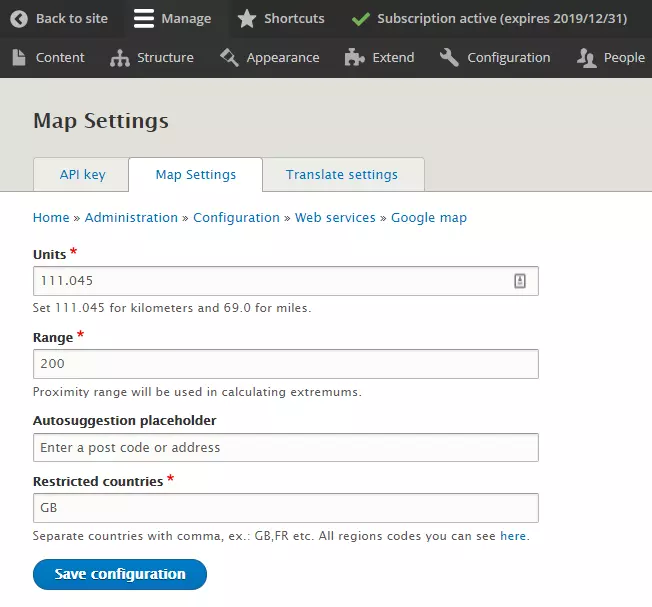
- Go to Configuration > Web services > Maps > Google map settings
- Fields Unit and Range allows to define how large is the search on the Landing of locations template or Landing of Sales Managers template.
- Field Autosuggestion placeholder allows to display a correct word for post code (can be called zip code or postal code depending to the country)
- Field Restricted countries allows to filter the search suggestions from Google map when user start typing a location on the Landing of locations template or Landing of Sales Managers template.
- Use tab Translate settings if your site is multilingual.
Configure Google reCaptcha settings
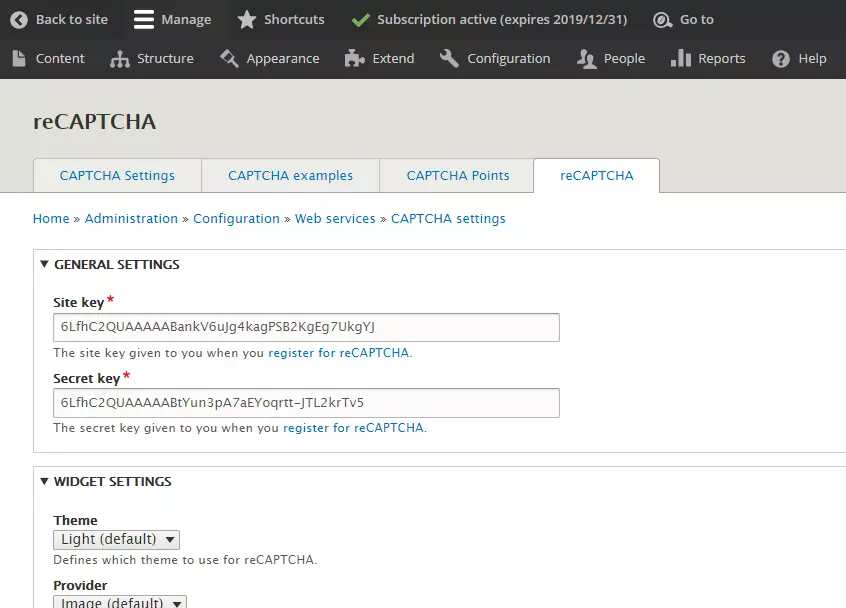
The reCaptcha keys and secrets are managed by Veolia corporate IS&T and can change from one site to another.
You can check the settings on Configuration > Web services > Captcha module settings > Recaptcha.