This guide walks you through how to create a webform that appears as a pop-in.
Step 1 | Create a page with an embedded webform
First, go to Content, Add content and Page.
Then, add a Container to structure your page.
Inside the container, add the Webform component. Select the Contact webform from the list. You can choose the background color (White or Grey)
Configure your meta tags (title, description, etc.) for SEO.
Finally, save and publish the page.

Step 2 | Create a page with a webform pop-in
First, go to Content, Add content and Page.
Then, add a Container and a component Text.
After that, in the link settings, add one of the following classes to enable the pop-in format:
- webform-dialog webform-dialog-normal
- webform-dialog webform-dialog-narrow
- webform-dialog webform-dialog-wide
Finally, enter the node of your contact webform into the link and save.
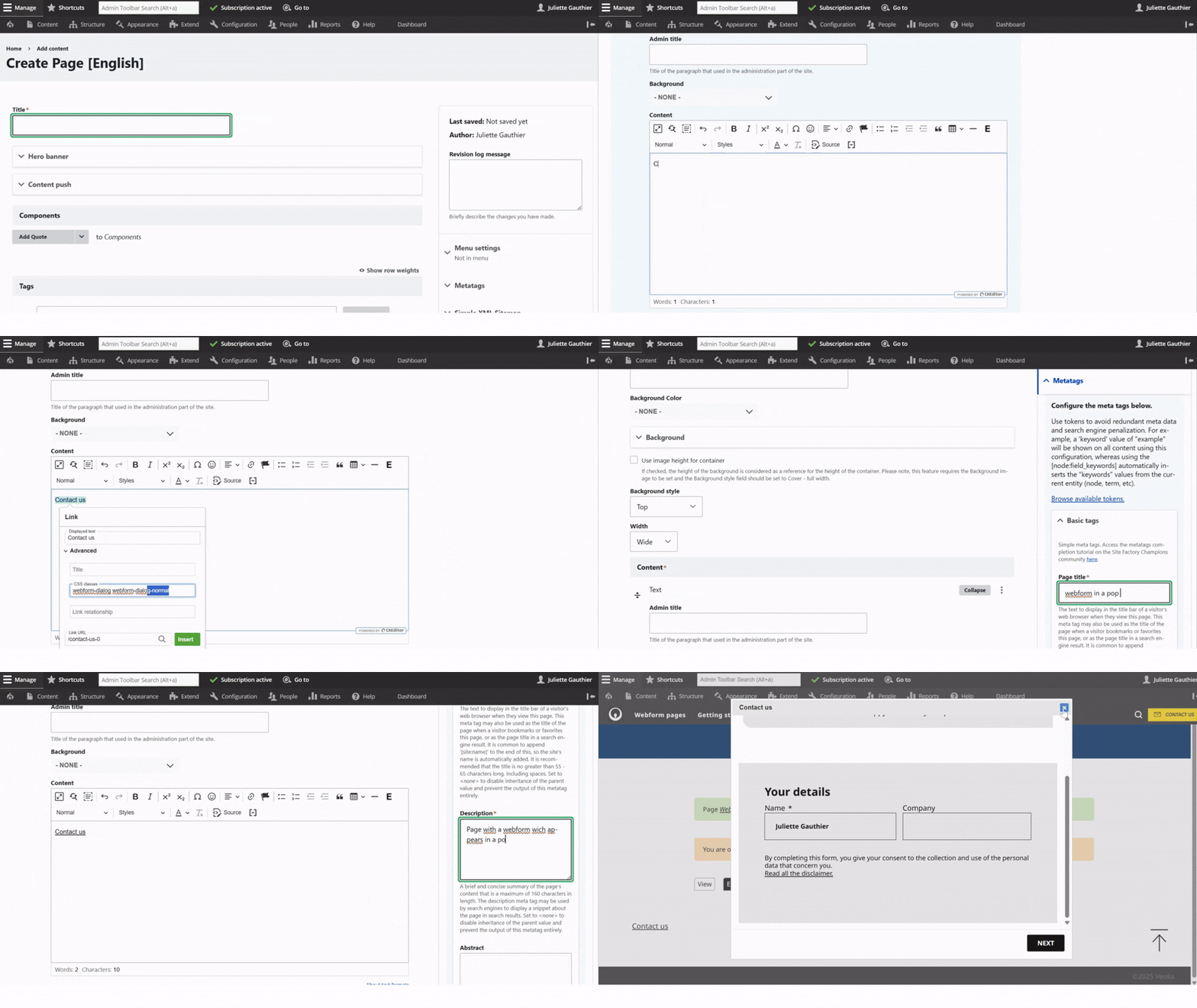
Pop-in webform layout examples