

Preview
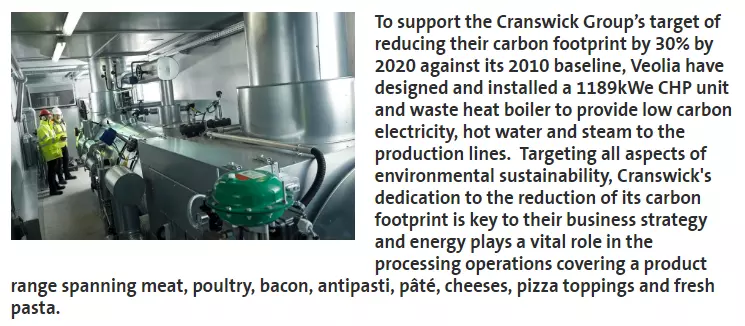
An image embedded left in a text.
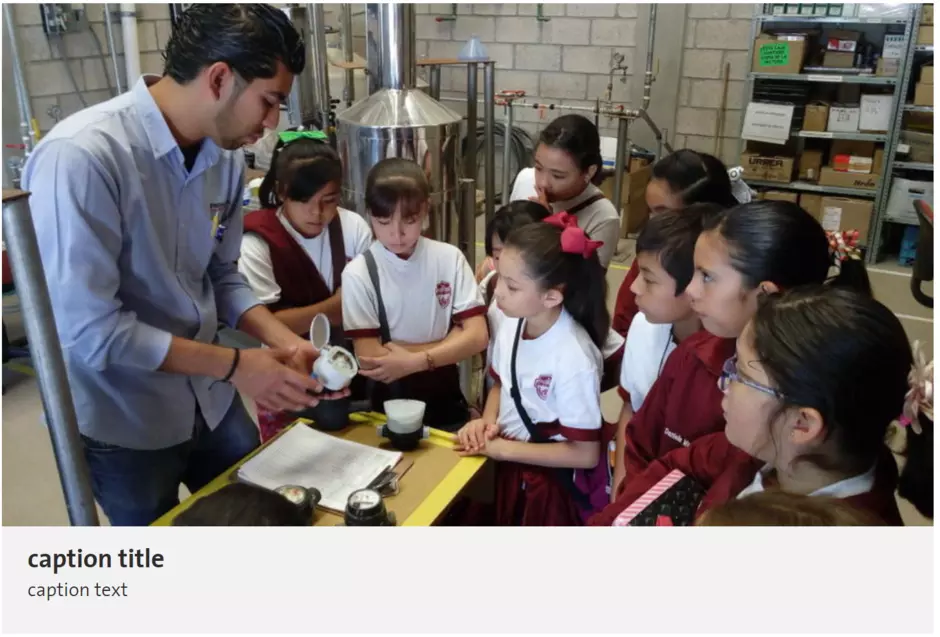
An embeded image with a caption.
Information architecture
Media image is used by most of other site components. Embedded images in a Text component can include a caption and a link.
Drupal supports image formats jpg/gif/png, with dimensions between 30px and 1200px. Animated gifs are supported.
Design
Media can have a second image file for the responsive mobile display. In this case, the first image file will be used for tablet and desktop.
Drupal allows to crop the image when creating/editing it.
When image is embeded in a text, additional options are proposed: alignment, proportional width, link and caption (see details below).
How to create it
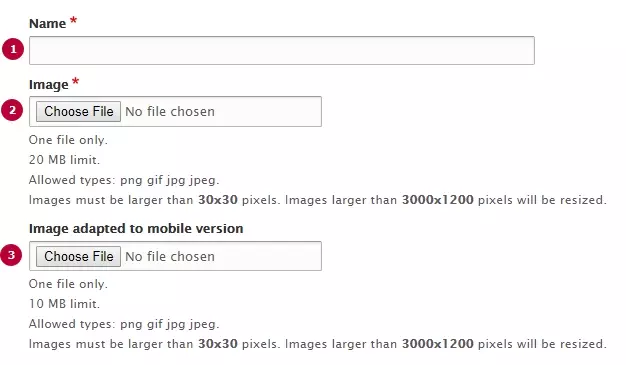
| Field | Description |
|---|---|
| 1 - Name | Used only in the backoffice |
| 2 - Image | Image file. Allowed types: png gif jpg jpeg. |
|
3 - Image adapted to mobile version |
Alternative image. Will be shown only for mobile version |
Options proposed when embedding an image
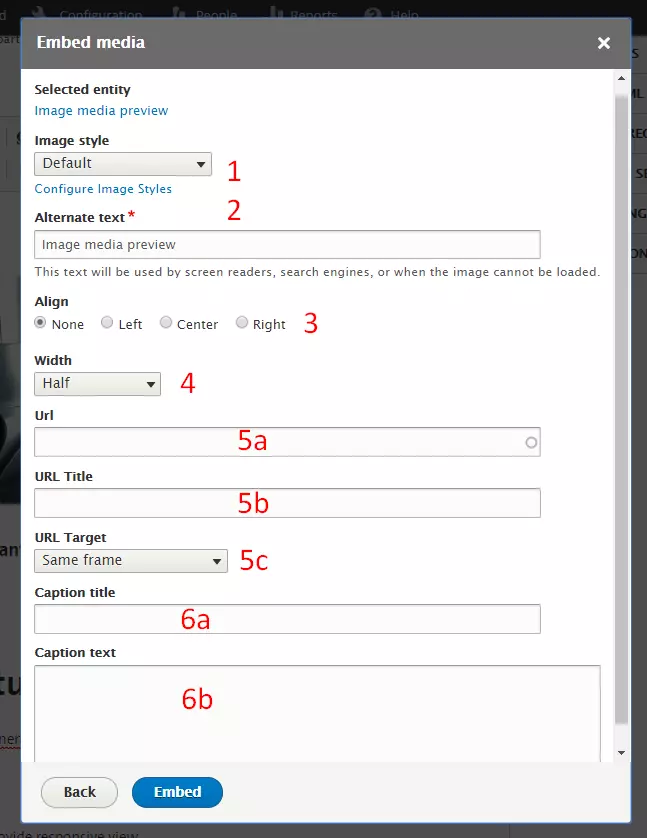
| Field | Description |
|---|---|
| 1 - Image style |
Leave to default in most cases. If you add an animated Gif. select option None (original image). |
| 2 - Alternative text | Text visible if the image is broken or read by screen reader devices. Only write text if the image carries a meaning that is important for the user. Leave empty if the image is only decorative. |
|
3 - Alignment |
Chose an option to align the image to the text after it. Example, the first preview in this page uses align=left. |
| 4 - Width | Proportional width that hte image should use. Breakout = bigger width than the text component. |
| 5 - Link | Make the image clickable. Text added in field 5b will be displayed on hover the image. |
| 6 - Caption | Caption title and text are displayed like the preview above. |
| 7 - No margin | If selected, the margin around the image are removed |