

How to edit in the back office ?
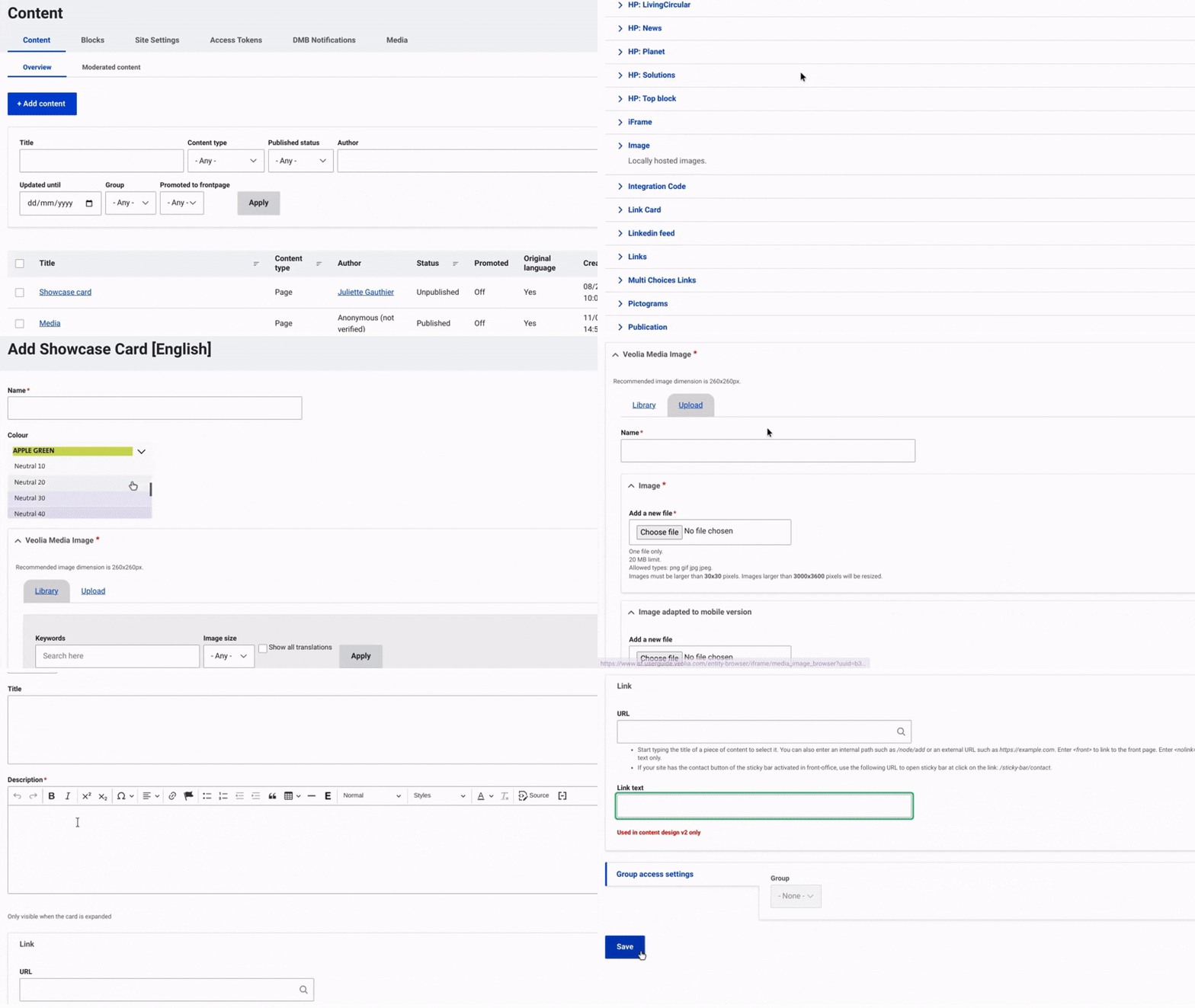
First, navigate to Content and select Media from the top menu on the right. Then, click on +Select Entities and choose Showcase Card.
Provide a name for the Showcase Card to facilitate identification and use the dropdown menu to choose a background color.
Next, you can choose to include a media image. Select the image you wish to upload, give it a name and select the file from your device. Additionally, upload a second image optimized for mobile display. Ensure you click 'Select' for the media to be displayed correctly.
Next, add a title and a brief description if needed.
Once this is done, enter a name and configure the link.
Finally, click 'Save' to complete the setup and finalize the process.
Example:

Veolia supports the restoration of fragile ecosystems by improving water management and preserving habitats for native species like these vibrant flowers.
