Call-to-Action button

CTA buttons are frequently used across site components to direct users to another page. When clicked, these buttons navigate users to the designated page for additional information or interaction.


How to edit in the back office ?
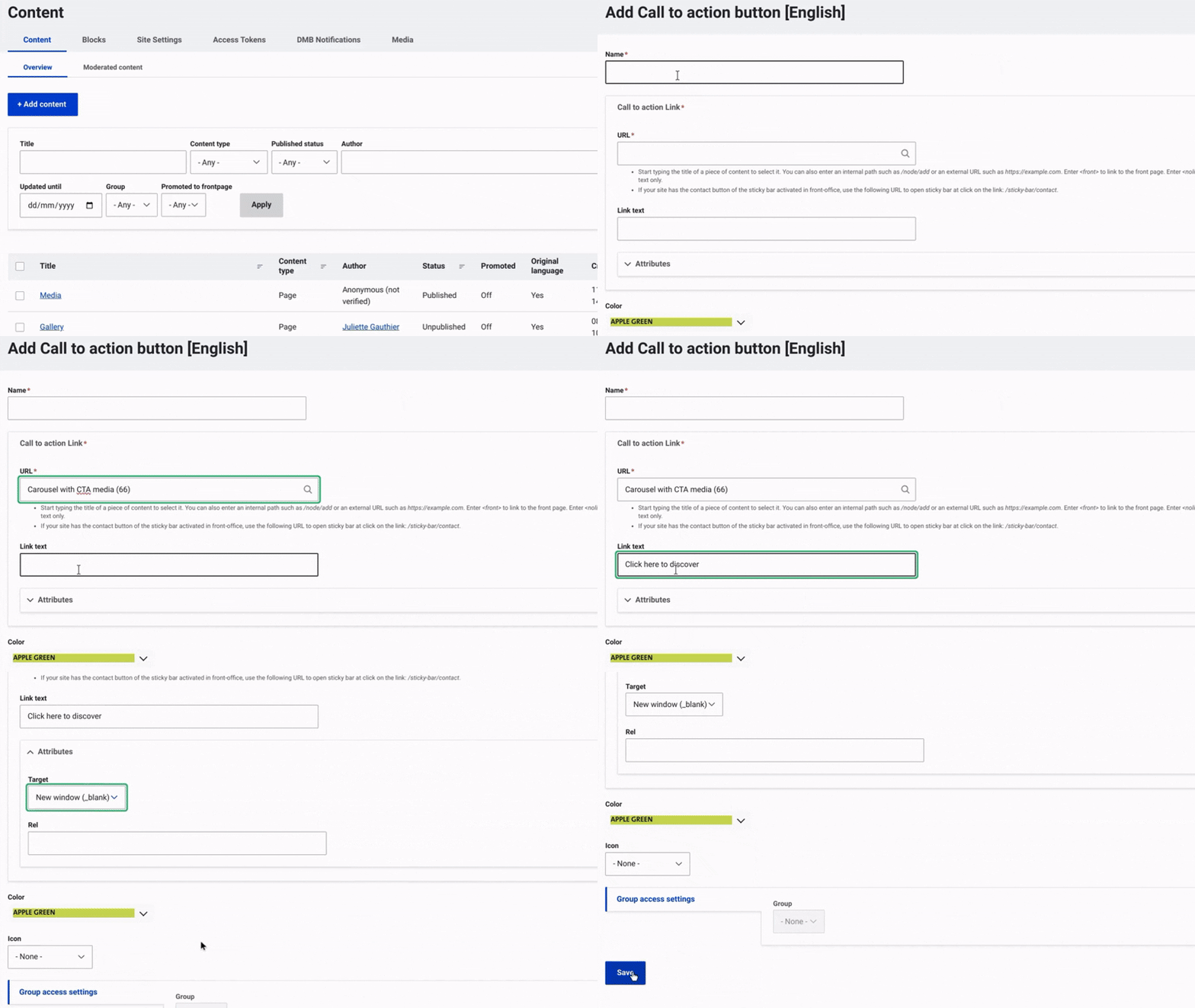
media CTA button edition in the back office GIF

First, navigate to Content and select Media from the top menu on the right. Then, click on +Select Entities and choose Call-to-Action button.

Once this is done, enter a name and configure the CTA button. In the URL field, enter the page you want users to be redirected to. Then, add the text for the CTA button.

In the Attributes field, choose whether the button should keep users on the current page after clicking or open the redirection page in a new window.

Next, choose a background color using the dropdown menu.

Finally, make sure to select 'Save' to complete the CTA button setup and finalize the process.


Discover HP - Medias to Enrich Your Website Pages 


Ask for support

We use ServiceNow to track all of your requests and questions