Content push is used across site components to highlight and guide users toward specific content or pages. When interacted with, these components redirect users to the designated destination, offering seamless access to additional resources
How to edit in the back office ?
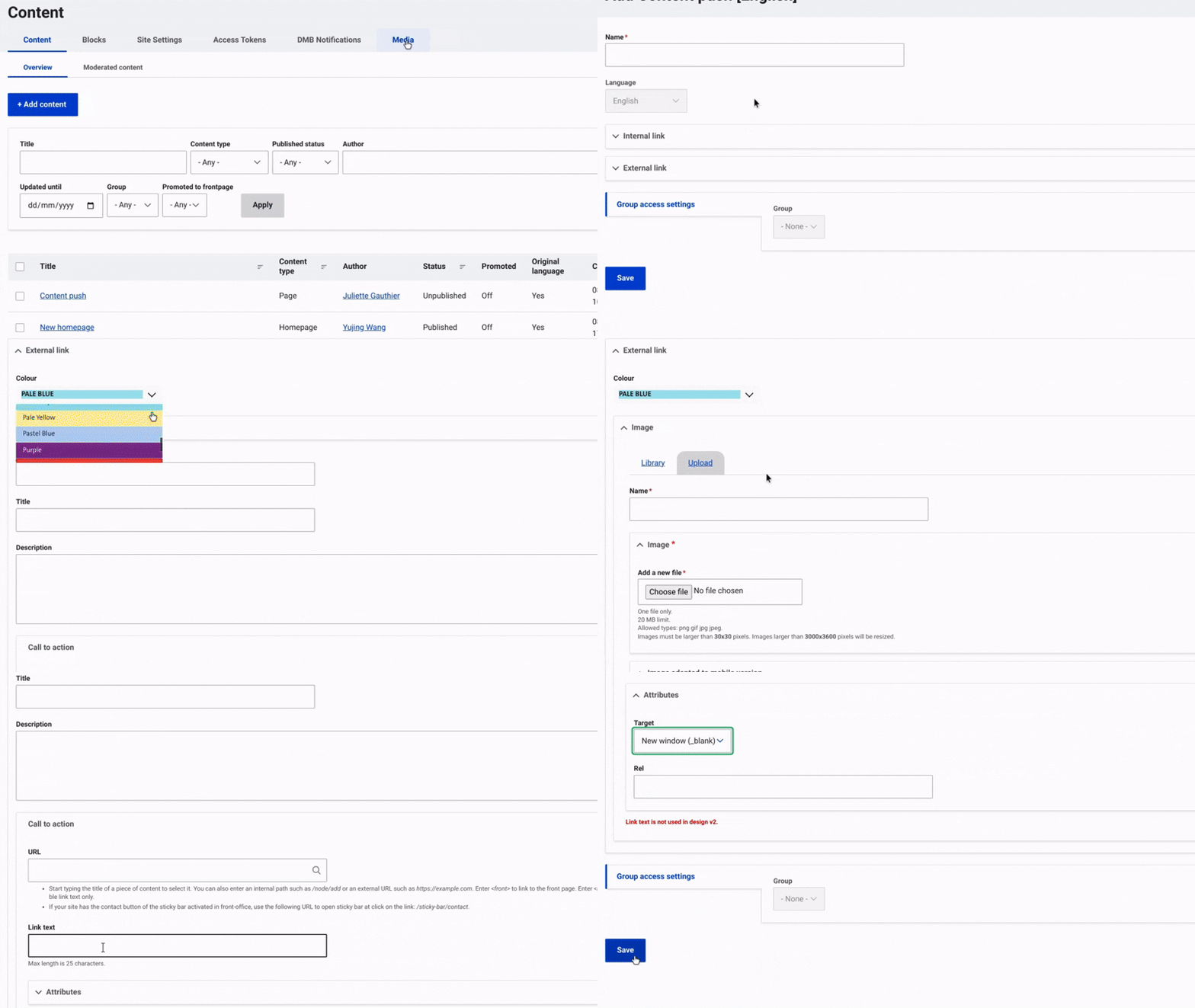
First, navigate to Content and select Media from the top menu on the right. Then, click on +Select Entities and choose Content Push.
Once this is done, enter a name and configure the Content Push.
Internal Link: redirect users to a page within the same site by simply searching the title of the page.
External Link: link to an external website or resource.
Select a background color using the dropdown menu, and choose a media image to include in the Content Push. You can then add a title and a brief description if needed.
Next, configure the CTA button, enter the URL of the target page in the URL field, and add the text for the button.
In the Attributes field, specify whether the button should keep users on the current page after clicking or open the link in a new window.
Finally, click 'Save' to complete the setup and finalize the process.