This procedure will allow you to create and use the Listing component, which uses full width and adjusts display and sorting based on content type. On mobile, all content is shown in a single column.
Editing a "Listing" Component in the Back Office involves two steps:
Step 1 : Access and edit the Listing
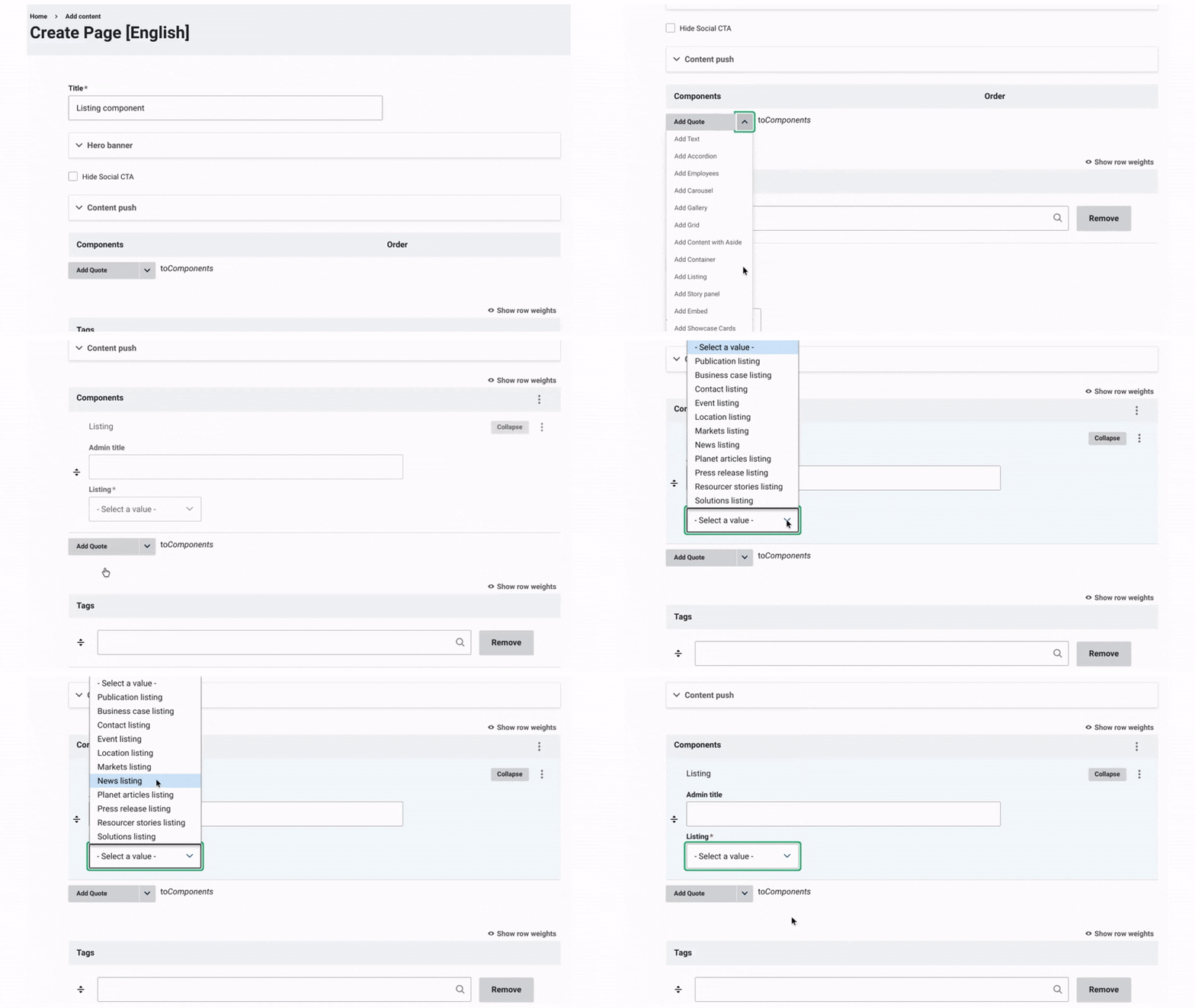
Once the title, hero banner, and content push of the page have been updated, you can start working on the content by adding a Listing.
Add a Listing:
- Click on the arrow next to "Add Quote to Component."
- From the dropdown menu, select "Add Listing."
- Assign an admin title to the container, visible only in the back office. This makes it easier to organize and manage future edits.
Choose a Listing Type:
Select a listing type based on the page type you are generating: Publication, Business Case, Contact, Event, Location, Markets, News, Planet Articles, Press Release, Resource Stories and Solutions.
Step 2 : Choose the Display
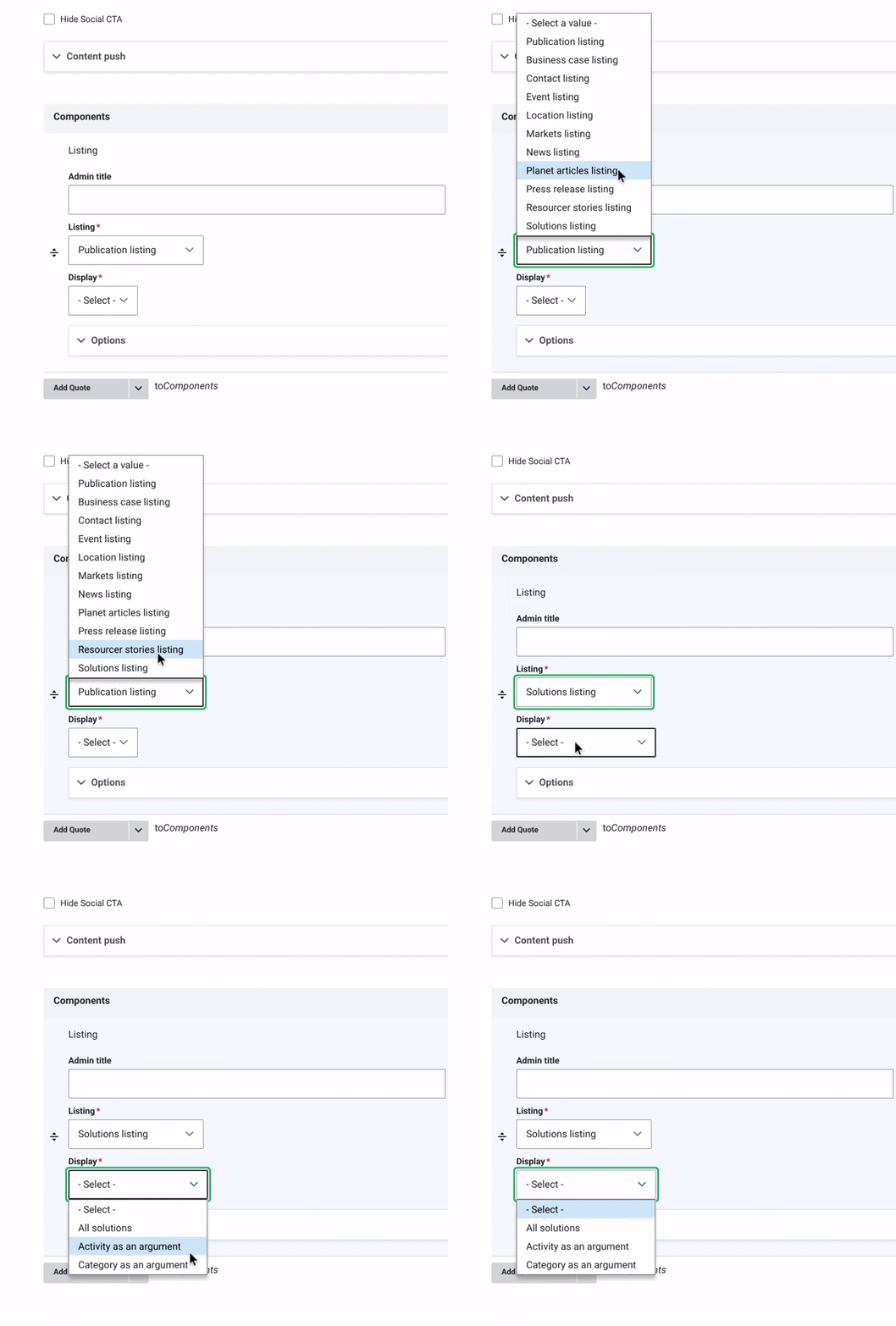
Choose a Display Option Based on the Listing Type
- Publication Listing:
- Full: Displays all details with elements as an image, title, and description.
- Compact: A simplified version with less detail.
- Business Case Listing:
- Block: A visually impactful format where the elements (image, title, and description) are hidden for a more compact view.
- Contact Listing:
- Map: Displays contacts with a location map, showing where each contact is based.
- Block: A compact format without images, titles, or descriptions.
- Location Listing:
- Map: Highlights locations on an interactive map.
- Block: Lists locations in a compact, organized layout.
- Market Listing:
- Block: Displays content in a visually clean format.
- News Listing:
- News category as argument: Organize news items by selected categories.
- Block: Uses a compact layout for a visually engaging format.
- Planet Article:
- Block: Displays articles in a compact, standard format.
- CTA: Includes a call-to-action button to encourage interaction.
- Press Release:
- Block: Displays content in a visually clean format.
- Resource Story:
- Block: Displays content in a visually clean format.
- Solutions:
- All Solutions: Displays all solutions.
- Category as argument: Filters solutions by specific categories.
- Activity as argument: Groups solutions by specific activity.
Save Your Changes and Change the status to "Published".
Example: