This procedure outlines the creation and use of the Container component, allowing you to structure your content.
Edit a "Container" Component in the Back Office involves three steps:
Step 1 : Access and edit the Container
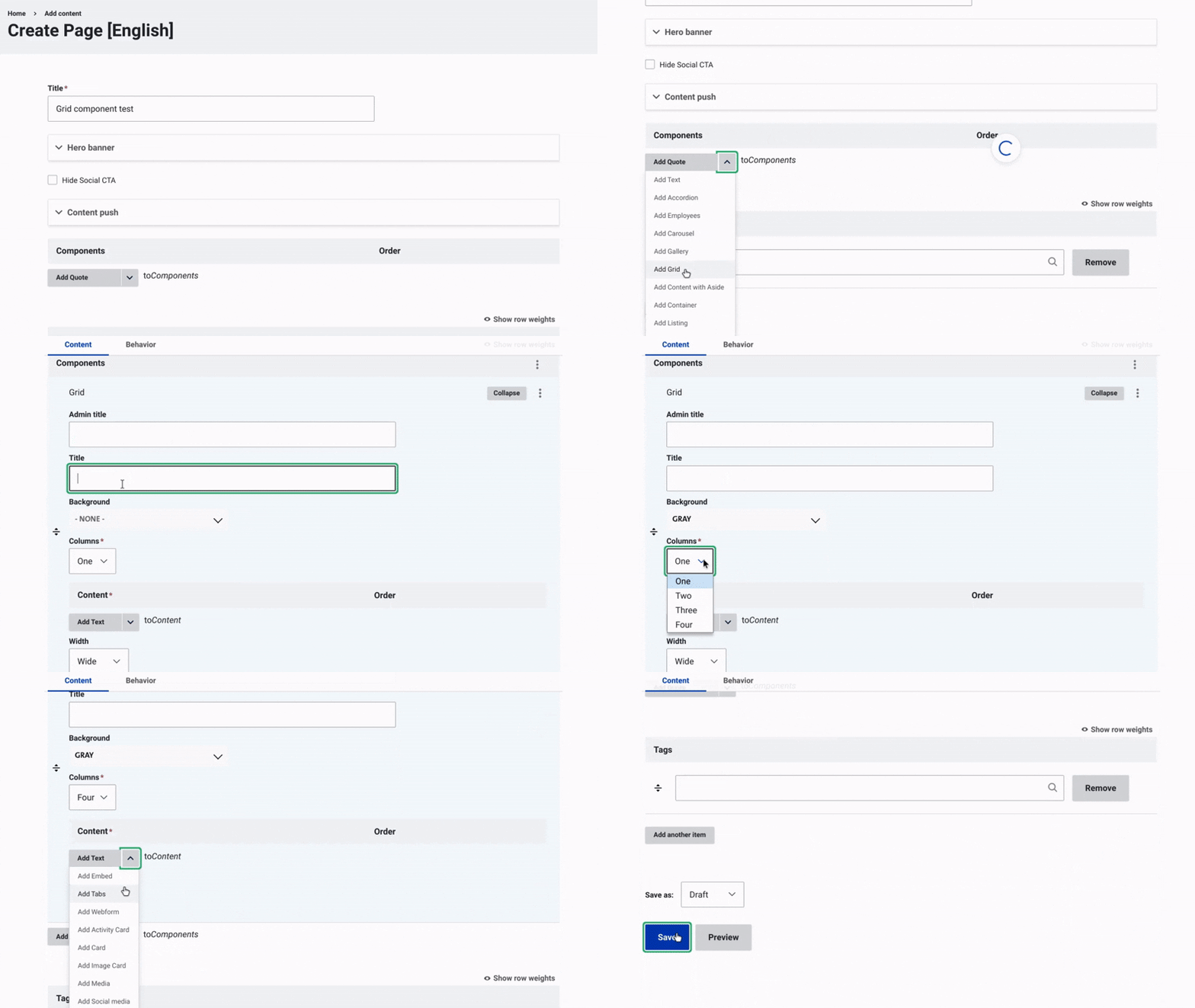
Once the title, hero banner, and content push of the page have been updated, you can start working on the content by adding a container.
Add a Container:
- Click on the arrow next to "Add Quote to Component."
- From the dropdown menu, select "Add Container."
- Assign an admin title to the container, visible only in the back office. This makes it easier to organize and manage future edits.
Customize the Container Background:
- Choose a background color from the dropdown menu or upload a media file from the media library or your local files.
- Select the background format that best suits your design:
- Top - Bottom - Centered - Cover
- Cover Full Width (most frequently used).
Step 2 : Define the Container width
Wide
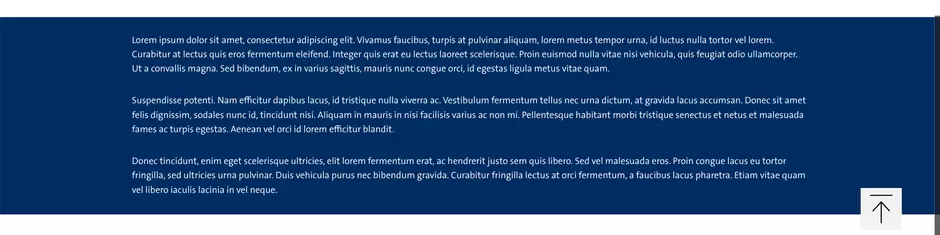
Standard
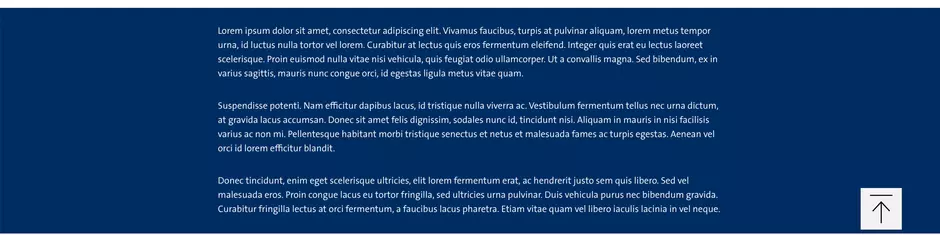
Narrow
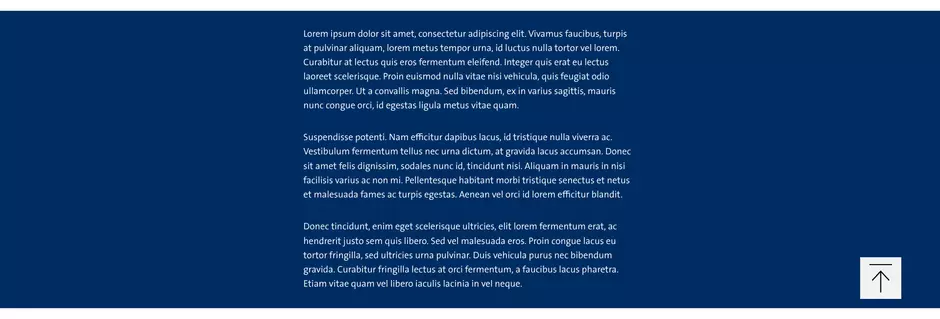
Define the container width by selecting one of the following:
- Wide
- Standard
Narrow
Step 3 : Add Content to the Container
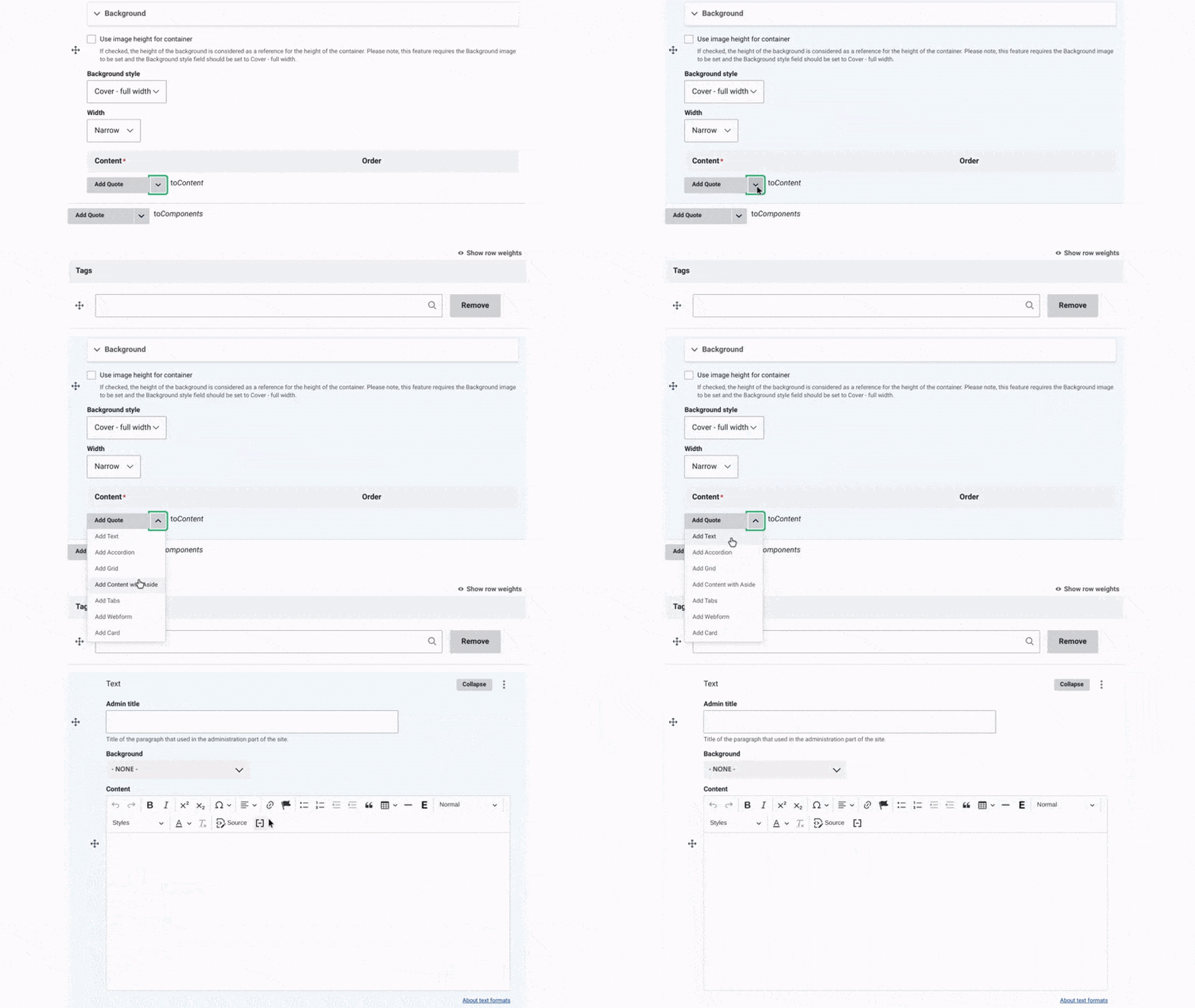
Add Content to the Container:
- Click on the arrow next to "Add Quote to Content."
- From the dropdown menu, choose the type of element you want to add.
Content Options for the Container:
- Text: Add customizable text with font styles, sizes, and media like CTAs, images, or videos.
- Accordion: Organize content with collapsible sections.
- Grid: Use a grid layout for creative content structuring. Explore grid features here.
- Content with Aside: Create two-column layouts for side-by-side content. Learn more about setting up Content with Aside here.
- Tab: Add interactive sections for easy navigation.
- Webform: Collect user input through forms.
- Card: Display key information visually with images, titles, and descriptions.
Save Your Changes and Change the status to "Published".
Examples:
Dynamic
Site Factory enables flexibility and agility in website management. Whether you need to launch a new campaign or adapt to evolving user needs, the platform ensures swift updates and seamless scalability.
Secure
Security is at the heart of Site Factory. The platform is built with industry-leading protocols to safeguard your data and protect against cyber threats, ensuring a trustworthy digital presence.
Group Supported
Site Factory is fully supported by the Group’s digital communication and IT teams. This guarantees consistent updates, expert support, and alignment with the Group’s strategic goals.
Multiple Profiles
With Site Factory, teams can collaborate effectively using customizable profiles tailored to different roles and responsibilities. From content creators to administrators, everyone has the tools they need to excel.

Why Choose Site Factory?

Centralized Management

Cost Efficiency

Accessibility & SEO Compliance

Scalability

Customizable Design

Comprehensive Analytics

Streamlined Collaboration

Future-Proof Technology
2023 Recap