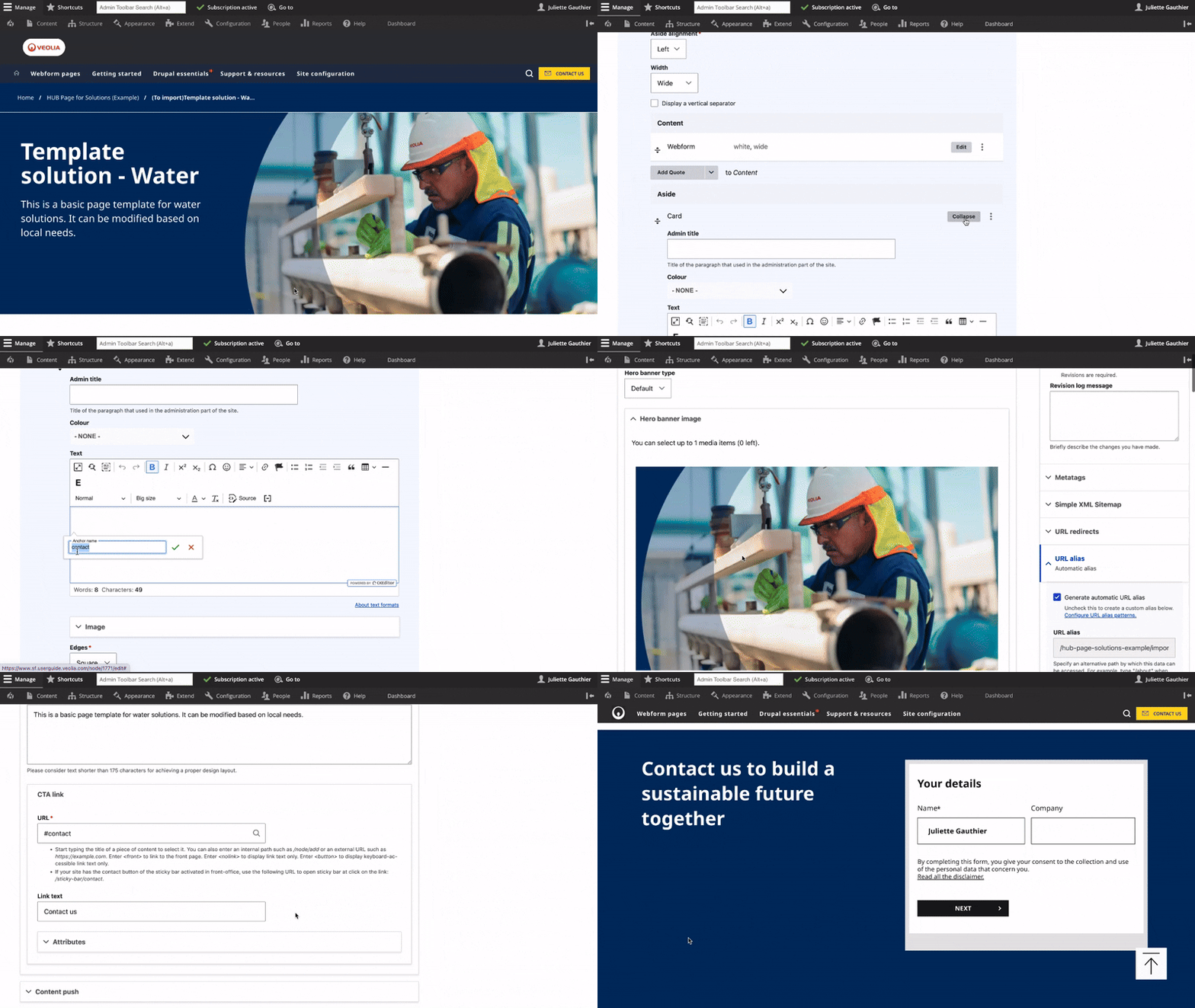
The Text is the rich text editor that allows you to apply various formats and styles of your editorial content.
You can add not only the text but also multiple media such as images, documents, videos, CTA buttons, etc.
How to edit in the back office?
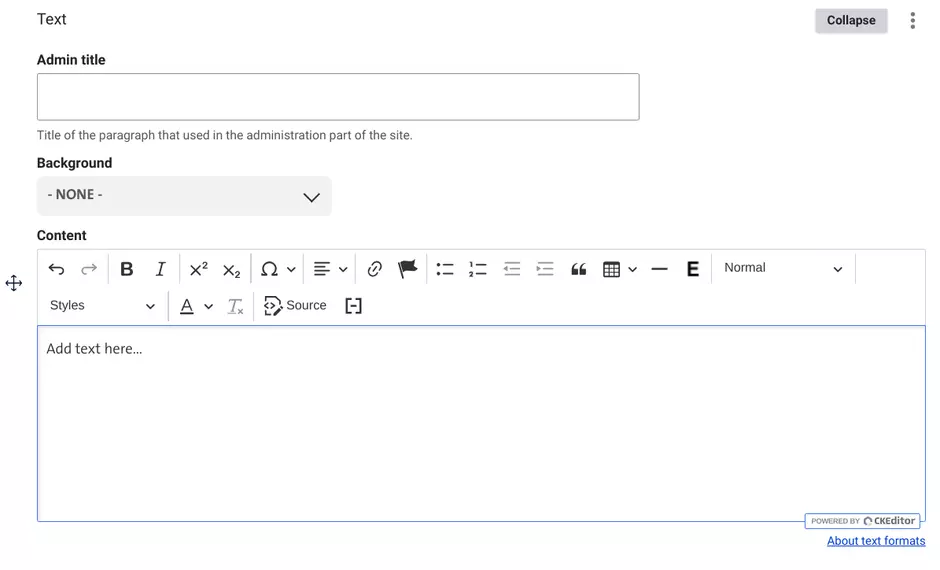
You can add multiple text fields based on your specific needs.
The background color of the text blocks is customizable to align with your design preferences.
Additionally, you are able to upload URL, media, images, CTA buttons to enrich the content.
Examples:
Heading 2
Heading 3
Heading 4
Magna nulla nisi exercitation cupidatat ullamco veniam, quis fugiat aliquip aute minim ut voluptate reprehenderit non tempor occaecat sed labore pariatur. Ut ea proident, amet, commodo enim dolore cillum ad dolore est deserunt do sit sunt eiusmod excepteur nostrud ex culpa qui irure id dolore irure lorem laborum. Anim elit, aliquip ut incididunt eu laboris esse mollit qui ipsum dolor consectetur ad in ut officia dolor consequat.
Medium size Big size Capitalize
Quote Style : Duis in occaecat cupidatat non proident, incididunt velit sed sunt reprehenderit in voluptate deserunt magna labore est aliquip.

Lorem culpa magna quis ut nisi ut non nulla elit, qui anim nostrud deserunt eu sint est et consectetur ut enim do sunt mollit consequat. aute in id Duis in ad dolor magna irure voluptate velit minim deserunt adipisicing non proident culpa.

minim laboris, reprehenderit labore ullamco ex fugiat sed sit aliquip cupidatat irure veniam, incididunt dolore commodo Lorem culpa magna quis ut nisi ut non nulla elit, qui anim nostrud deserunt eu sint est et consectetur ut enim do sunt mollit consequat.