The Publication component lets you showcase documents in a clean, organized list and seamlessly embed them into text for a polished presentation
How to edit in the back office?
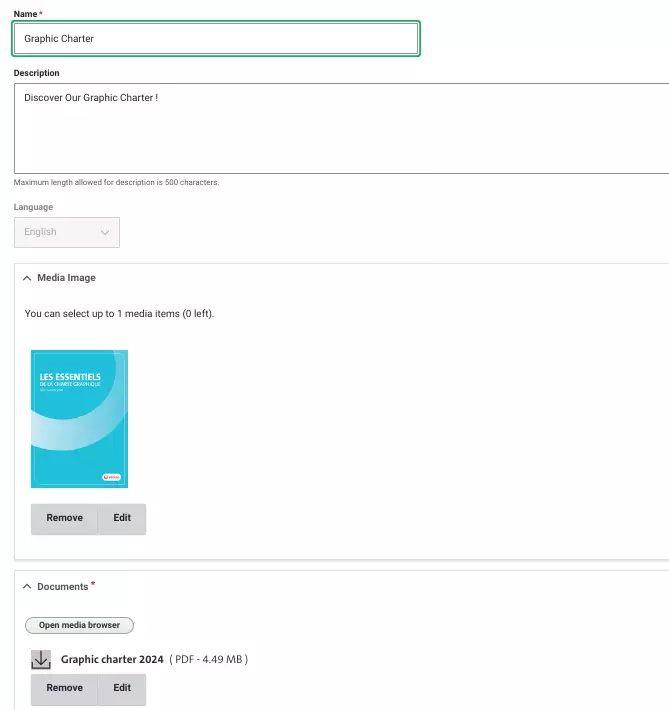
To create a Publication, start by naming it. Navigate to Content and click on the Media tab. Select "Add Media" and choose "Publication" from the list. In the "Create Publication" form, enter the Publication Title to define its purpose.
Next, move on to adding media. Begin by uploading an image file under the Veolia Media Image Source. Accepted formats are PNG, GIF, JPG, and JPEG. This image will serve as the main visual element of your publication.
Then, attach documents to the publication. You can add one or several files under the Documents field. These files will be accessible and open when clicked, providing users with easy access to your content.
Finally, choose a Publication Type from the list. This taxonomy will organize your publication and can also be used as a filter in the front office for easy navigation.
Once all details are added, click "Save" to complete the setup. Your Publication is now ready to use!
Example: