The Gallery component is perfect for displaying a large collection of images or videos, with options to include related content for added context.
How to edit in the back office?
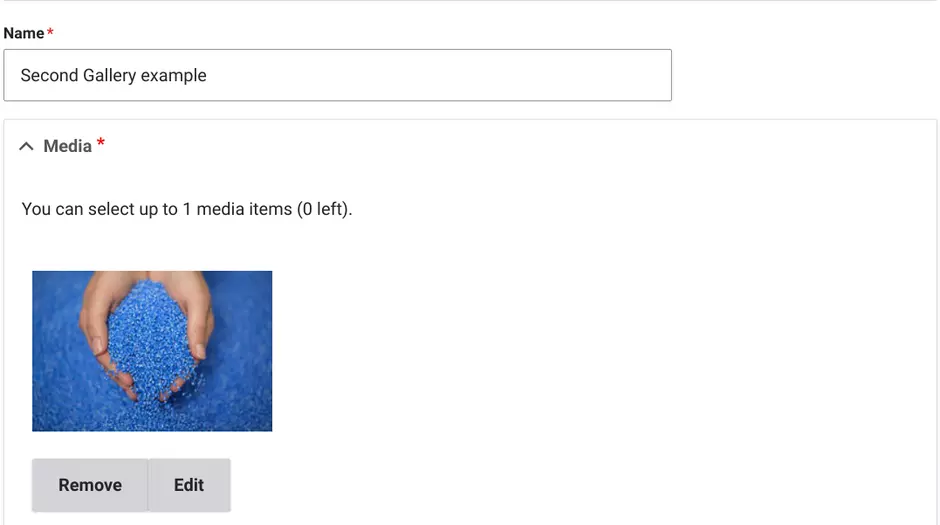
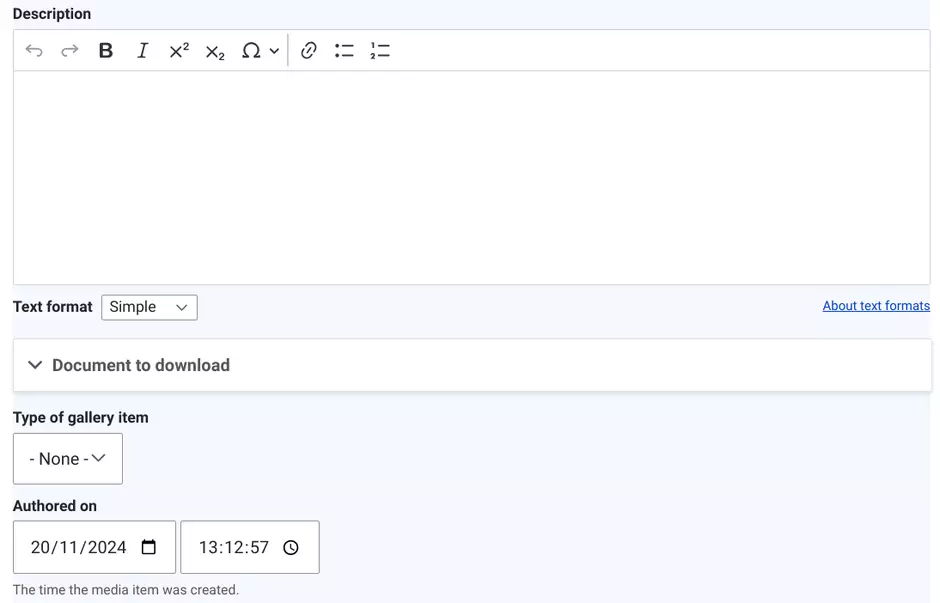
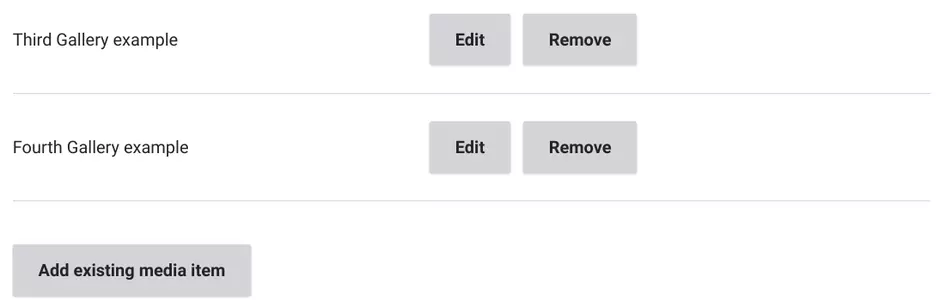
To set up the Gallery component, start by entering an admin title for internal identification in the back office.
In the first tab, choose the desired display mode for each item: either Gallery image or Gallery video, depending on the content type.
Next, add existing media items (images or videos) to the Gallery by selecting them from the media library. Note that these gallery items must be created beforehand.
If you need to adjust the sequence of media, use the drag-and-drop feature in the "Gallery item order" section.
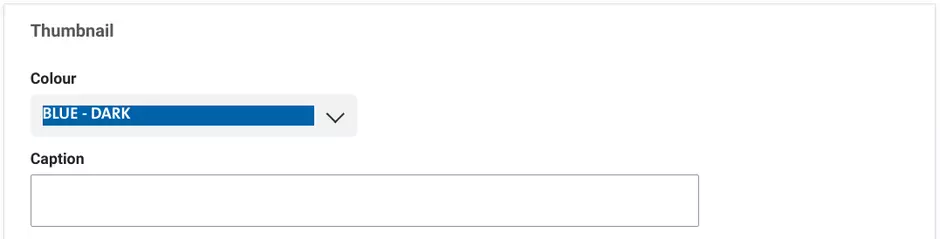
Then, choose the color that will appear when clicking on the gallery before enlarging it.
Add a caption, which is a small text displayed below the image.
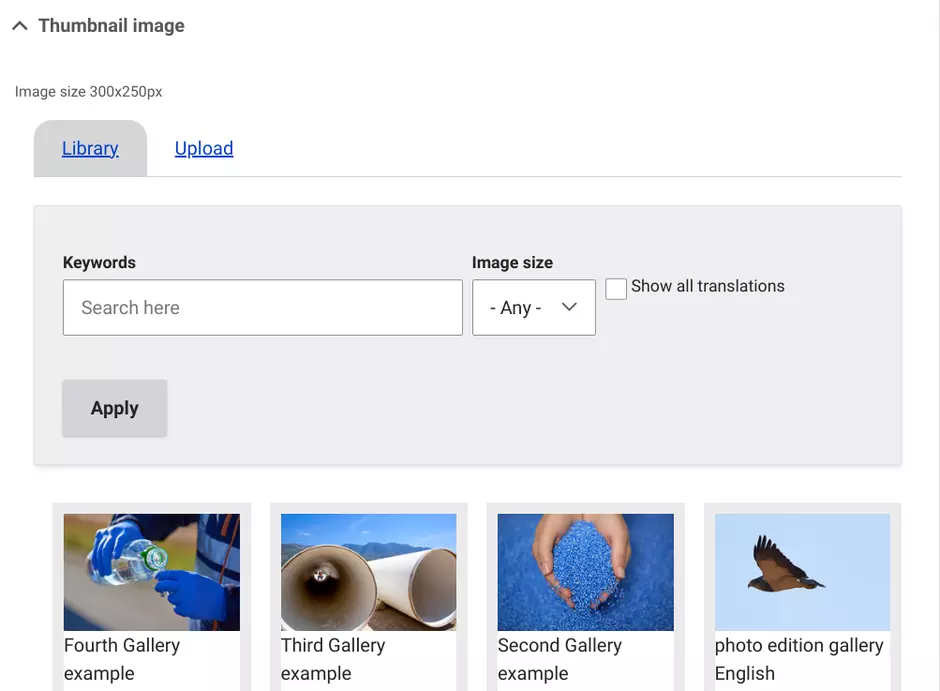
Now, you could select a media item.
If desired, write a description beneath it in text format.
It is also possible to attach a PDF file.
Lastly, use the "Add existing media item" button to include more media as needed, ensuring a dynamic and organized display of visual content.
Examples:
Gallery Photo

First Gallery example




Third Gallery example


Fourth Gallery example

Lorem ipsum dolor sit amet, consectetur adipiscing elit. Phasellus vehicula risus eu sapien bibendum, ac malesuada arcu elementum. Quisque fermentum nulla ut ligula blandit, sed convallis odio pulvinar. Fusce at risus at turpis consequat imperdiet non vel odio. Nam sollicitudin felis sit amet neque laoreet, a cursus magna commodo.
Gallery Video