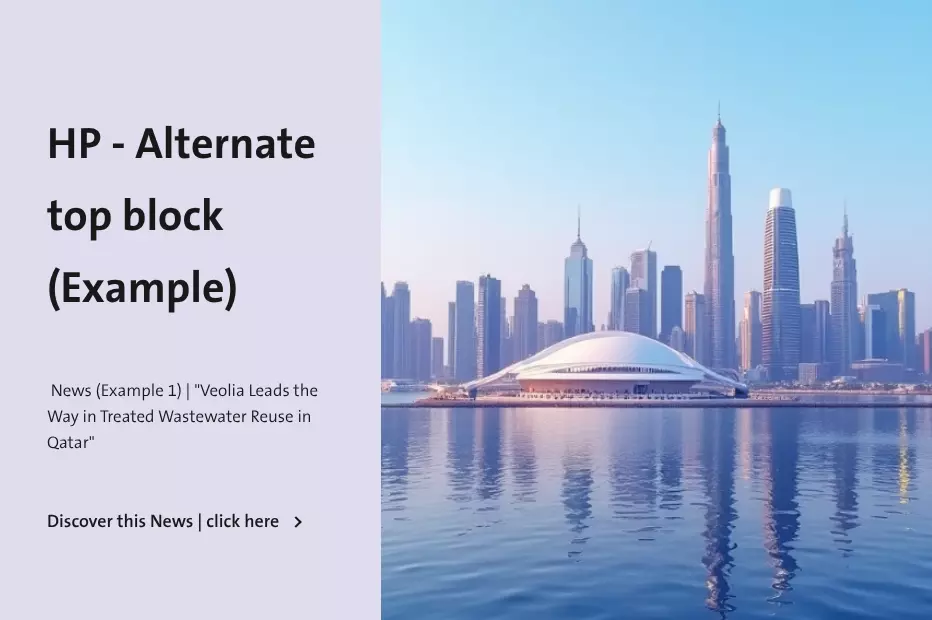
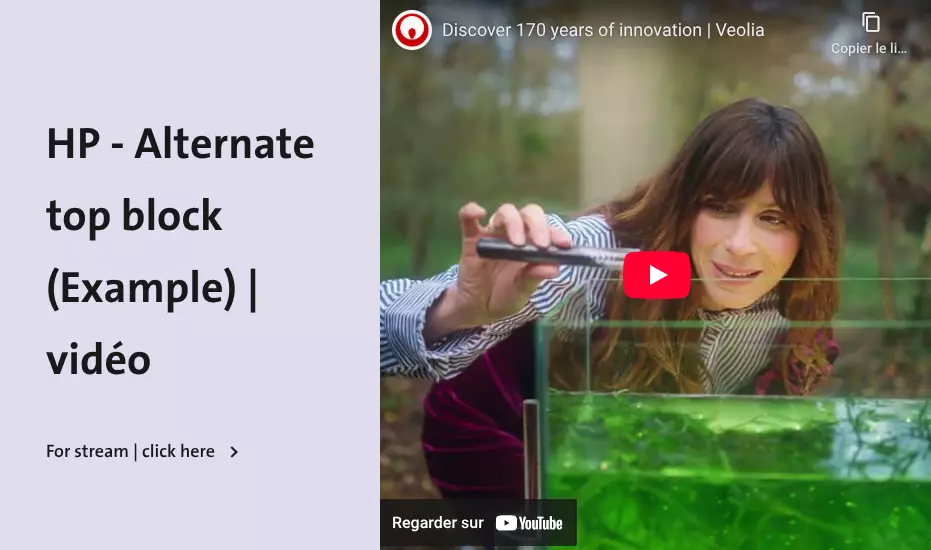
HP - Alternate top block

Home Page - Alternate top block medias are frequently used to showcase dynamic content, such as featured news, promotional banners, or key updates


How to edit in the back office ?
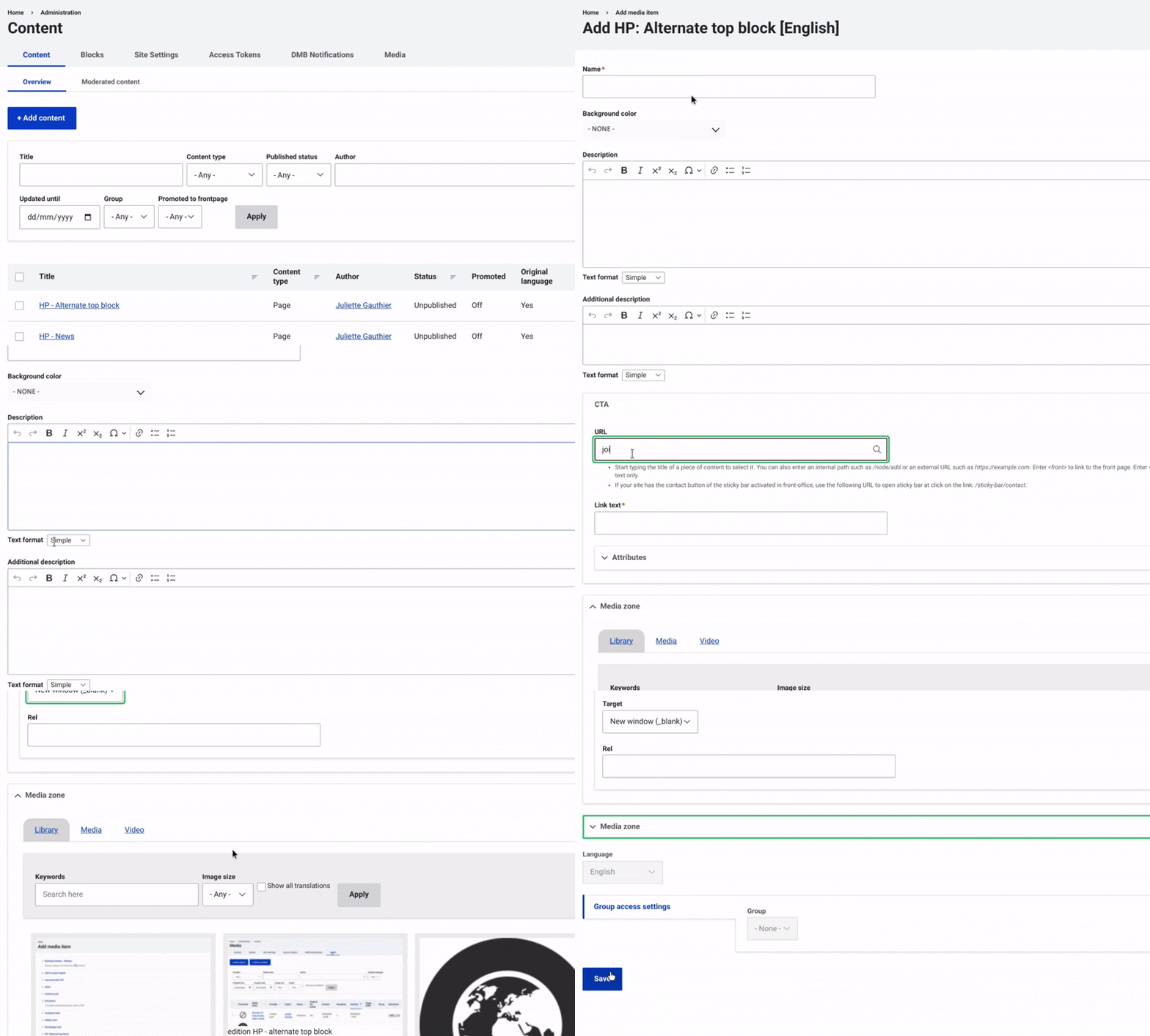
HP - alternate top block edition GIF

First, navigate to Content and select Media from the top menu on the right. Then, click on +Select Entities and choose HP - Alternate top block.

Once this is done, enter a name. Next, choose a background color using the dropdown menu.

After that, you can include a description if desired.

Then, add the text for the CTA button. In the Attributes field, choose whether the button should keep users on the current page after clicking or open the redirection page in a new window.

Once this done, you can choose to include a media: add an image or an embeded video.

Finally, make sure to select 'Save' to complete the CTA button setup and finalize the process.


Discover HP - Medias to Enrich Your Website Pages 


Ask for support

We use ServiceNow to track all of your requests and questions