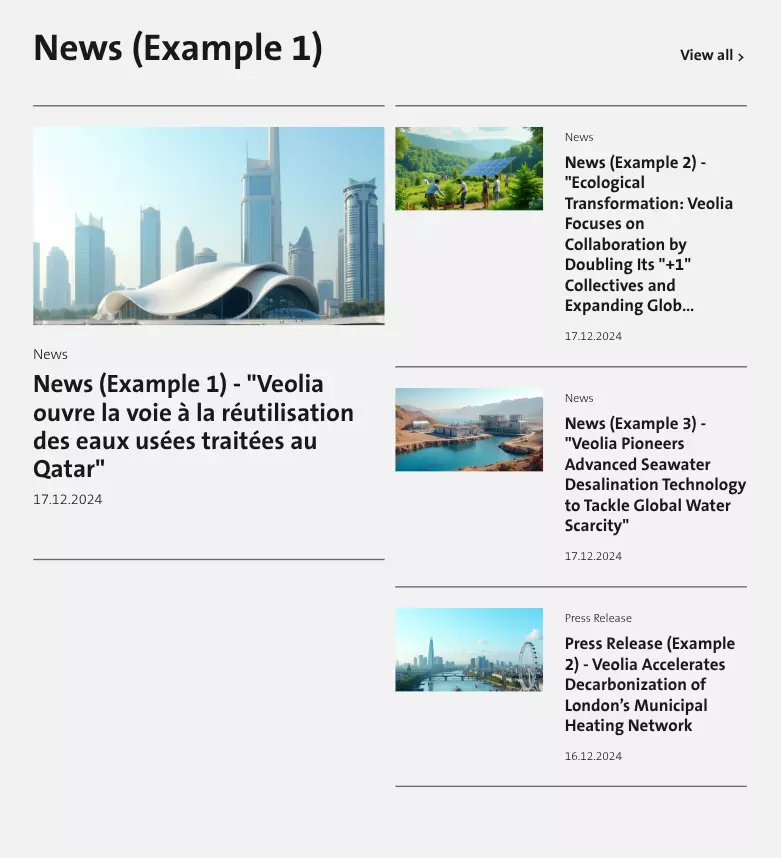
Home Page - News displays the latest updates, articles, and announcements, keeping users informed about recent developments and important information.
How to edit in the back office ?
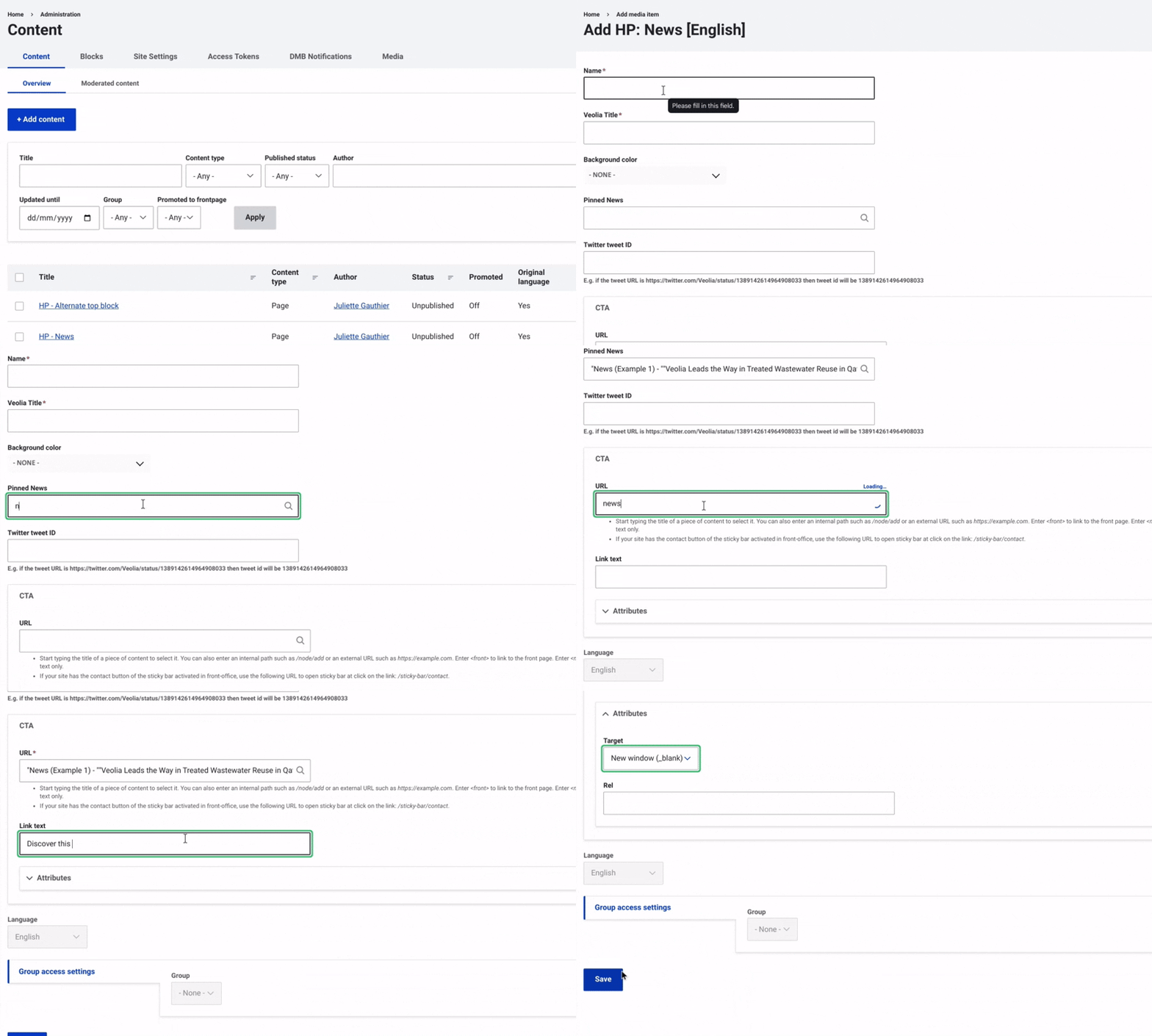
First, navigate to Content and select Media from the top menu on the right. Then, click on +Select Entities and choose HP - News.
Once this is done, enter a name. Next, fill in the Veolia Title, which corresponds to the title of the Veolia news.
Then, choose a background color using the dropdown menu.
You can also select Pinned News if you want this news item to remain highlighted.
Next, add the text for the CTA button. In the Attributes field, choose whether the button should keep users on the current page after clicking or open the redirection page in a new window.
Finally, make sure to select 'Save' to complete the setup and finalize the process.
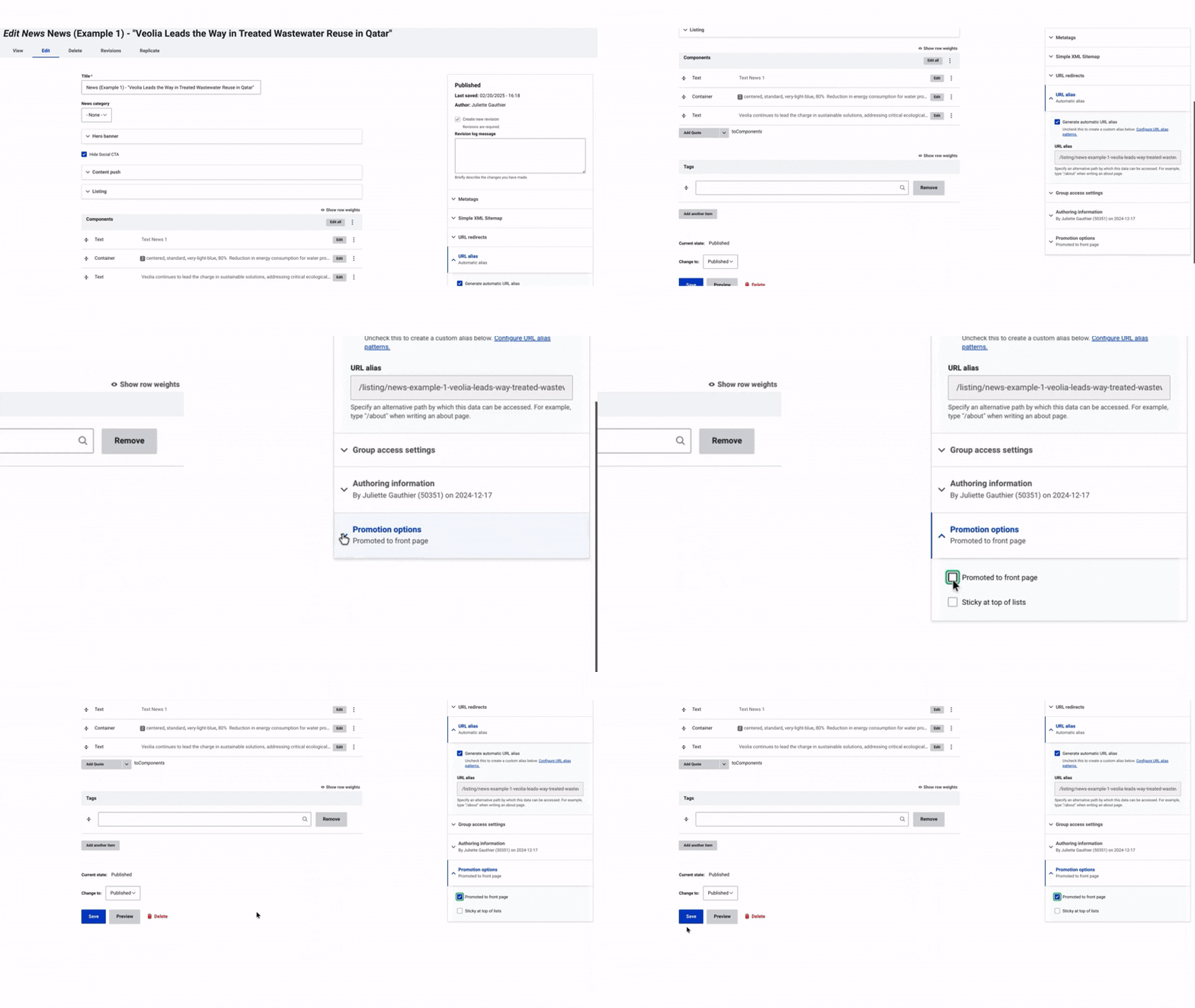
Go to the News creation page by accessing the back office where you create or edit your News.
Scroll down to the bottom right of the page and find the last dropdown menu.
Check the "Promoted to front page" option to feature the NEWS on the homepage.
Click Save to apply the changes. This process applies to both News and Press Releases.