HP - Generic content

Home Page - Generic content allows the display of various content types for general information, updates, and promotional purposes on the homepage.


How to edit in the back office ?
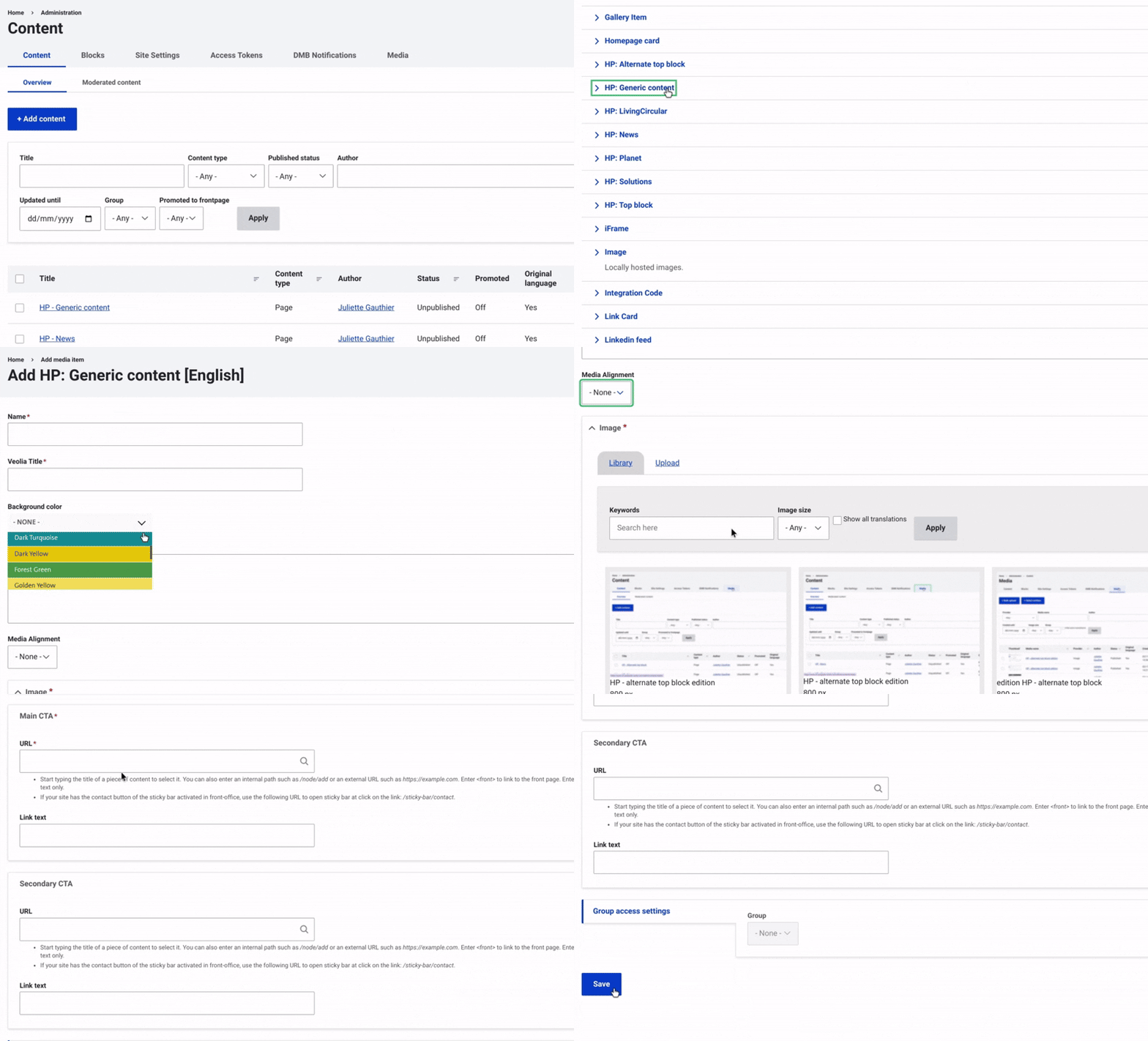
HP - Generic content edition GIF

Navigate to Content and select Media from the top right menu. Then, click on +Select Entities and choose HP - Generic content.

Enter a name, then fill in the Veolia Title, which corresponds to the title of the Veolia content.

Choose a background color from the dropdown menu and add an introduction if needed.

Configure the Media by setting the alignment and adding an image

Set up the main CTA button: In the URL field, enter the page you want users to be redirected to. Then, add the text for the CTA button. Do the same for a second CTA, if necessary.

Finally, make sure to click Save to finalize the process.


Example: 


HP - Generic content (Example) photot


Discover HP - Medias to Enrich Your Website Pages 


Ask for support

We use ServiceNow to track all of your requests and questions