This procedure allows you to list all the local offices or business units for our clients.
It involves two steps:
Step 1: create a "Location" page
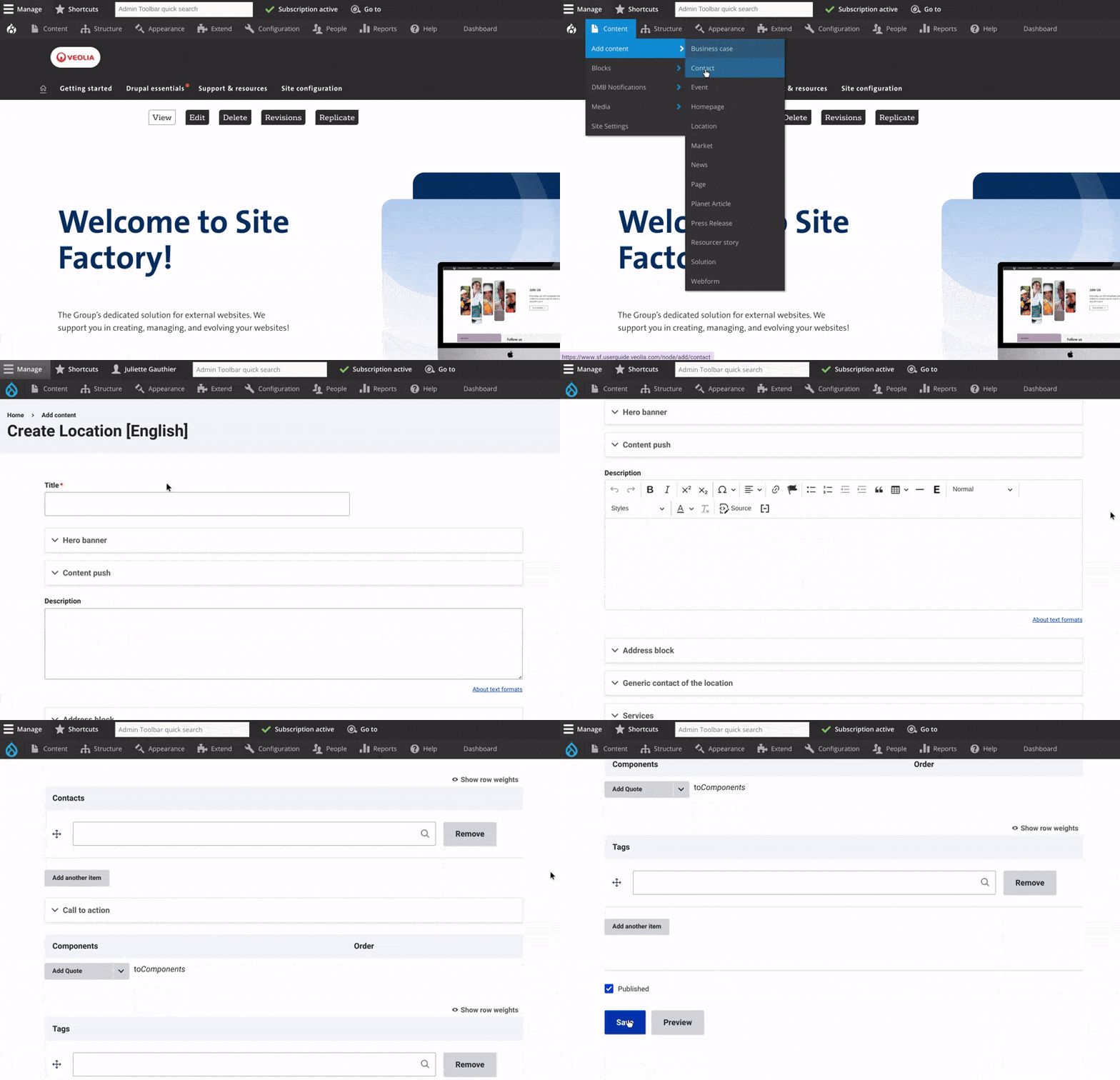
Description: Rich text area for describing the location. Note that media can be inserted if needed
Address block:
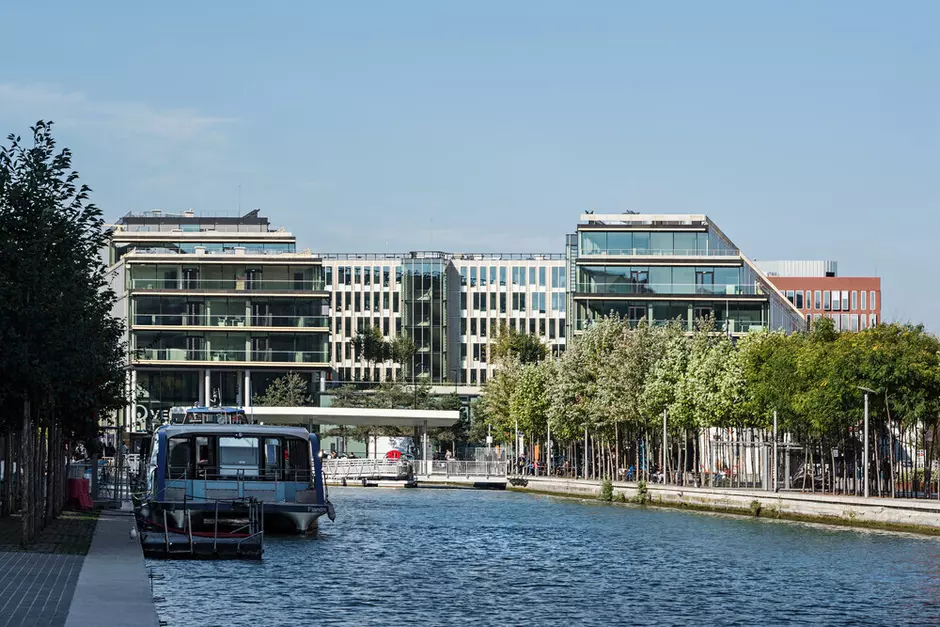
- Thumbnail: Small picture present on the left of the address field. You can either with a picture of the office or a picto for localization
- Address: All information needed for geographic localization
Generic contact for the location:
- Display name: Specifc name to display for the contact (if needed)
- This group of fields is used for bringing all contact information needed. Contact information are based on four types:
- Phone
- Fax
- Toll free
Services (taxonomies)
Location can be associated with a Service, using dedicated taxonomy

Step 2: Create a "hub page" for locations
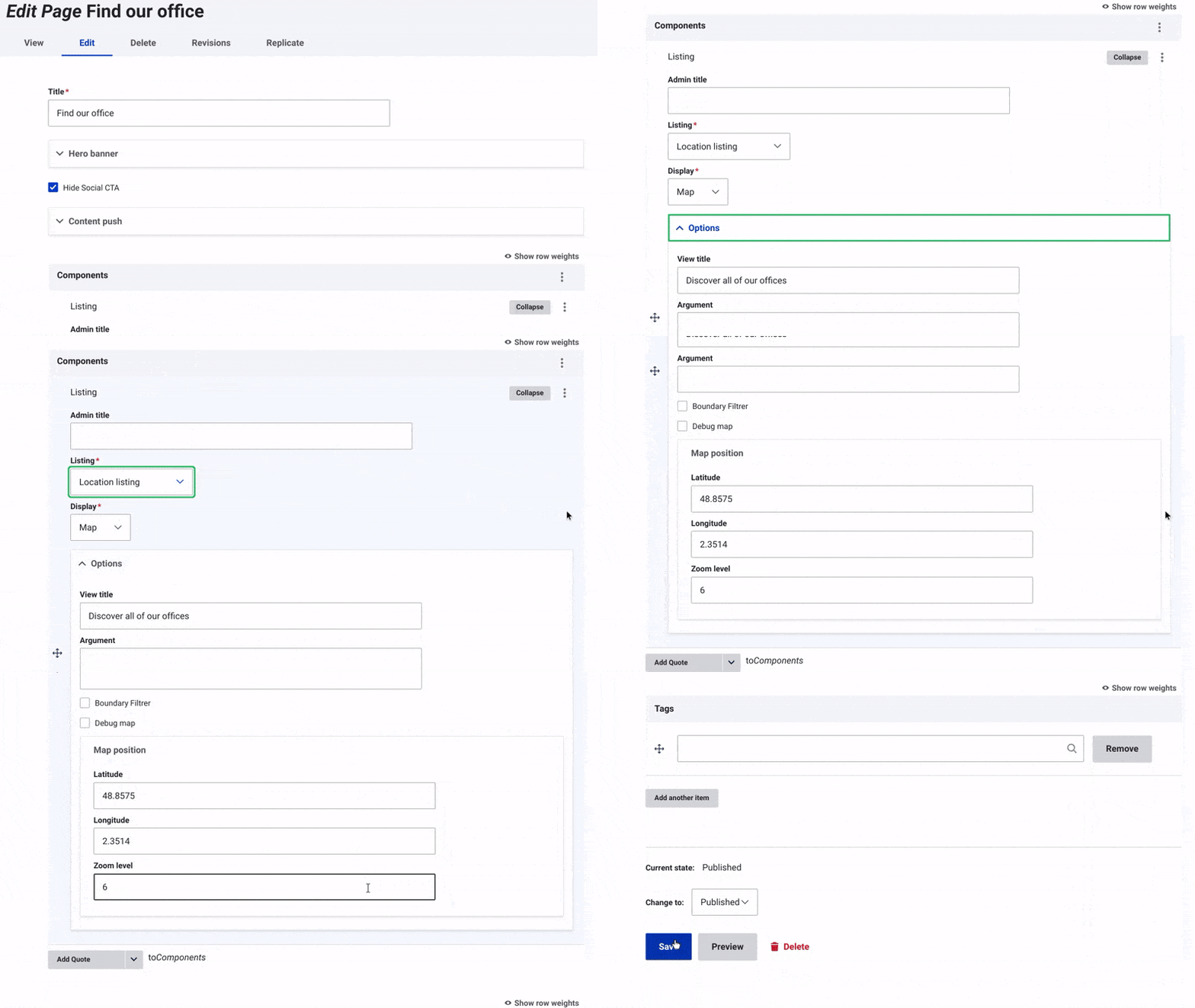
Create a page by using "Page" content type.
Add a new Listing component and select the "location"
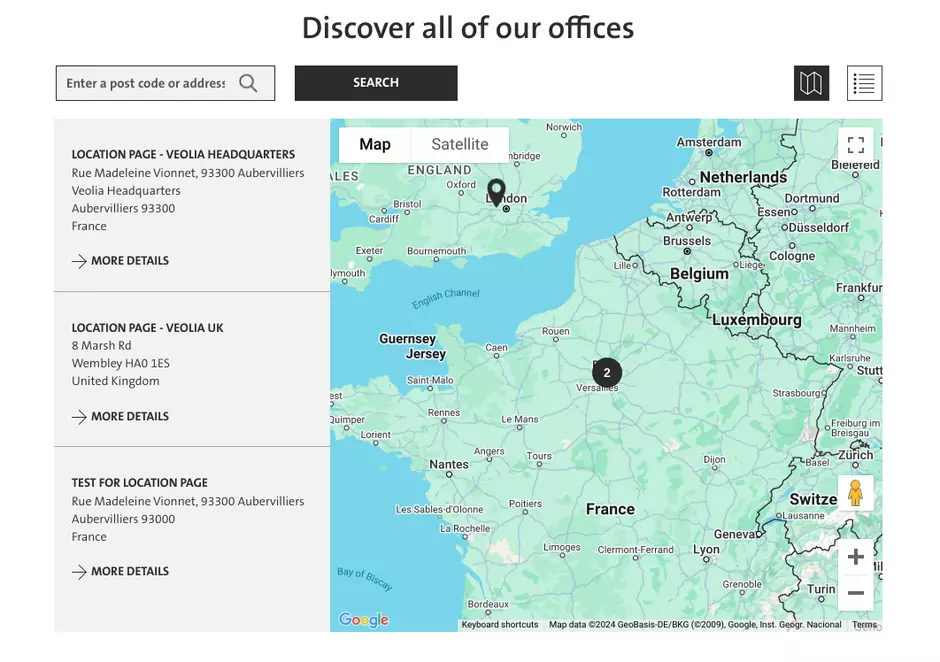
Choose "Map" to show all the locations in a map.
- To find the latitude and longtitube, you can simply use this link and enter a location you want to pin your map.
- The zoom level corresponds to a different level of detail on the map.
- Zoom Levels 0-3: 0: Entire world. 1-2: Continents and large regions. 3: Countries.
- Zoom Levels 4-6: Large countries, states or big regions, and larger cities
- Zoom Levels 7-10: City level, more detailed cities and small towns
- Zoom Levels 11-14: Neighborhoods, detailed street-level or local businesss
- Zoom 11-12: Neighborhoods, streets, and parks.
- Zoom 13-14: Detailed street-level, local businesses, and landmarks.
- Zoom Levels 15-18: Detailed street views, building locations.

Attention:
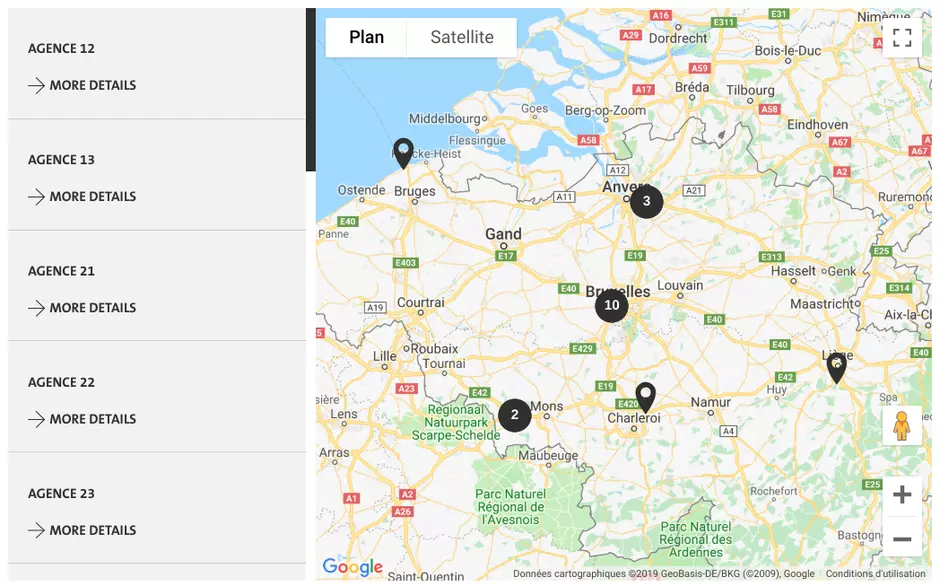
You can either choose "Map" or "Grid" to display all the "location" items.
Map display
Grid display
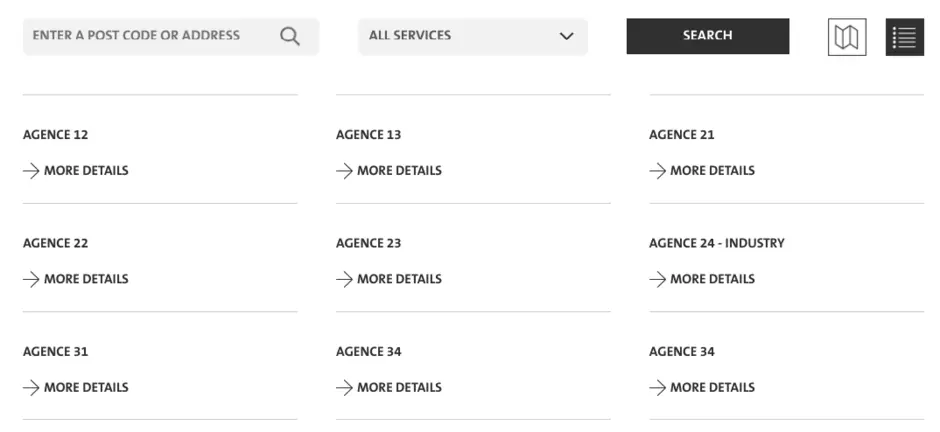
Please note that Grid displays brings filters, allowing user to sort locations thanks to Services taxonomy