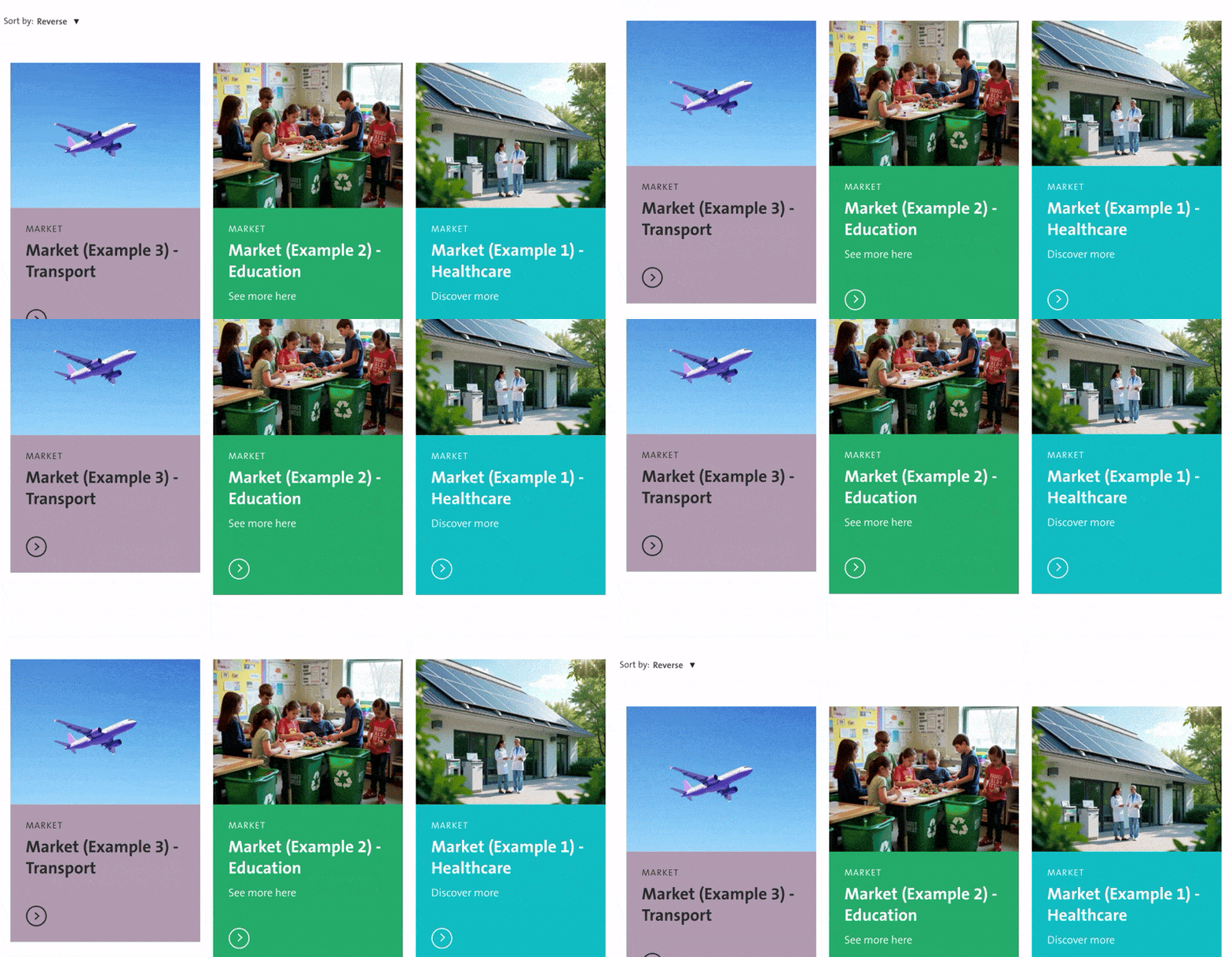
Create Market pages and the hub page

This procedure enables you to showcase our market offerings, providing detailed insights into our solutions and services tailored to meet the needs of diverse industries.

It involves two steps:

Step 1: create a "Market" page
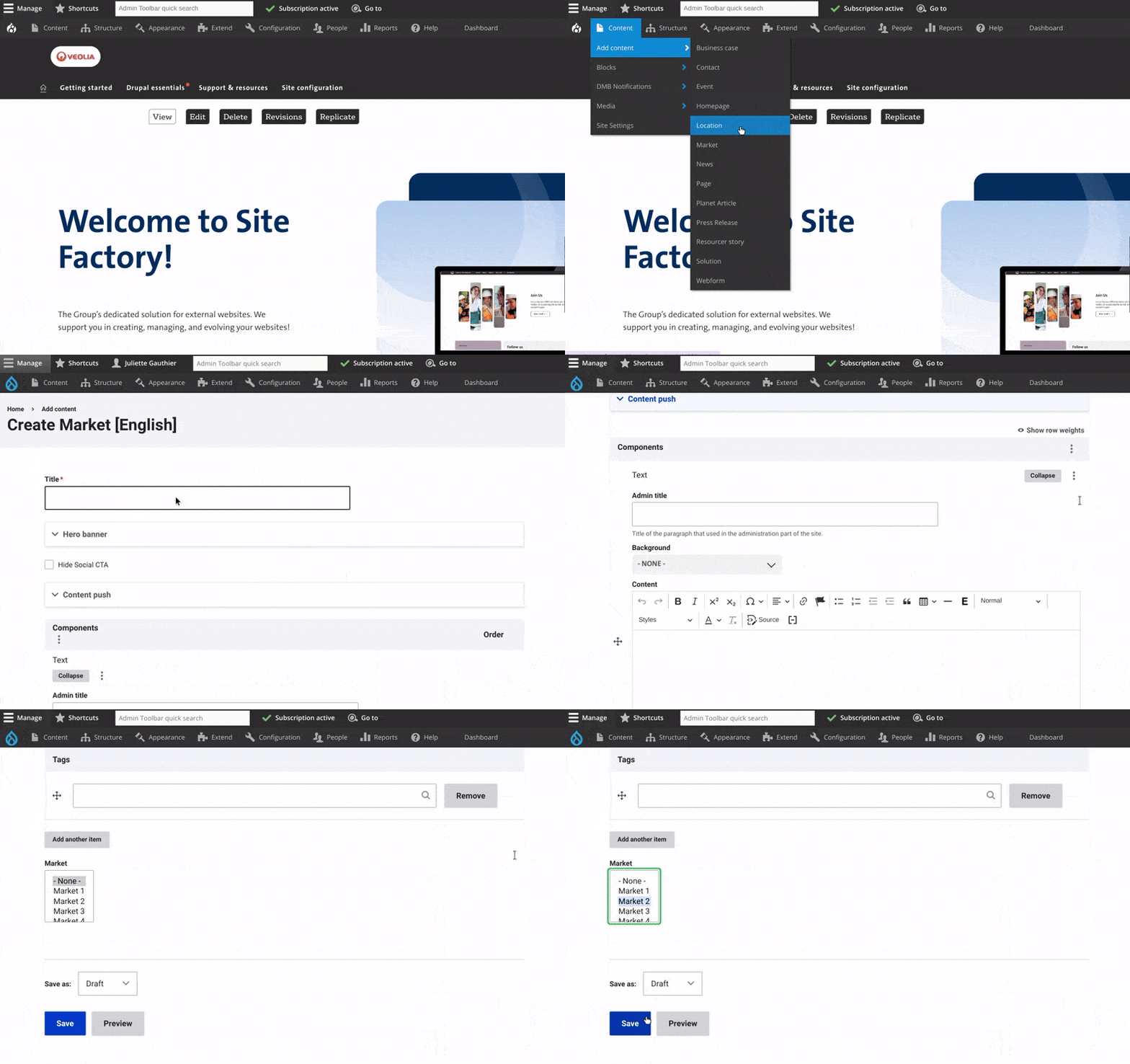
GIF create a Market page
  • Access the Market Page Creation Interface:
    • Click on "Content" in the admin menu. Select "Add Content" and choose "Market."
  • Add the Market Page Title
  • Customize the Hero Banner:
    • Add a Title.
    • Add an image or video at the top of the page. Include text and a CTA button if needed.
  • Set Content Push:
    • Add a title and short description to display on your hub page.
  • Add Content to the Market Page:
    • Provide the main text of the news article. Add any relevant links, images, videos, or other media to enrich the content.
  • Select Market :
    • Categorizes the content based on taxonomy. This helps organize information into specific categories. 
  • Save Your Changes and Change the status to "Published".


Step 2: Create a "hub page" for market pages

  • Create a "Page" content type. Add Market Listing Component
  • In the drop-down menu, select "Block."
  • Configure Options:
    • Title: In the configuration settings, you can specify the title that will appear above all the market examples.
    • Compact Display: Check the "Compact Display" option to use a more compact format where the elements (image, title, and description) do not appear.
  • Save changes and change status to "Published".
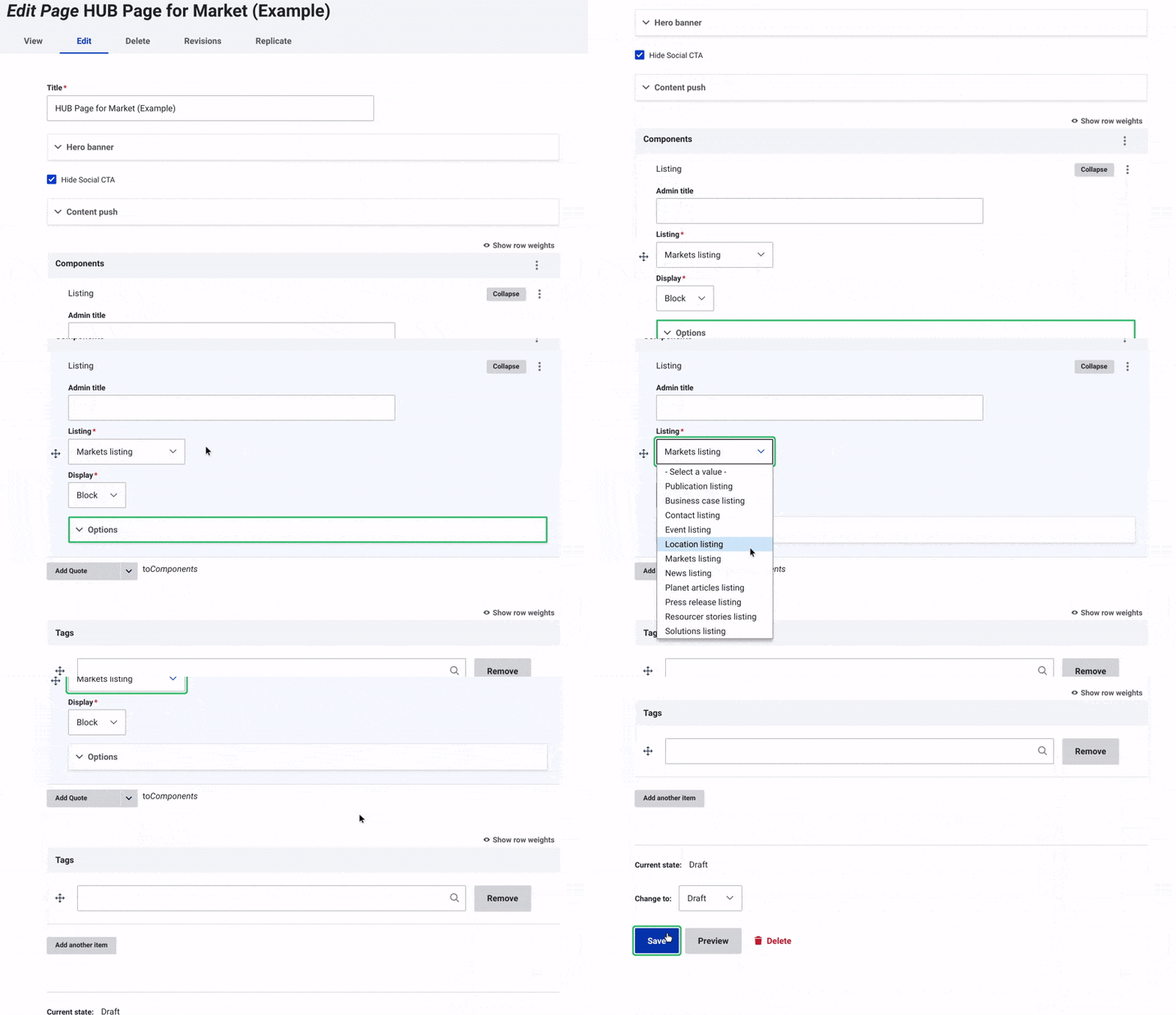
create hub page for market GIF


Discover Content types to Enrich Your Website Pages 


Ask for support

We use ServiceNow to track all of your requests and questions