This procedure enables you to share Veolia's Planet articles, stories, insights, and updates related to Veolia's environmental initiatives and sustainability efforts on your business unit. This content type is only used by the corporate website and Germany country website.
It involves two steps:
Step 1: create a "Planet article" page
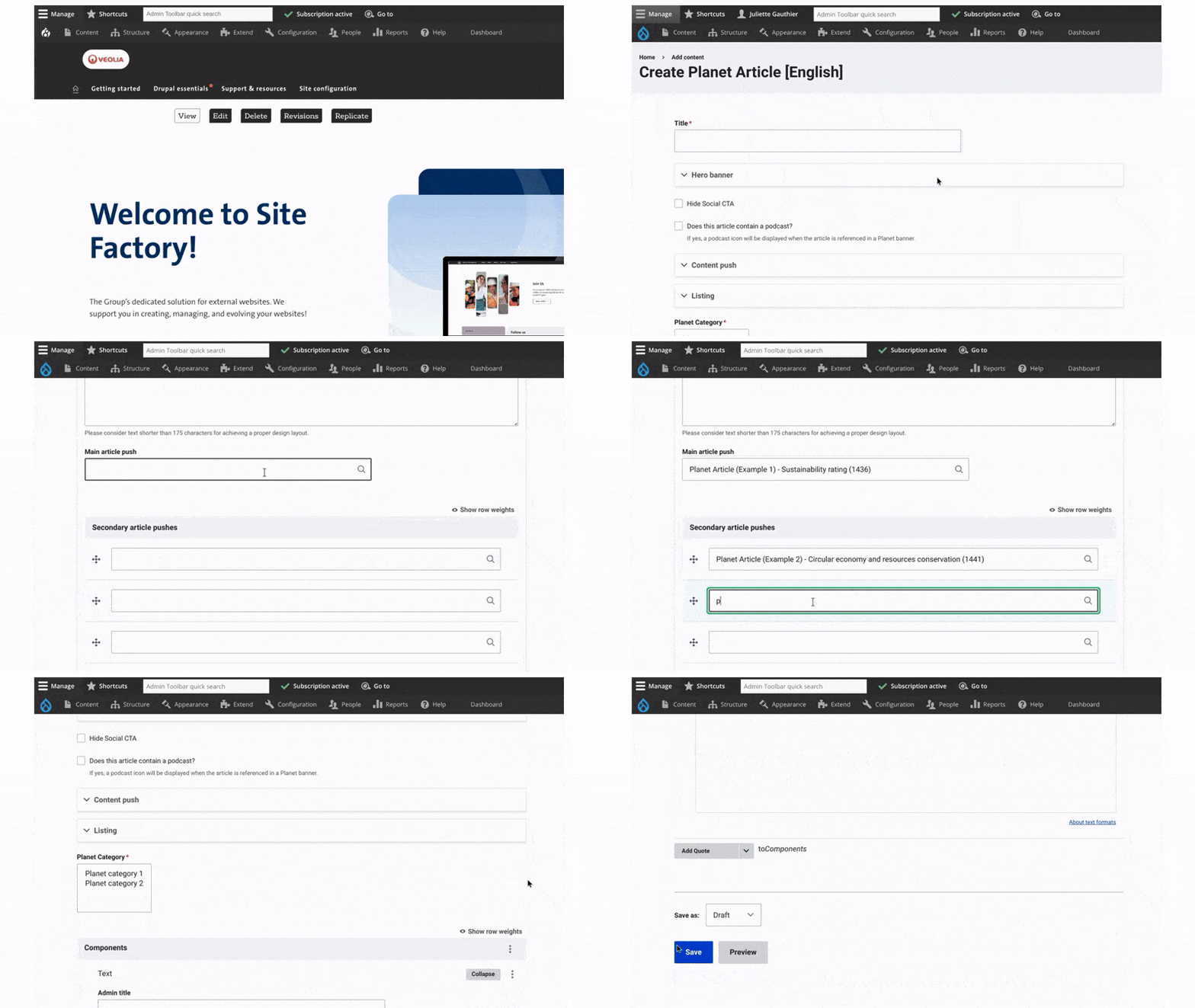
- Access the Planet Article Page Creation Interface:
- Click on "Content" in the admin menu. Select "Add Content" and choose "Planet Article."
- Add the Planet Article Title
- Customize the Hero Banner:
- Add a Title.
- Add an image or video at the top of the page. Include text and a CTA button if needed.
- Set Content Push:
- Add a title and short description to display on your hub page.
- Choose the Category for the Planet Article:
- Select the appropriate category for the article. This helps organize and classify the articles.
- Add Content to the Planet Article:
- Provide the main text of the article. Add any relevant links, images, videos, or other media to enrich the content.
- Save Your Changes and Change the status to "Published".
Step 2: Create a hub page for Planet articles
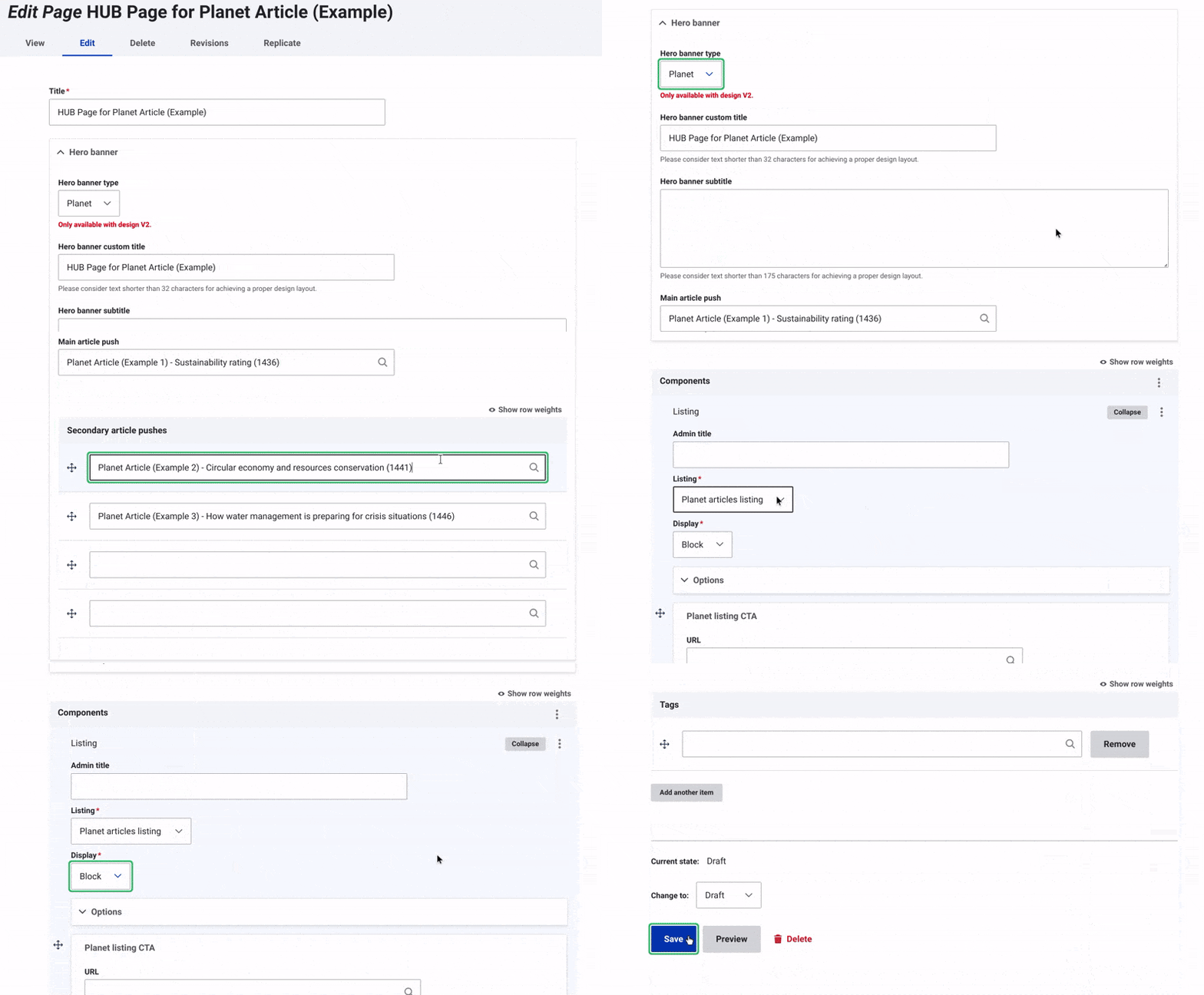
- Create a "Page" Content Type and "Add Content" and choose the "Page" content type.
- Add Planet Article Listing Component:
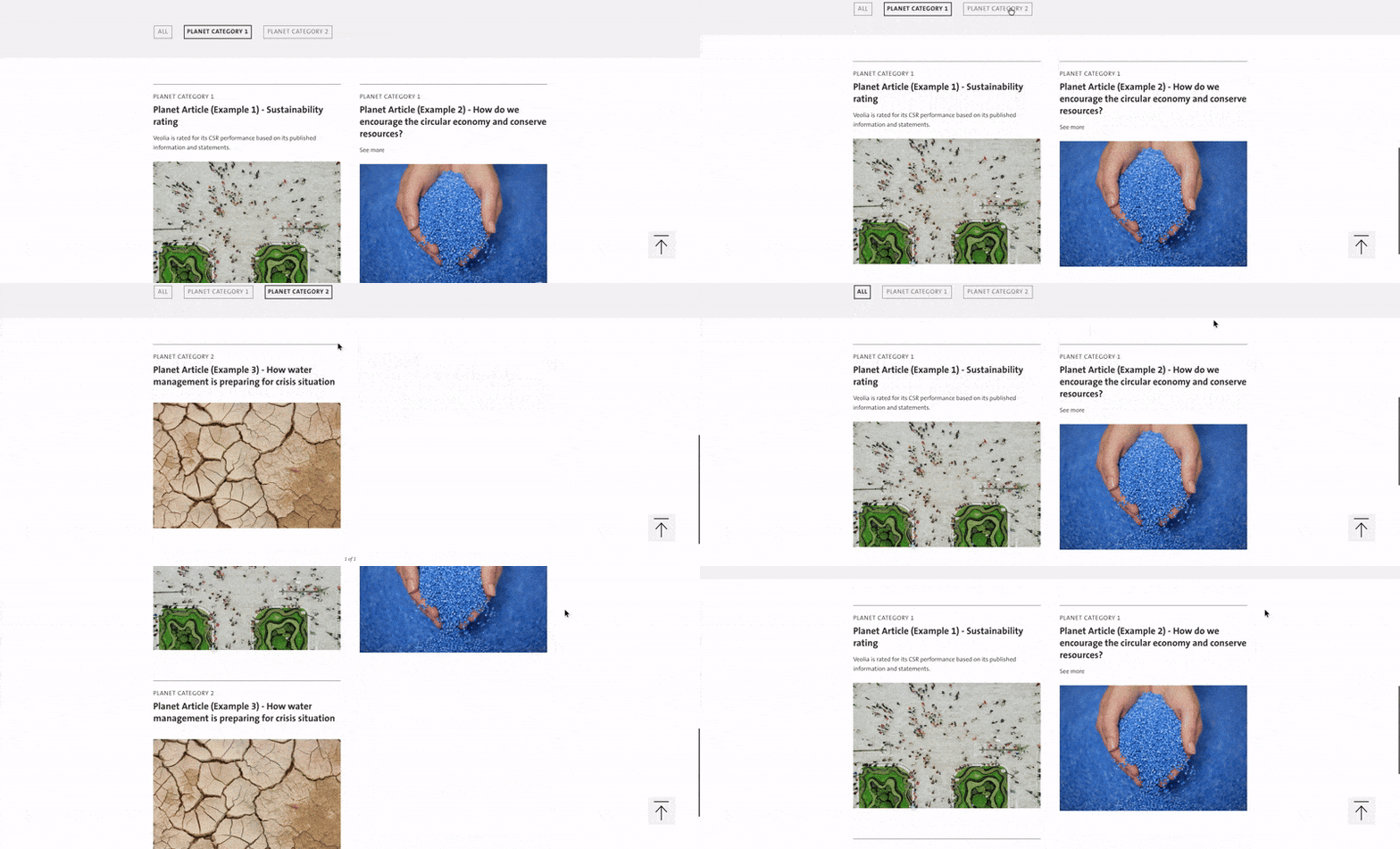
- Add the Planet Article Listing component to the page.
- Customize the Hero Banner:
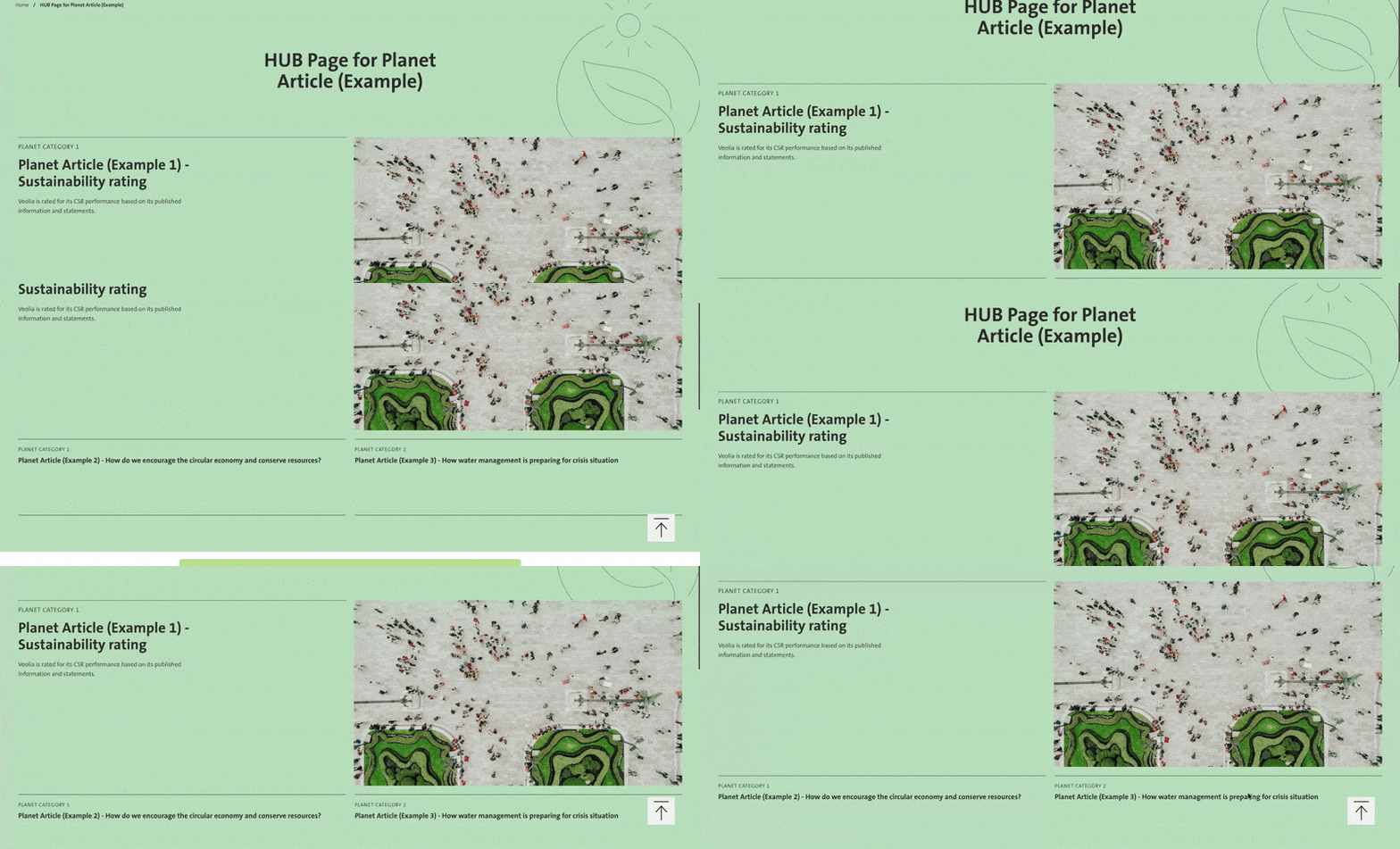
- Choose the "Planet" hero banner type. This will change the entire format of the page to match the Planet style.
- Specify the Articles to Appear Inside the Hero Banner:
- Add the article you want to feature in the "main article push".
- Add the other articles in the "secondary article pushes". You can add up to four articles in this section.
- In the drop-down "Display Menu," select "Block".
- Save Changes and change the status to "Published" to make the page live.