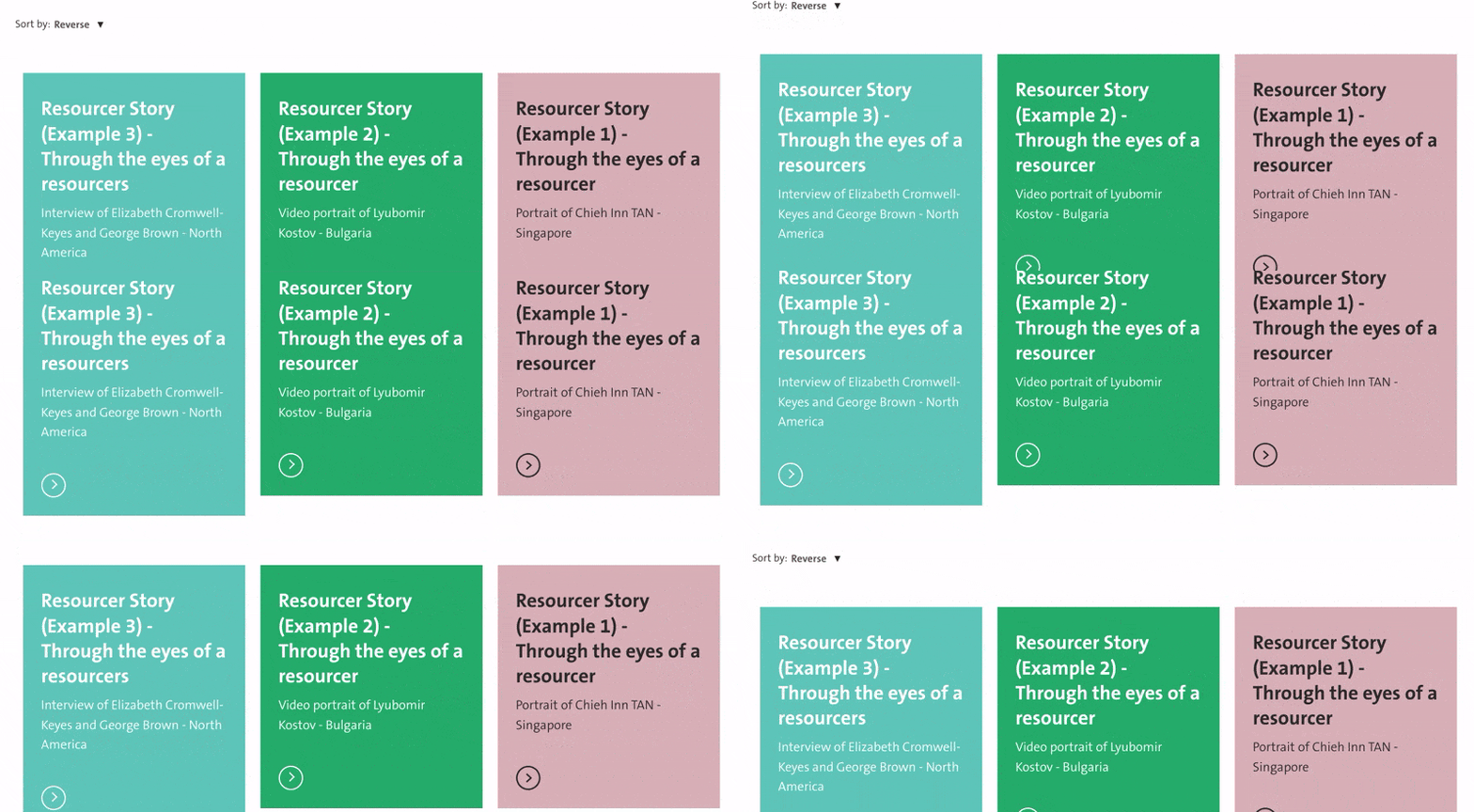
This procedure enables you to showcase valuable resources, case studies, and success stories that are relevant and insightful for our clients. The Resourcer story page is only used by the corporate website.
It involves two steps:
Step 1: create a "Resourcer story" page
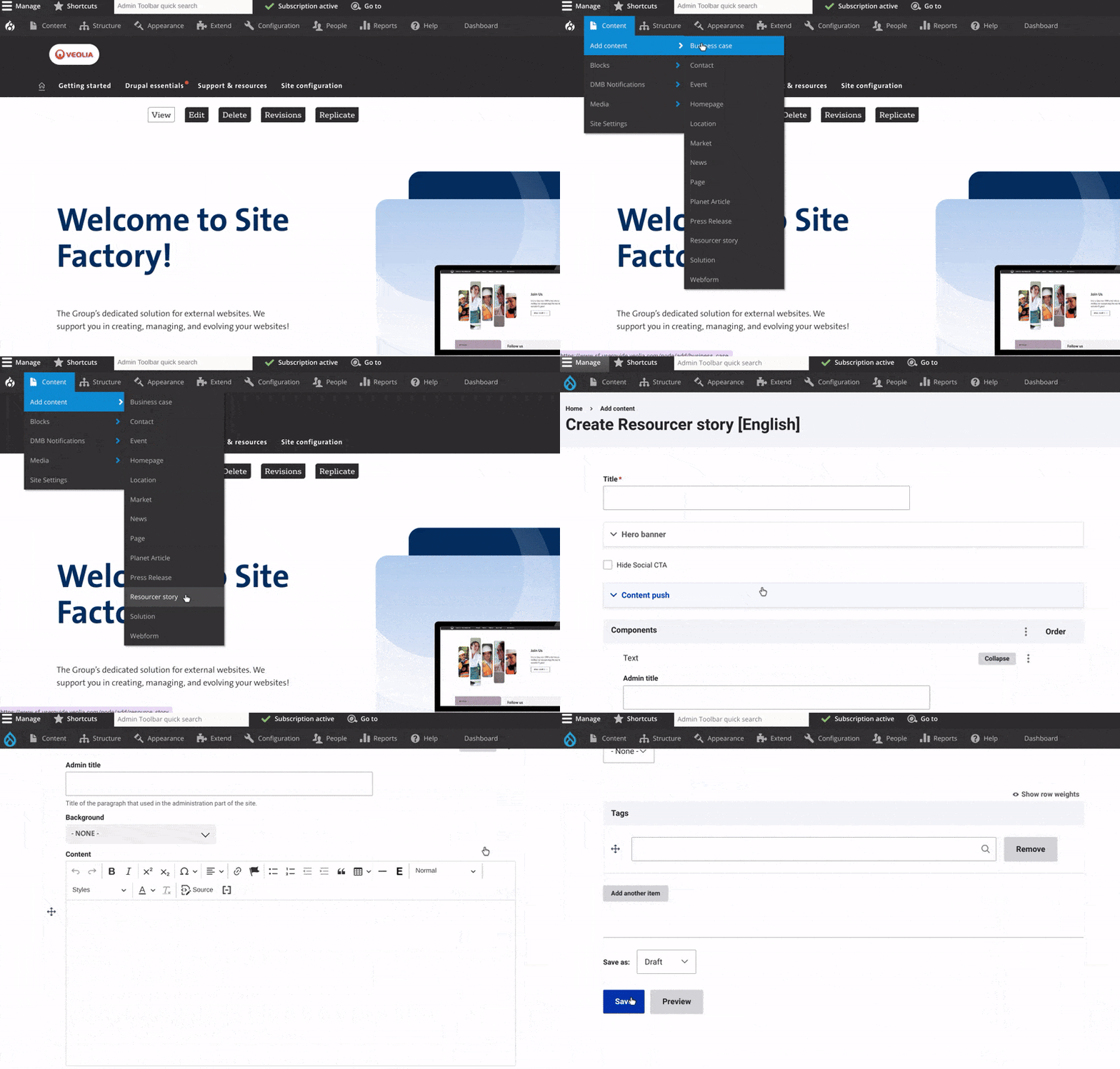
- Access the Resourcer story Page Creation Interface:
- Click on "Content" in the admin menu. Select "Add Content" and choose "Resourcer story."
- Add the Resourcer story Page Title
- Customize the Hero Banner:
- Add a Title.
- Add an image or video at the top of the page. Include text and a CTA button if needed.
- Set Content Push:
- Add a title and short description to display on your hub page.
- Add Content to the Resourcer story Page:
- Provide the main text of the Resourcer story page. Add any relevant links, images, videos, or other media to enrich the content.
- Save Your Changes and Change the status to "Published".




Step 2: Create a "hub page" for resourcers stories
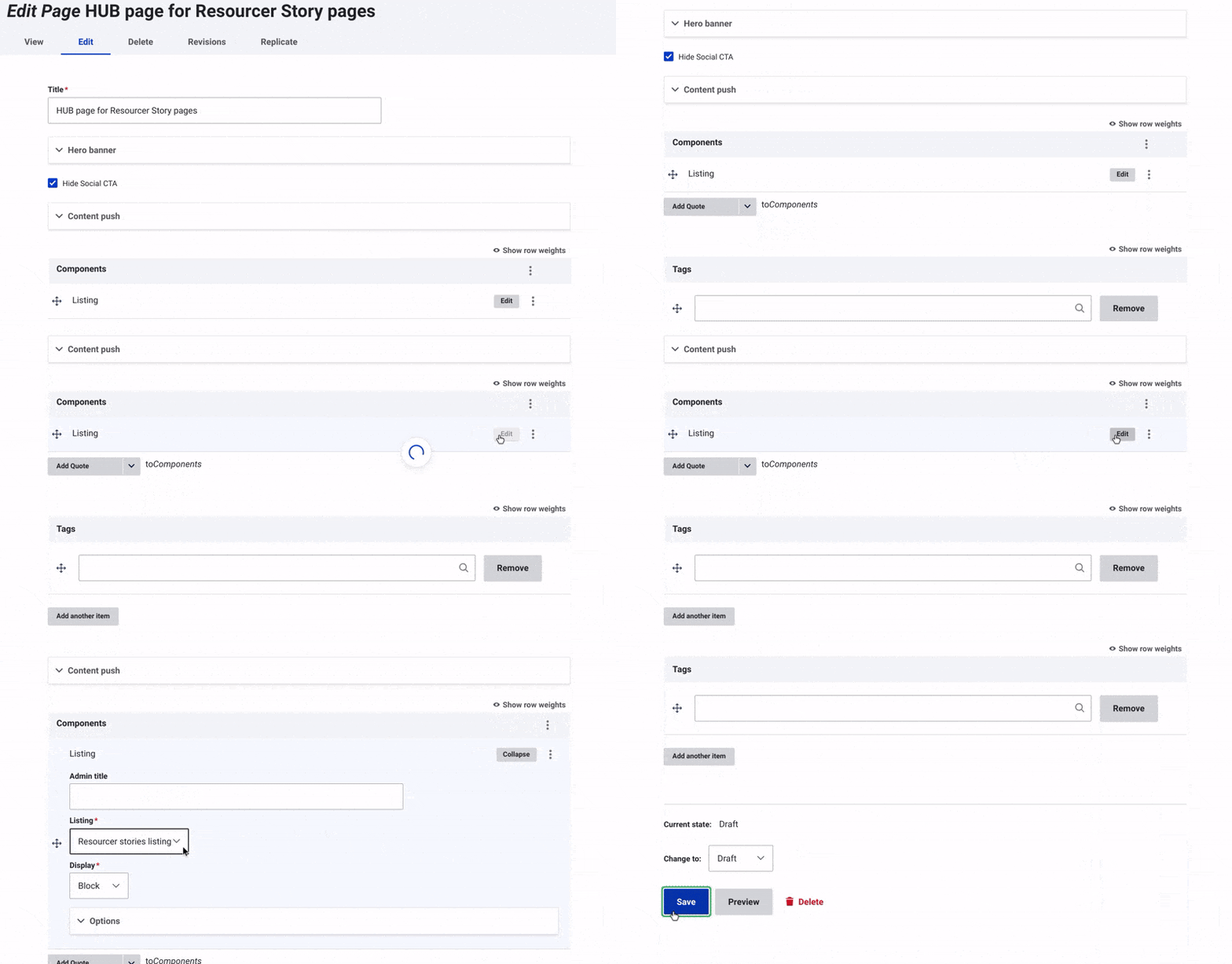
- Create a "Page" content type.
- Add Resourcers Stories Listing Component.
- Add a title above the Resourcers stories listings.
- In the drop-down menu, select "Block."
- Configure Options:
- Title: In the configuration settings, you can specify the title that will appear above all the business cases.
- Compact Display: Check the "Compact Display" option to use a more compact format where the elements (image, title, and description) do not appear.
- Save changes and change status to "Published".