This procedure allows you to present our business cases, offering detailed insights into our expertise and tailored solutions for clients.
It involves two steps:
Step 1: create a "Business Case" page
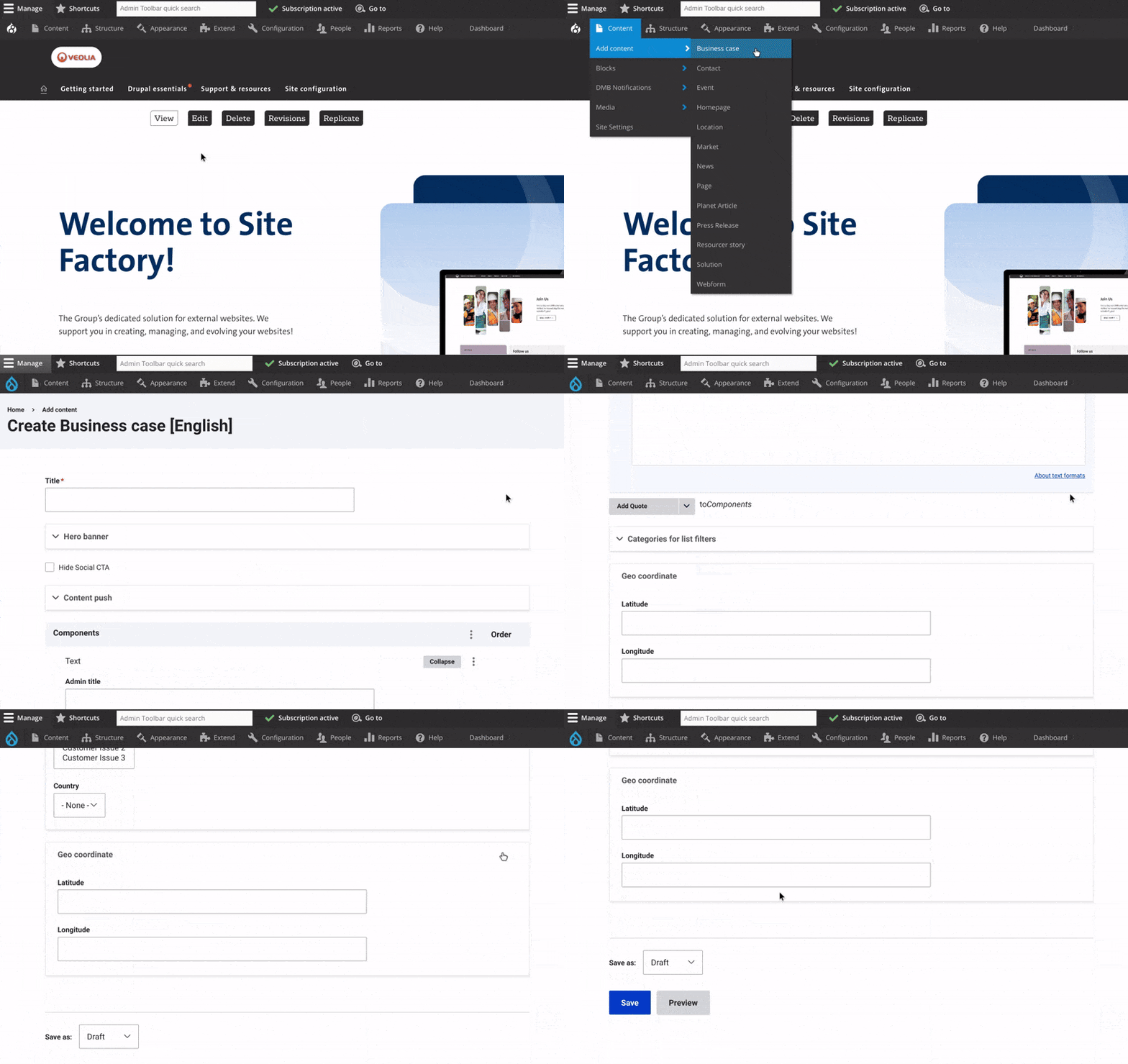

Step 2: Create a "hub page" for business cases
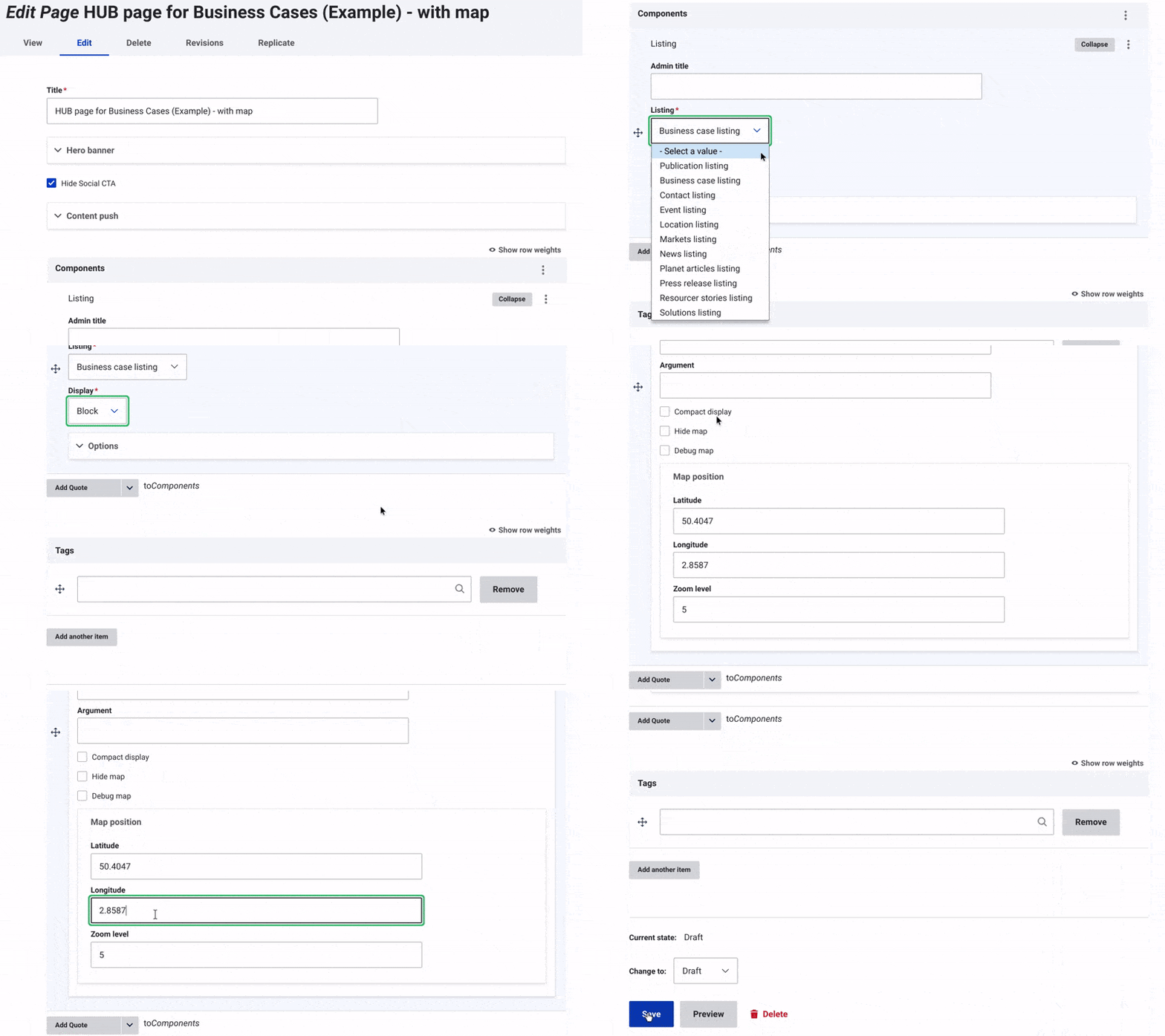
- Create a "Page" content type.
- Add Business Case Listing Component
- In the drop-down menu, select "Block."
- Configure Options:
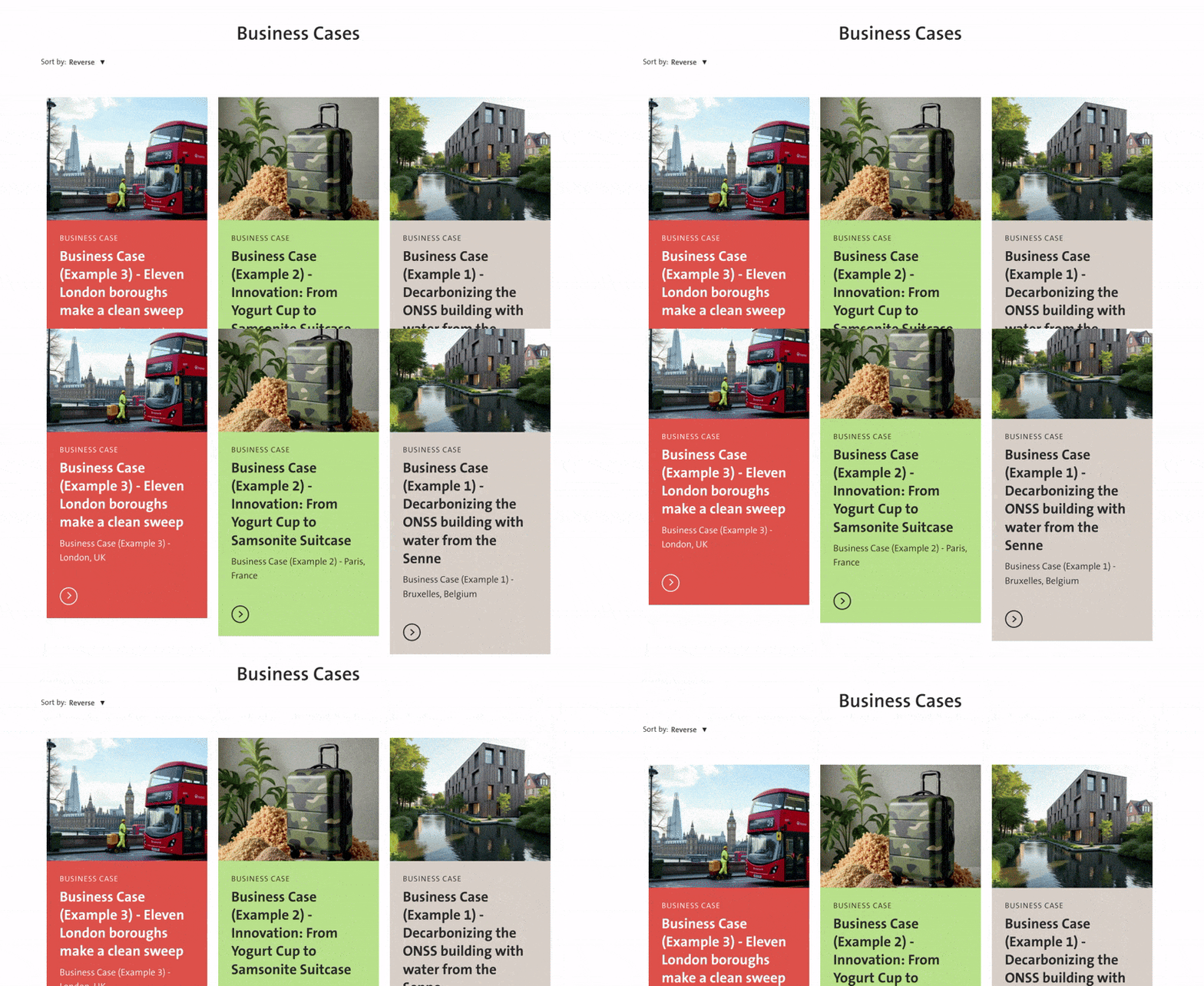
- Title: In the configuration settings, you can specify the title that will appear above all the business cases.
- Compact Display: Check the "Compact Display" option to use a more compact format where the elements (image, title, and description) do not appear.
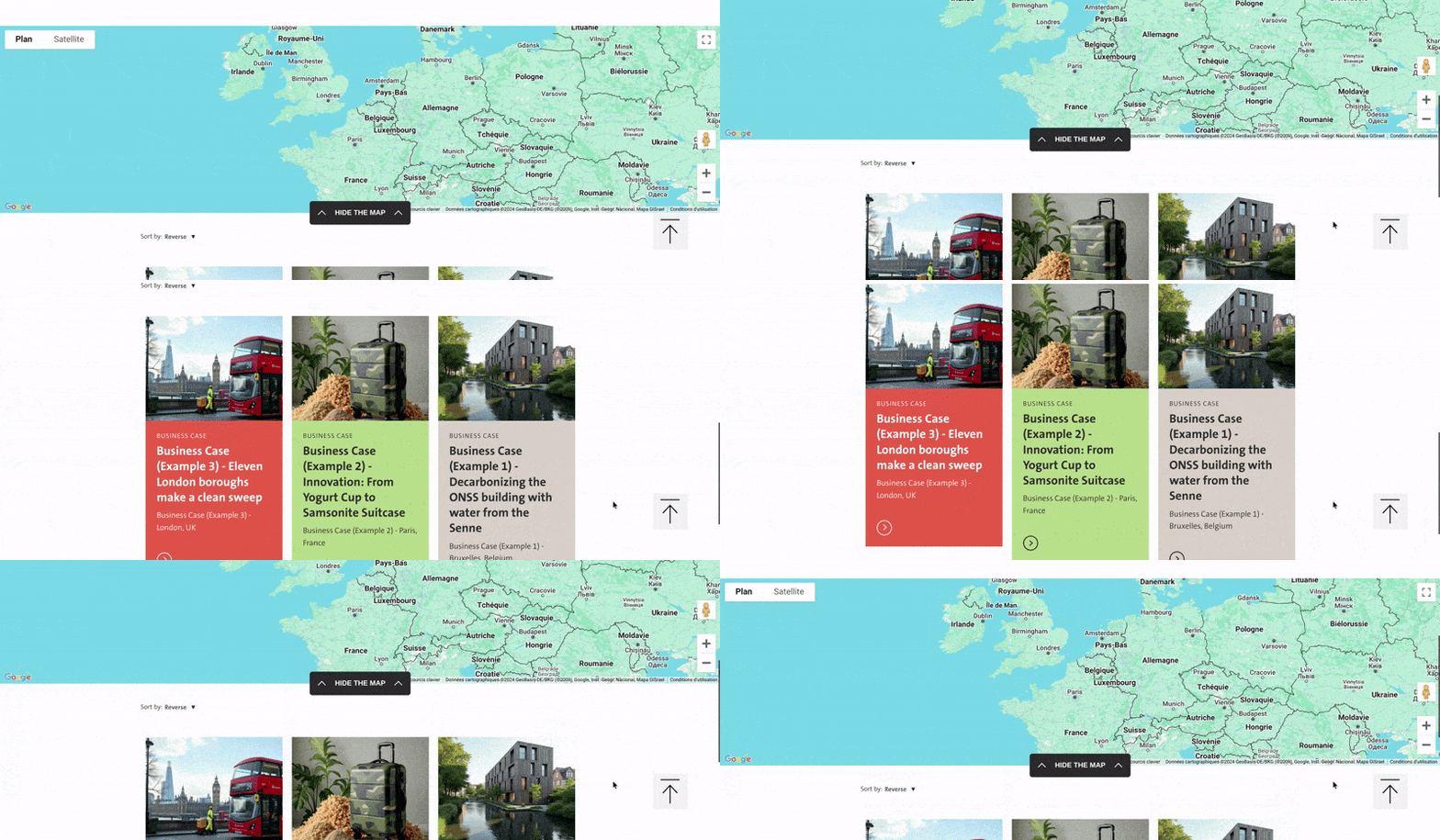
- Hide Map: If you want to remove the map from the hub page, check the "Hide Map" option.
- Map Settings:
- To find the latitude and longitude, you can use this link and enter the location you want to pin on your map.
- Zoom Levels:
- Zoom Levels 0-3: 0 - Entire world, 1-2 - Continents and large regions, 3 - Countries.
- Zoom Levels 4-6: Large countries, states or big regions, and larger cities.
- Zoom Levels 7-10: City level, more detailed cities and small towns.
- Zoom Levels 11-14: Neighborhoods, detailed street-level or local businesses.
- Zoom 11-12: Neighborhoods, streets, and parks.
- Zoom 13-14: Detailed street-level, local businesses, and landmarks.
- Zoom Levels 15-18: Detailed street views, building locations.
- Save changes and change status to "Published".